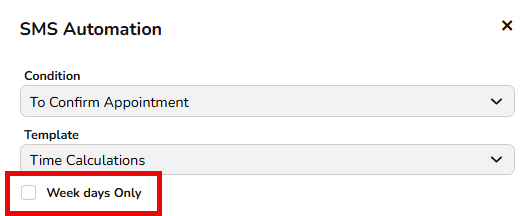
A checkbox has been added under Settings > SMS Automation to enable SMS messages to be sent on weekdays only.
If “Week days Only” is not selected, FYDO will function as it always has. For example, if an automated SMS is scheduled for 1 day prior to the procedure, a patient booked for Monday will receive their SMS on Sunday.
However, if “Week days Only” is selected, the same SMS will instead be sent on the preceding Friday for a patient booked on Monday.
The same is also applicable for the Post Discharge Automated SMS type for SMSs scheduled following the patients discharge.
Logs Improvement
FYDO has introduced an audit log for item numbers within Settings > Logs. This enhancement enables users to track when items are added, removed, or marked as inactive.
OPV On Import
We’ve introduced a new option for claims import clients to run an OPV check on import files prior to claims being imported to FYDO.
FYDO will automatically flag any patients who fail the OPV check
Errors are identified before submission
Users can correct and re-import claims
This feature is optional. If you’d like it turned on for your clinic, please contact our Support Team and we’ll enable it for you.
A checkbox has been added under Settings > SMS Automation to enable SMS messages to be sent on weekdays only.
If “Week days Only” is not selected, FYDO will function as it always has. For example, if an automated SMS is scheduled for 1 day prior to the procedure, a patient booked for Monday will receive their SMS on Sunday.
However, if “Week days Only” is selected, the same SMS will instead be sent on the preceding Friday for a patient booked on Monday.
The same is also applicable for the Post Discharge Automated SMS type for SMSs scheduled following the patients discharge.
Logs Improvement
FYDO has introduced an audit log for item numbers within Settings > Logs. This enhancement enables users to track when items are added, removed, or marked as inactive.
Performance Improvements
We have implemented further performance improvements across key FYDO functions, including patient editing, appointment management, inpatient screen edits, and hospital claiming.
These updates form part of our broader initiative to optimise system performance, reduce response times, and enhance overall usability across the platform.
HBF is part of the Alliance (AHSA) group. If the medical service is provided in WA, you are to use HBF fees. If the service was provided outside of WA and the patient is with HBF, then you will need to use Alliance (AHSA) fees.
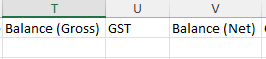
FYDO has now included GST in the Arrears Report when exporting to Excel – Raw Data. The following new columns have been added:
Column T: Balance (Gross)
Column U: GST
Column V: Balance (Net)
Incomplete Report Addition
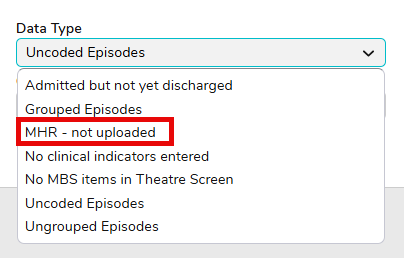
The Incomplete Report can now identify patients who have provided consent for their discharge summary to be uploaded to MHR, but the upload has not yet occurred. This is verified by cross-checking the MHR Consent checkbox on the Edit Appointment screen.
Maternity Hospital Admission Process
This page outlines the standard Fydo workflow for:
Admitting maternity patients
Registering newborns
Entering Hospital in the Home (HITH) details where applicable
This ensures patient records, episodes, and downstream integrations (billing, reporting, data extracts) are accurate.
Maternity Patient Admission
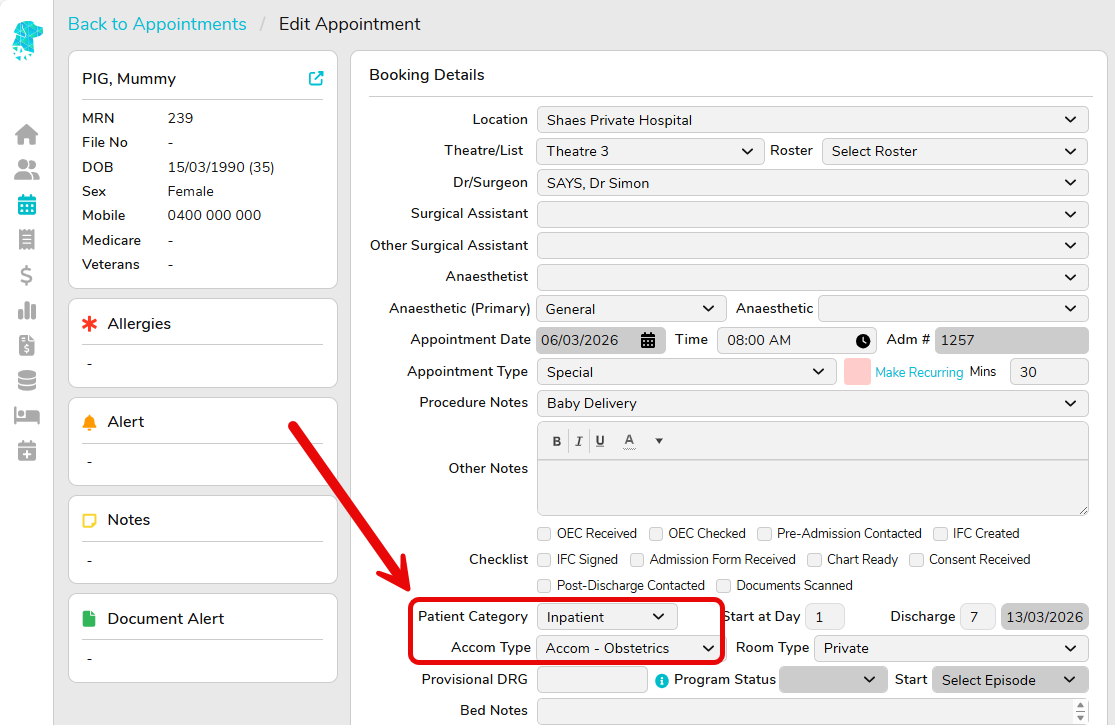
Navigate to Appointment → Right-Click Menu → Make an Appointment
Select the appropriate Patient Category & Accom Type
Once the mother needs to be Admitted, this can be done in the usual matter:
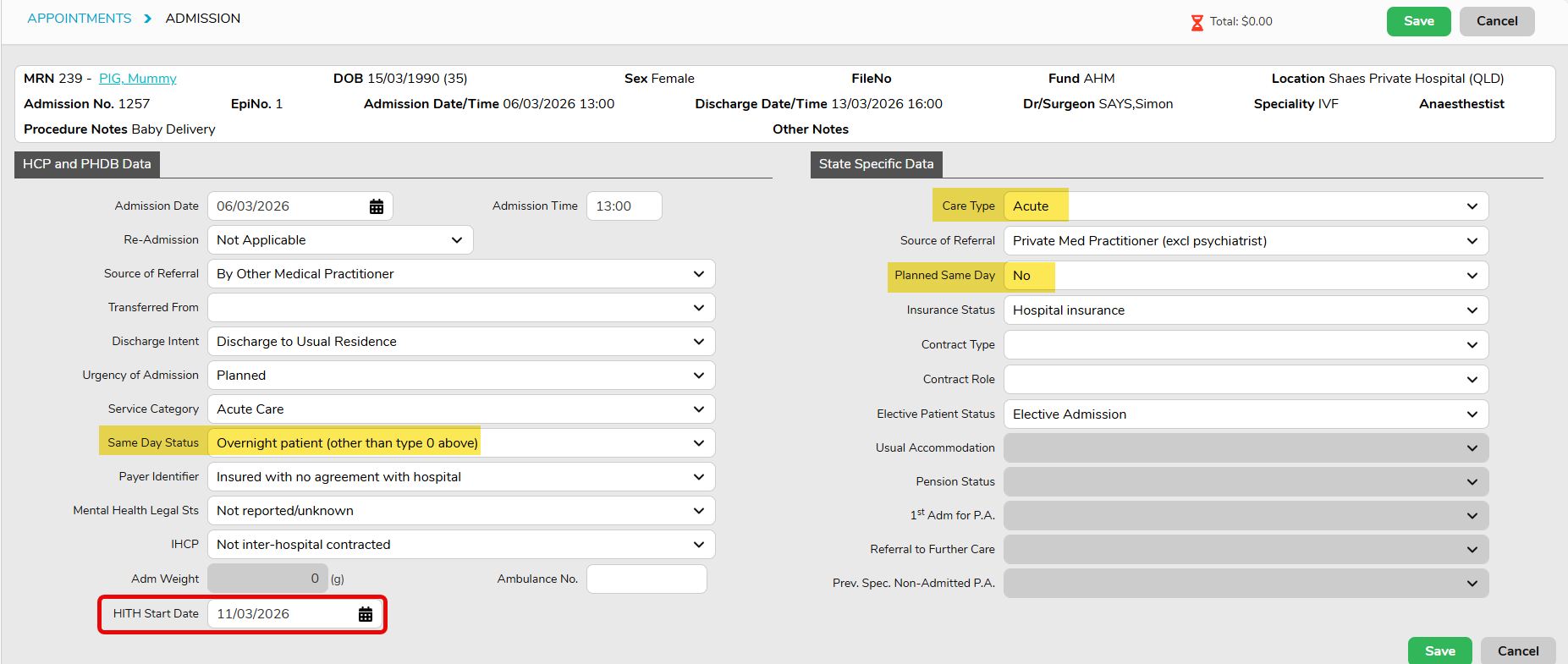
Care type = Acute
Other details same as overnight Acute
💡HITH Start Date – if patient is going to receive Hospital In The Home care during the episode, HITH start date can be entered after patient is admitted.
4. Allocate a Bed to the mother – Appointment → Right-Click Menu → Inpatient →Bed History
Registering Newborns
Newborns must be registered as separate patient records and linked to the mother.
Step 1: Create Newborn Patient Record and admission
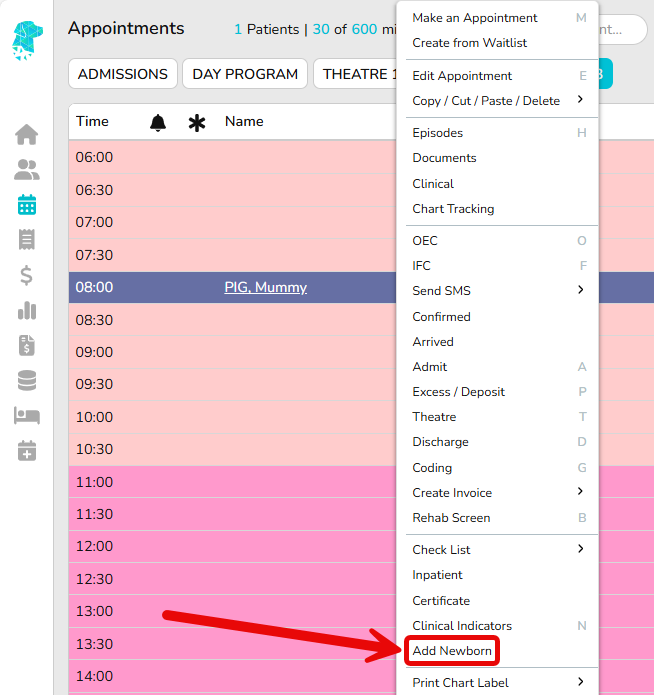
From the mother’s appointment, Right Click > add Newborn (or create a new patient manually)
Enter newborn details:
Temporary name (e.g. Baby of Jane Smith which can be updated later once the legal name is confirmed)
Date and time of birth
Gender
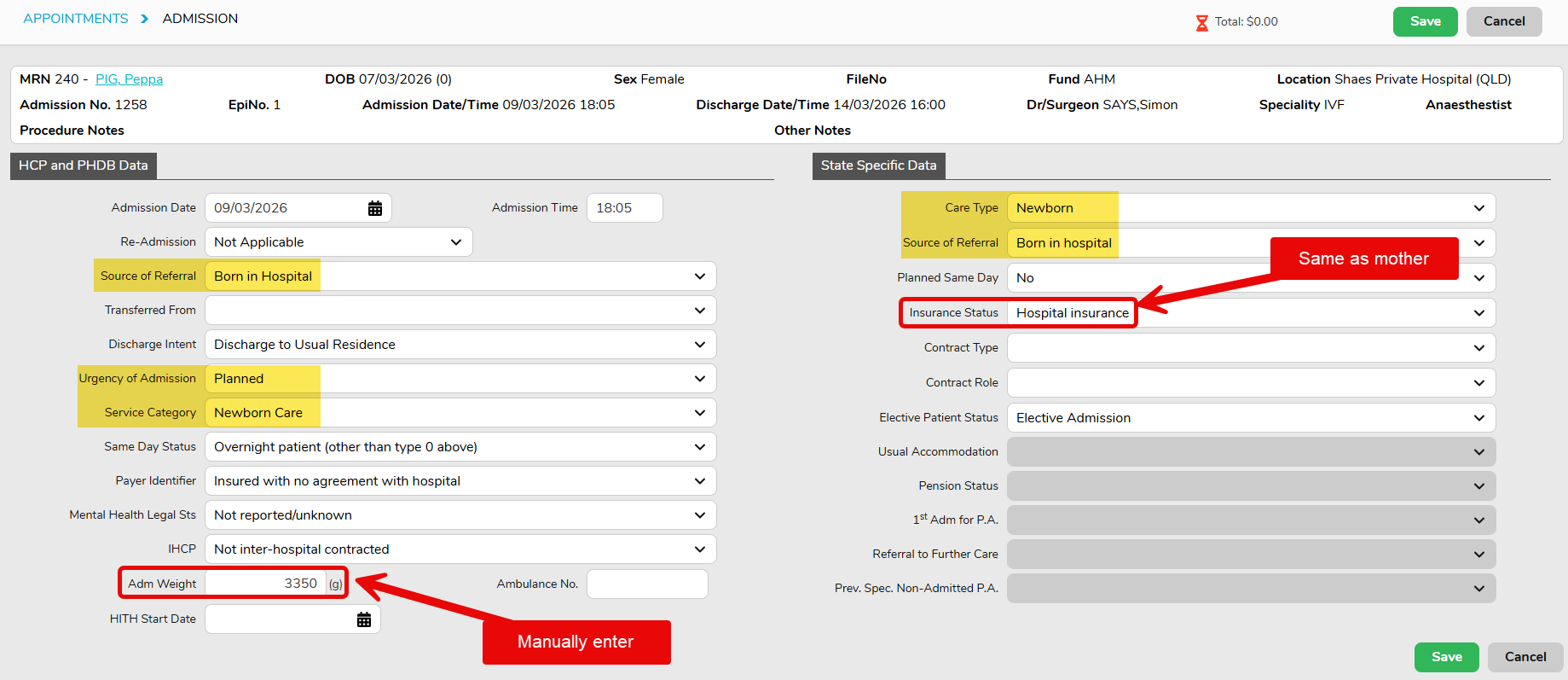
Most of the details will be inherited from Mother, for example address, GP, Fund etc.
NOK/Emergency Contact relationship must be reviewed and updated as FYDO blank fills the relationship after copying Mother’s details
After the newborn patient details are saved, FYDO will prompt the newborn admission screen. Enter all newborn admission details.
📝Currently only QLD facilities will have below highlighted fields pre-populated for newborn admissions; other state will need to manually assign the relevant values.
Step 2: Link Newborn to Mother
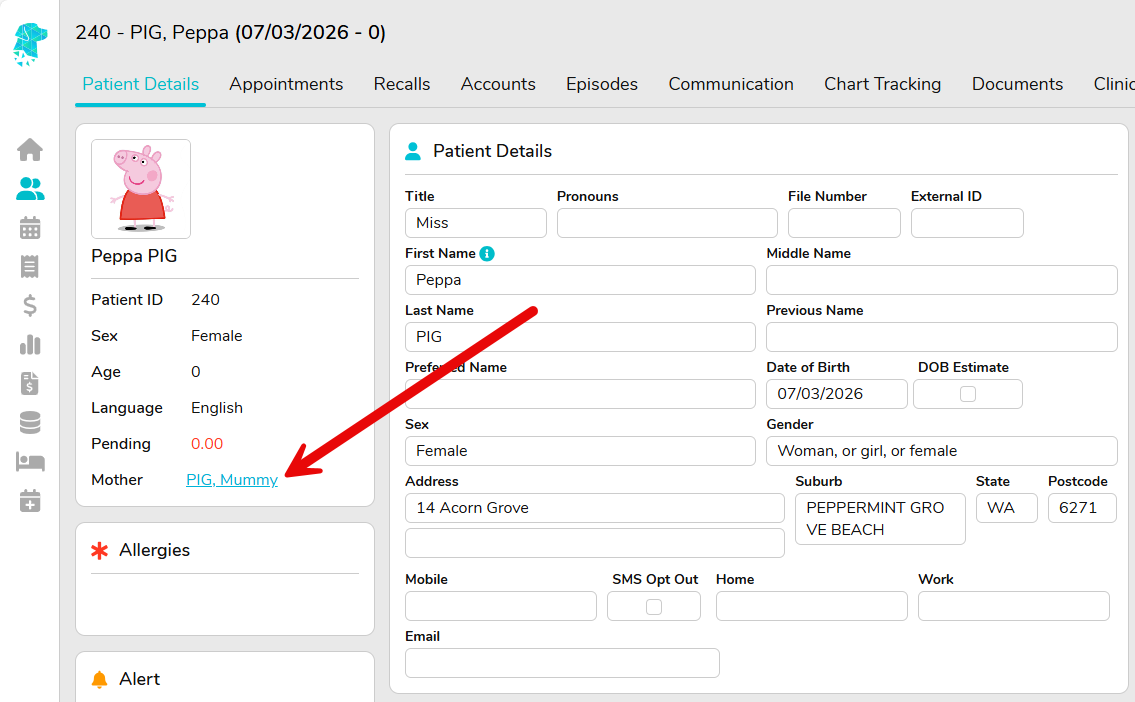
This will be linked automatically if baby is registered using the Add Newborn option
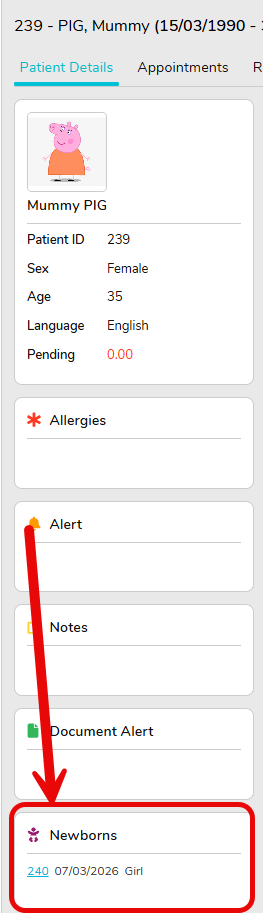
From Baby’s record, Mother name is listed and hyperlink to mother’s patient details page:
From Mother’s record, child/ren’s details are also listed:
Discharge Mother and Newborns
Always Discharge from the Mothers Episode
Appointments Screen → select Mothers episode →Right-Click Menu → Discharge
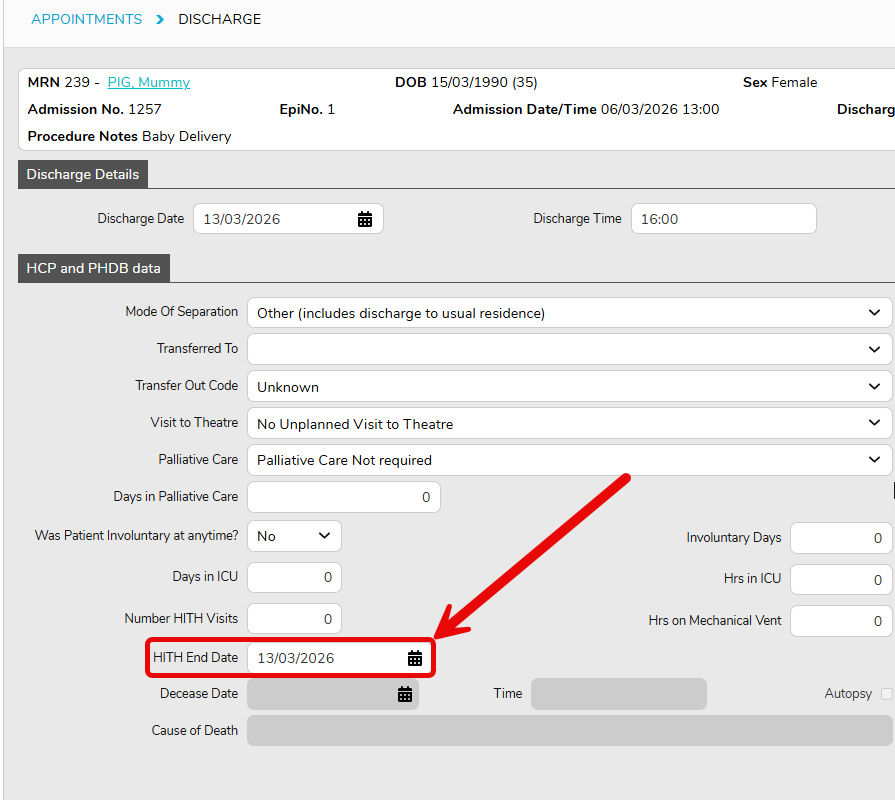
📝 If HITH start date is entered on admission screen, HITH end date will auto default to Discharge date, can be updated if needed
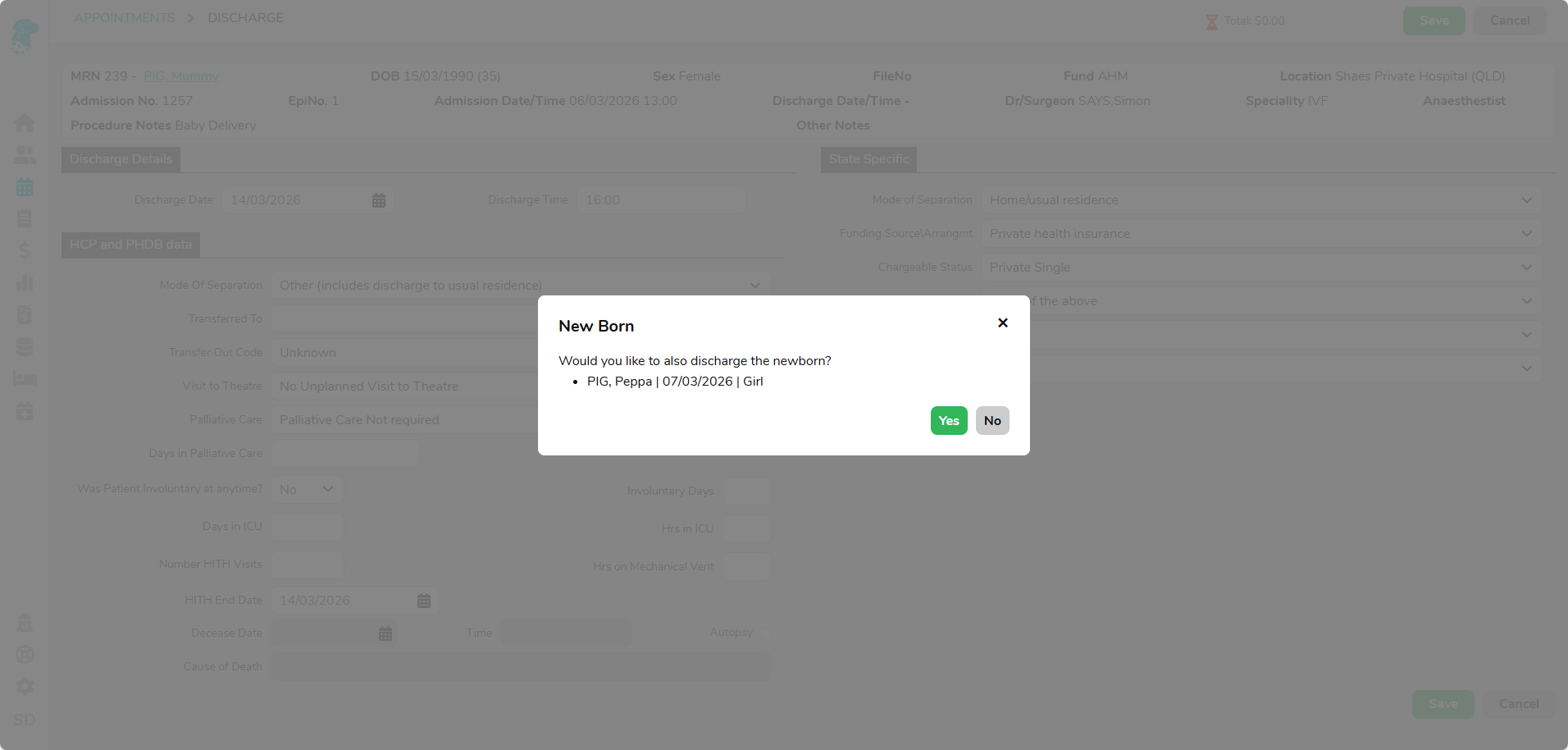
FYDO will prompt a screen to also discharge the baby
FYDO Clinic Update – 06/03/2026
SMS Improvement
FYDO has implemented validation warnings to help prevent SMS messages from being sent to invalid mobile numbers.
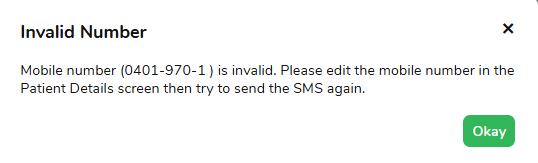
When sending an individual SMS to a patient with an invalid phone number entered, FYDO will trigger a pop-up notification to ensure the user is aware that the SMS cannot be sent.
For SMS messages sent via automation, if the recipient’s mobile number is invalid, an email notification will be issued to the contact configured under Settings > System Configuration > SMS Account.
FYDO has implemented validation warnings to help prevent SMS messages from being sent to invalid mobile numbers.
When sending an individual SMS to a patient with an invalid phone number entered, FYDO will trigger a pop-up notification to ensure the user is aware that the SMS cannot be sent.
For SMS messages sent via automation, if the recipient’s mobile number is invalid, an email notification will be issued to the contact configured under Settings > System Configuration > SMS Account.
Arrears Report Enhancement
We have enhanced the underlying reporting framework for the Arrears Report, bringing it in line with the modern architecture used across other FYDO reports.
This change improves report performance and consistency, while supporting our broader initiative to modernise and standardise reporting across the platform.
1st of March Updates
The 1st of March Prescribed List of Medical Devices Update has now been implemented in FYDO. This includes updated fees and the Expiry as of date has also been imported for discontinued Other Service Items.
The 1st of March National Procedure Banding Update will be implemented in FYDO tonight (6th of March 2026).
FYDO Hospital Update – 26/02/2026
Custom View Additions
We have added new field options that are now available for use within Custom Views. The following fields can now be selected:
Pre-Op Time
Time in Theatre
Recovery 1 Time
Discharge Time
Revenue Report Improvement
We have enhanced the underlying reporting framework for the Revenue Report, bringing it in line with the modern architecture used across other FYDO reports.
This change improves report performance and consistency, while supporting our broader initiative to modernise and standardise reporting across the platform.
Coding On Hold Enhancement
After incorporating the Coding On Hold Reason into the Unbilled Revenue – Excel Raw Data Report, we have proceeded with the next phase of implementation by integrating the Coding On Hold Reason into the API as well.
Performance Improvements
We have implemented further performance improvements across key FYDO functions, including patient editing, appointment management, inpatient screen edits, and hospital claiming.
These updates form part of our broader initiative to optimise system performance, reduce response times, and enhance overall usability across the platform.
FYDO Hospital Update – 19/02/2026
Excess/Deposit Addition
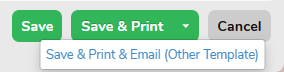
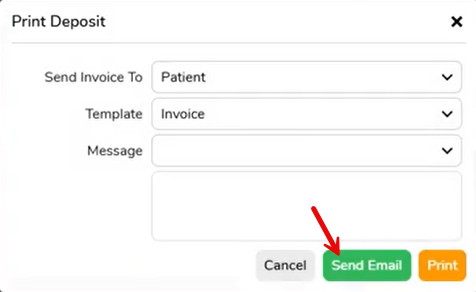
You now have the option to email the Excess/Deposit receipt directly to the patient. Under the Save and Print option, there is a dropdown menu that includes an option to email the receipt to the patient.
The email message templates can be configured in Settings > Invoice/IFC Message, or you may enter a custom message manually at the time of sending.
Kindly note that this functionality applies only to users who have configured their email address within their User Profile. Please refer to the WIKI for detailed instructions on completing this setup. Click the button below to be directed straight to the relevant page.
Digital Informed Financial Consents (IFCs) in FYDO
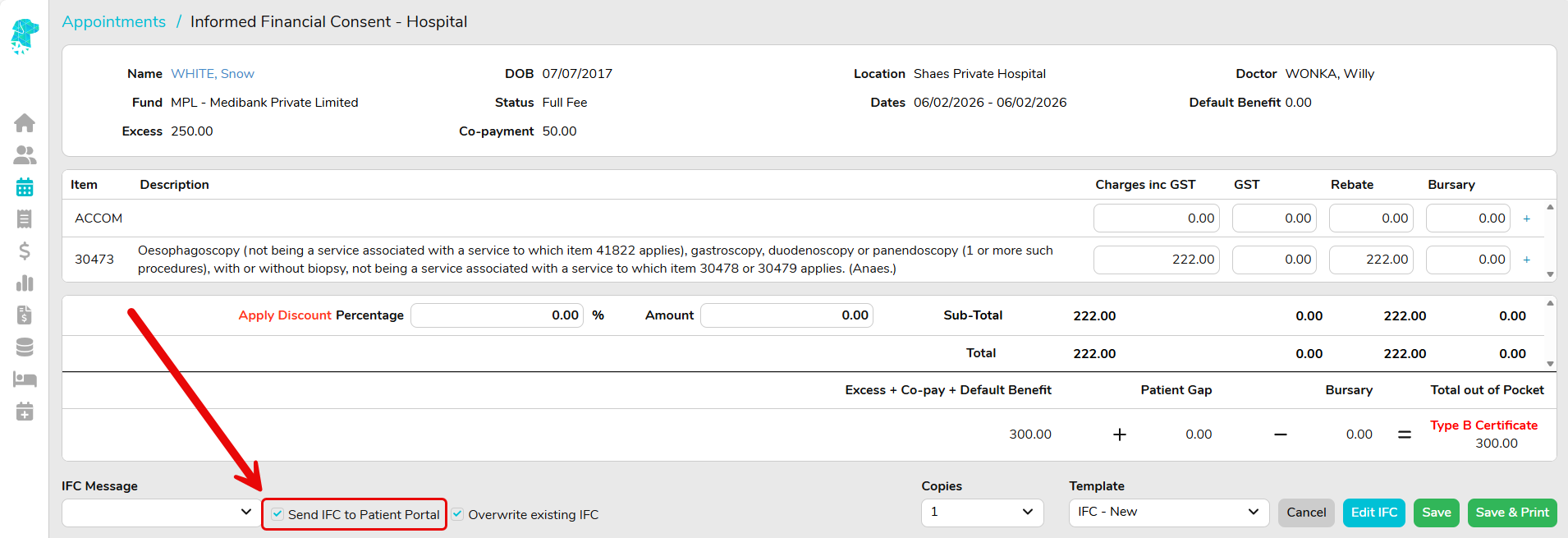
FYDO now supports a digital workflow for sending Informed Financial Consents (IFCs) and National Private Patient Hospital Claim Forms (HC21 forms for insured patients) directly to patients via the Preadmit Portal.
This feature allows patients to receive, review, and sign their IFC before arriving at the facility, with the signed document automatically returned to FYDO for staff to view — reducing paperwork, manual handling, and administration time.
What This Feature Does
Once enabled, this feature allows facilities to:
Send IFCs and HC21 forms digitally via the patient’s Preadmit Portal
Allow patients to read and sign forms in their own time
Automatically return the signed IFC to FYDO
Automatically update Checklist items as the IFC progresses
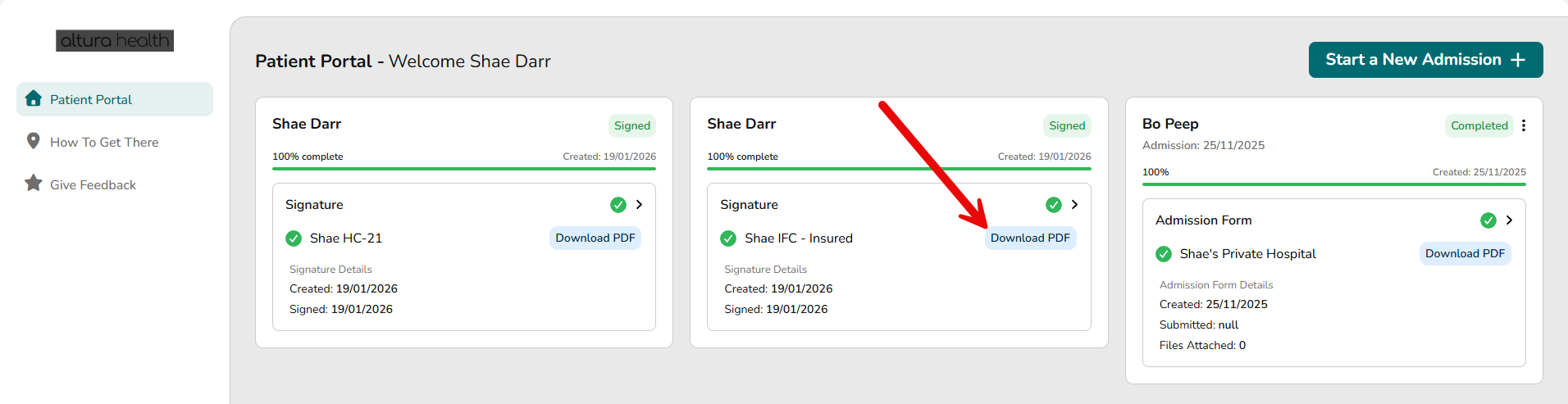
Give patients ongoing access to their signed IFC via the Preadmit Portal
Reduce reliance on paper forms while still meeting informed financial consent obligations
Key Benefits at a Glance
✅ Faster, more efficient IFC processing
✅ Reduced manual administration
✅ Clear visibility of signed vs unsigned IFCs
✅ Improved patient experience
✅ Reduced paper usage
✅ Continued compliance with informed financial consent requirements
How the Digital IFC Process Works
At a high level, the workflow is as follows:
The facility creates the IFC in FYDO (using the existing IFC screen).
The IFC is sent digitally to the patient via their Preadmit Portal.
The patient reviews and signs the IFC online.
The signed IFC is automatically returned to FYDO.
Facility staff can view the signed form directly in FYDO Documents.
No scanning, uploading, or manual checklist updates are required.
Automated Checklist Updates
As part of this workflow, FYDO’s Checklist feature is fully automated:
“IFC Created” is automatically ticked when the IFC is generated
“IFC Signed” is automatically ticked once the patient signs the form
This provides staff with real-time visibility, right on the Appointments Screen, of which patients have completed their IFCs and which are still outstanding — without any manual intervention.
Patient Access to Signed IFCs
Once signed, the IFC remains available to the patient via their Preadmit Portal at any time.
This means:
Patients can easily access their copy when needed
Facilities can reduce or eliminate the need for printed copies
Hospitals continue to meet their obligation to provide informed financial consent documentation
Important Requirements
Preadmit Account Required
This digital IFC feature only works for patients who have a Preadmit Account.
If a patient does not have a Preadmit Account, the IFC will need to be handled using existing non-digital processes.
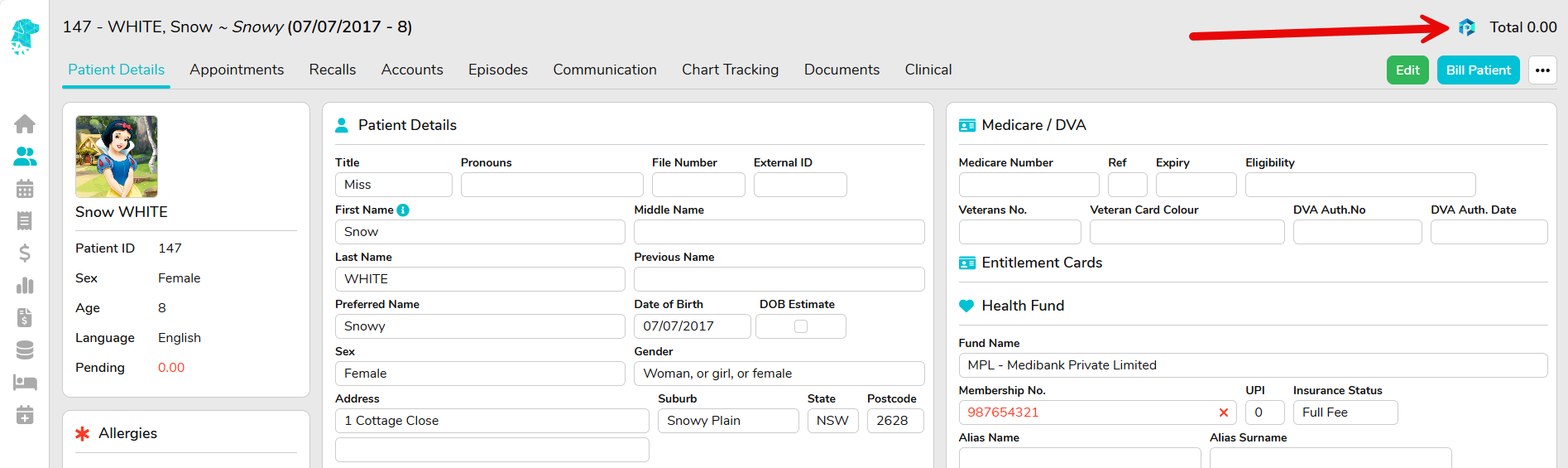
Patients with a Preadmit Account can be identified by the Preadmit Logo displaying on their Patient Screen.
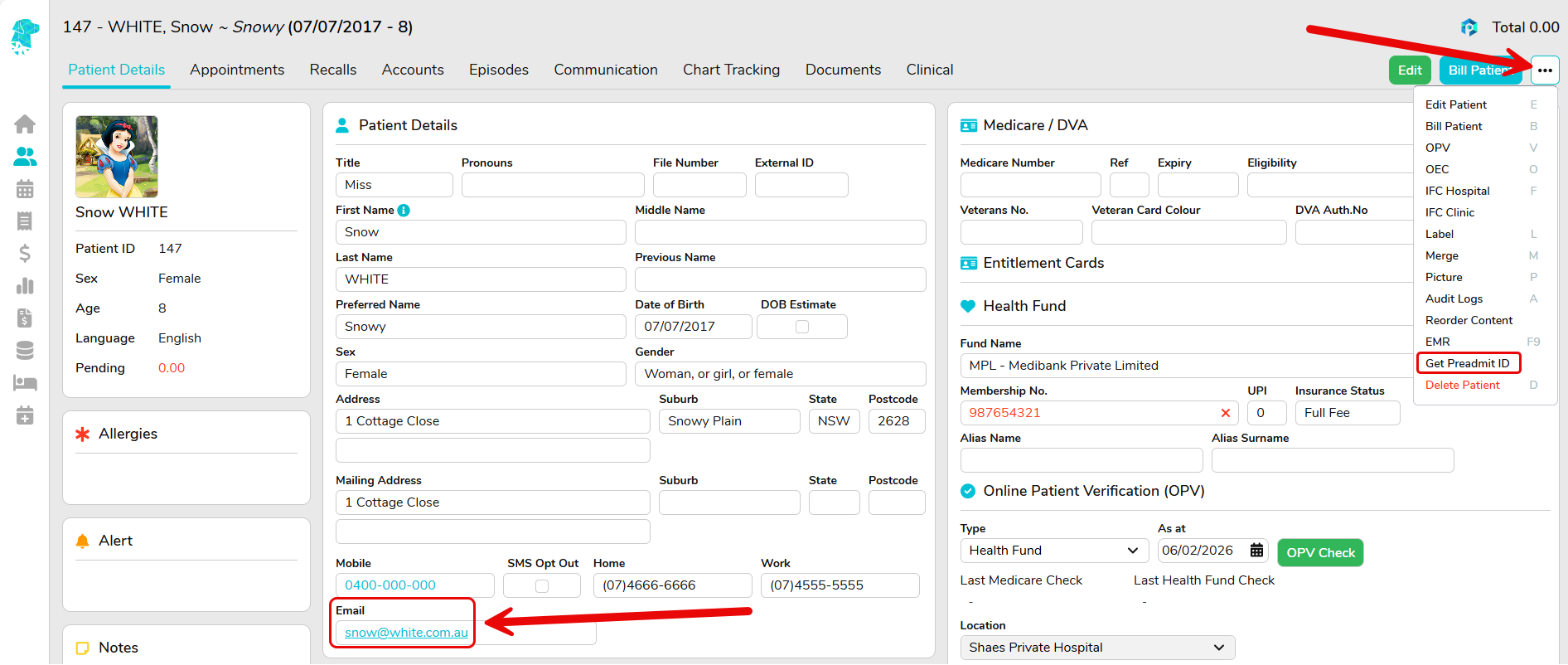
Patients are linked to their Preadmit Portal via the Email Address that they use to log in. FYDO can check existing patients utilising the Get Preadmit ID feature on the Patient Screen for patients with a valid email address entered.
Enabling This Feature
This feature must be enabled by the FYDO Support team before it can be used.
If you’d like to implement digital IFCs for your facility, please reach out to our wonderful Support team, who will assist with setup and configuration at support@alturahealth.com.au
Once enabled, the feature will be available directly from the standard IFC screen — no new workflows or screens to learn.