Tracking User Activity in FYDO
Did you know you can view user activity history in FYDO? Whether it’s to track changes made to an invoice, to see when a patient record was deleted or which user undertook what action, and when, the FYDO’s Audit Logs feature can help! Read on to learn more.
The audit logs show information about the action performed, who performed it, when they performed it, and their IP address. It can be used for troubleshooting purposes or monitoring user activities.
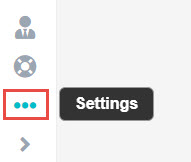
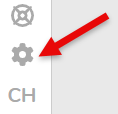
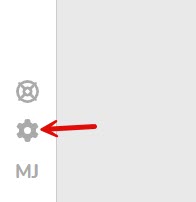
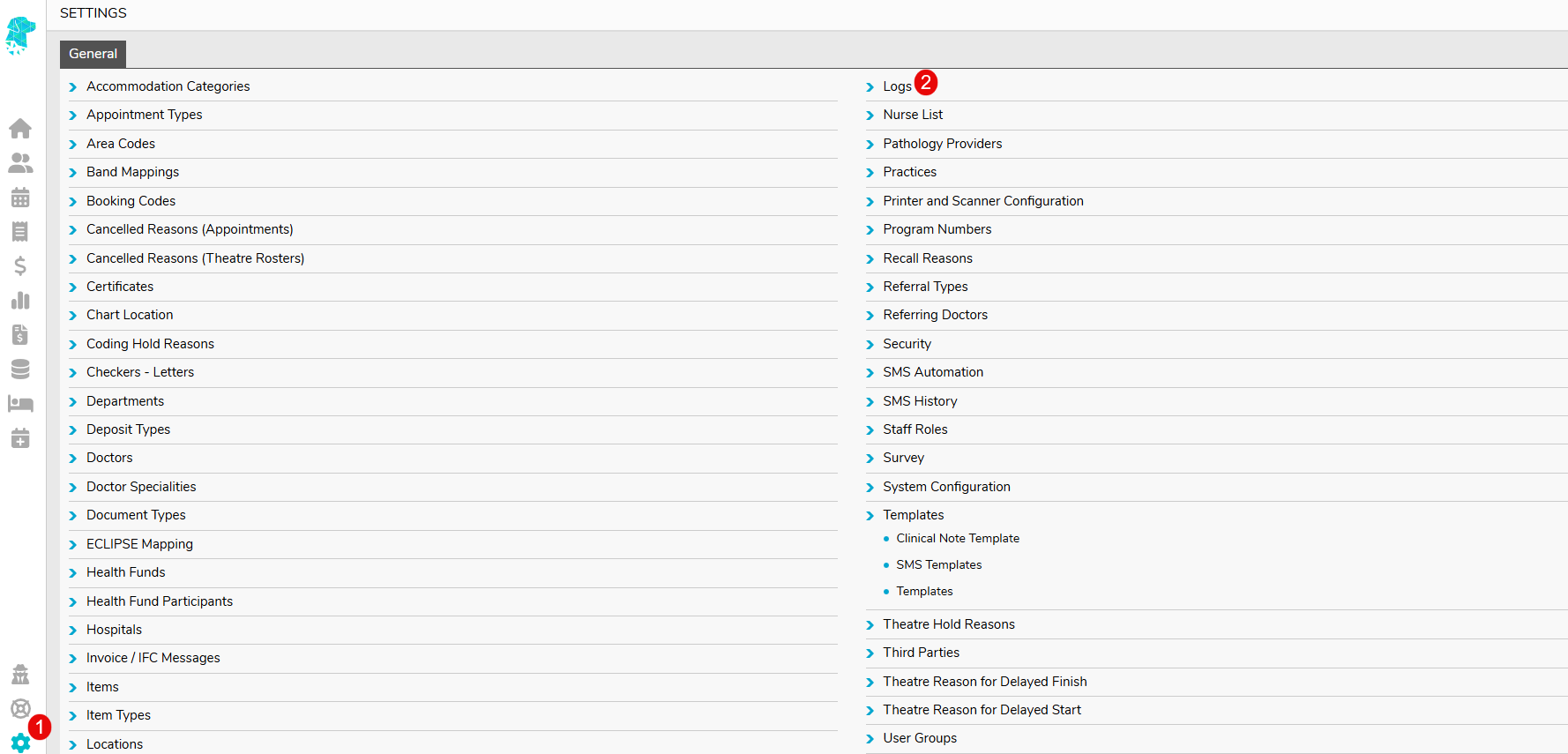
To view the audit logs, first navigate to Settings, then Logs.
How is user activity recorded?
Every user login is unique. So when a user logs in and begins taking actions on FYDO, their activity is logged. Here are some examples of logged user activity in FYDO:
- User login
- Changes to patient record
- Changes to appointment details
- Billing and invoicing changes
- Claims sent and batches receipted
- Payments taken, split, or reallocated
- Documents deleted
- Batches removed
You can view user action history within a date range, sort by user, action, or date, as well as search.

Hospital Episode Audit Logs
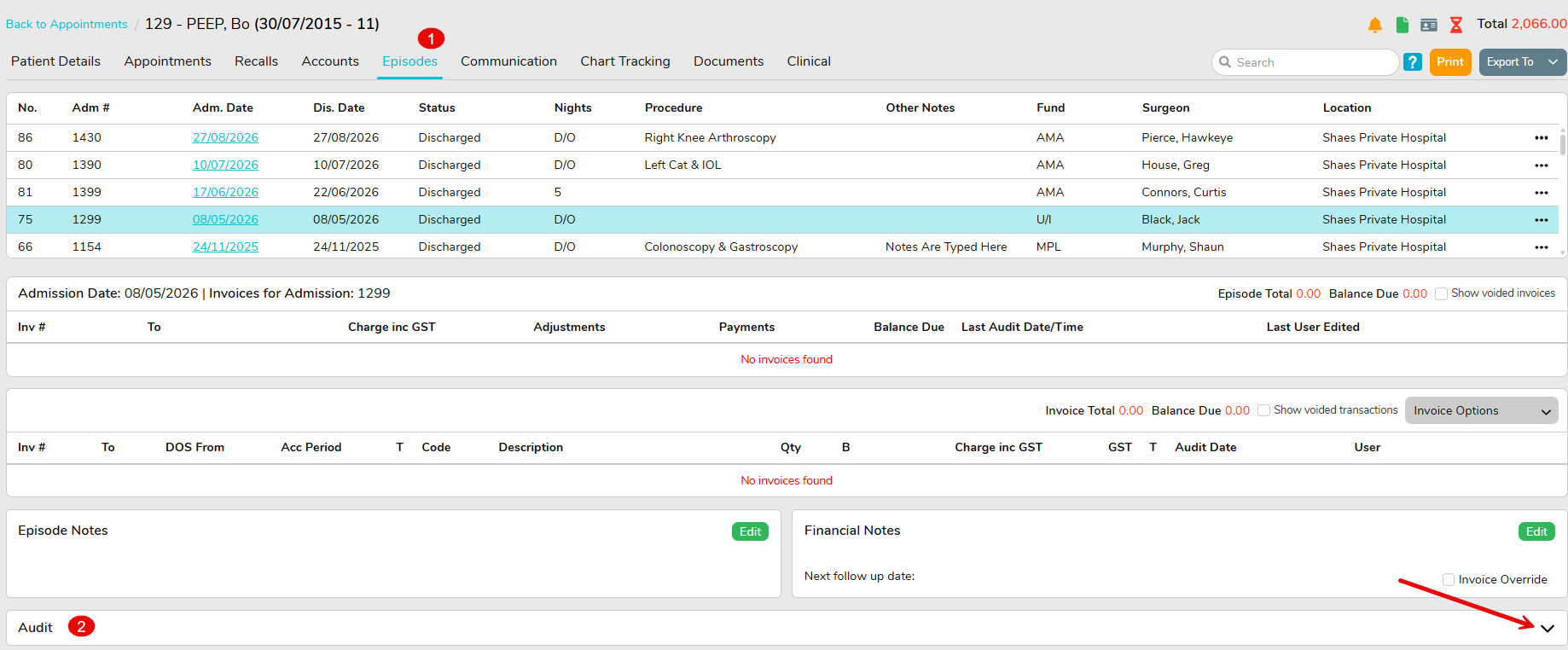
You can also view the Hospital Episode Audit Logs by going to Episode > Audit. This will provide a breakdown of the activity associated with the patient’s episode, from the initial appointment booking through to the billing and coding.
Clinic Episode Audit Logs
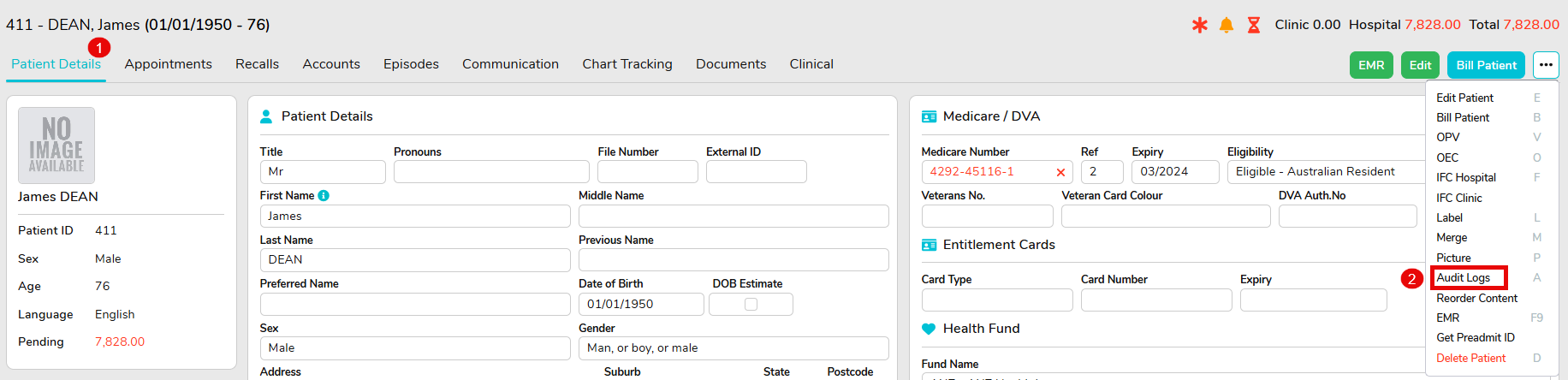
Clinic Episode Audit Logs can be found in the same section as the User Logs. Alternatively, you can access them directly by going to Patient Details > 3 Dots in the top-right corner > Audit Logs. This will display all activity associated with the patient’s MRN.
Why use FYDO’s Aduit Logs?
Let’s take a closer look at the benefits of this feature.
- Greater accountability: logged user action history fosters a culture of responsibility by users being aware that their actions are being logged, promoting responsible behaviour within the organisation.
- Enhanced troubleshooting: logged user action history can aid in pinpointing the source and cause of an issue, helping users to troubleshoot problems faster.
- Improved security: logged user action history offers a log of most system activities, enabling the identification of unauthorised access attempts, powering administrators to take the necessary steps to secure the system.