Medicare and Fund Contacts – Dealing with Rejections

Medicare & DVA

Organisation Phone/ Email
Medicare P: 1800 700 199F: 02 9895 3190
MBS Interpretation P: 13 21 50E: askMBS@health.gov.au
DVA P: 1300 550 017

Health Funds

Fund name Contact for clinics Contact for hospitals
ACA Health
ECLIPSE code: ACA
HCP code: ACA
P: 1300 368 390
acahealthit@acahealth.com.au
P: 1300 368 390
acahealthit@acahealth.com.au
Alliance (AHSA) P: 03 9813 4088
access@ahsa.com.au
 
AHM
ECLIPSE code: AHM

HCP code: AHM

P: 1300 524 456
Eclipse@medibank.com.au
P: 1300 560 680
Eclipse@medibank.com.au

AHM and Medibank have the same support team

Australian Unity
ECLIPSE code: AUH

HCP code: AUF

P: 1800 035 360 P: 1800 035 360
dgilder@australianunity.com.au
BUPAE
CLIPSE code: BUP

HCP code: BUP

P: 134 135F: 1300 130 623 for sending claims manuallydr.billing@bupa.com.au

Only for sending claims with Problems / Rejections

gapscheme@bupa.com.au

Only for if you are unable to fax

P: 134 135
gordon.barrett@bupa.com.au
CBHS Corporate Health & CBHS Health Fund
ECLIPSE code: CBC & CBH

HCP code: CBC & CBH

P: 1300 654 123
providers@cbhs.com.au
P: 1300 654 123
access@cbhs.com.au

Alternatively
julie.mckinnon@cbhs.com.au

Hunter Health Insurance
(Formally known as ‘Cessnock’ or ‘CDHBF Health’)

ECLIPSE code: CDH

HCP code: CDH

P: 02 4990 1385
enquiries@hunterhi.com.au
P: 02 4990 1385
CDH.BenefitsFund@Hunterhi.com.au
CUA Health Limited
ECLIPSE code: CHF

HCP code: CPS

P: 1300 499 260 cuahealth@cuahealth.com.au P: 1300 499 260 
cuahealth@cuahealth.com.au

Alternatively
karen.coventry@cua.com.au

Defence Health
ECLIPSE code: DHF

HCP code: AHB

P: 1800 656 329 P: 1800 656 329
providerrelations@defencehealth.com.au
Doctors Health Fund
ECLIPSE code: AMA

HCP code: AMA

P: 1800 226 586 P: 1800 226 586
lesley.rutter@doctorshealthfund.com.au 
Emergency Services Health (also managed by Police Health)

ECLIPSE code: ESH

HCP code: SPE

P: 1300 703 703 
F: 1300 151 152
P: 1300 703 703 
providerenquiries@eshealth.com.au
GMHBA
ECLIPSE code: GMH

HCP code: GMH

P: 1300 446 422
F: (03) 5222 7478
P: 1300 446 422
Jamie-LeeGardham@gmhba.com.au

joannesheldon@gmhba.com.au

GU Health (FAI)
ECLIPSE code: FAI

HCP code: FAI

P: 1800 249 966
corporate@guhealth.com.au
providers@honeysucklehealth.com.au
HBF
ECLIPSE code: HBF

HCP code: HBF

P: 1300 810 475
expresspayqueries@hbf.com.au
P: 1300 810 475
lorraine.hort@hbf.com.au
HIF(Health Insurance Fund of Australia Limited)

ECLIPSE code: HIF

HCP code: HIF

P: 1300 134 060
claims@hif.com.au
P: 1300 134 060
michelle.peacock@hif.com.au
HCF
ECLIPSE code: HCF

HCP code: HCF

P: 1800 670 302
medicoverenquiry@hcf.com.au
P: 1800 670 302
MFarlow@hcf.com.au (Maria) 

Alternatively

dfernandez@hcf.com.au (David)

Health Care Insurance
ECLIPSE code: HCI

HCP code: HCI

P: 1800 804 950 P: 1800 804 950
jamie.gillam@hciltd.com.au
Health Partners
ECLIPSE code: SPS

HCP code: SPS

P: 1300 113 113 P: 1300 113 113
hospitalclaims@healthpartners.com.au

davids@healthpartners.com.au

Health.com.au
ECLIPSE code: HEA

HCP code: HEA

P: 1300 199 802 P: 1300 199 802
hospitalteam@health.com.au 

Alternatively

Catherine.Ngo@health.com.au 

Gemma.Oliver@health.com.au

Latrobe
ECLIPSE code: LHS

HCP code: LHS

P: 1300 362 144
E: info@lhs.com.au
P: 1300 362 144
tan@lhs.com.au
Medibank
ECLIPSE code: MPL

HCP code: MPL

P: 1300 130 460 P: 1300 130 460
medibankhospital.network@medibank.com.au
Mildura
ECLIPSE code: MDH

HCP code: MDH

P: 03 5023 0269
providers@mildurahealthfund.com.au 
P: 03 5023 0269
eclipse@mildurahealthfund.com.au
MO Health
ECLIPSE code: MYO

HCP code: MYO

P: 1800 333 004 P: 1800 333 004
Vaibhav.Makin@aia.com
Navy Health
ECLIPSE code: NHB

HCP code: NHB

P: 1300 217 736
query@navyhealth.com.au
NIB
ECLIPSE code: NIB

HCP code: NIB

P: 1300 853 530
medigap@nib.com.au
Overseas Claims: internationalclaims@nib.com.au
P: 1300 853 530
hospitaleclipse@nib.com.au

provrel@nib.com.au

Nurse and Midwives
ECLIPSE code: NMW

HCP code: NMW

P: 1300 344 000
submit.claim@nmhealth.com.au
P: 1300 344 000
EclipseClaims@nmhealth.com.au 

Alternatively

George.Drakakis@nmhealth.com.au dianne.roe@teachershealth.com.au

OneMediFund
ECLIPSE code: OMF

HCP code: OMF

P: 1800 148 626
F: 1300 673 406
P: 1800 148 626
info@onemedifund.com.au
Peoplecare Health Insurance
ECLIPSE code: LHM

HCP code: LHM

P: 1800 808 690 P: 1800 808 690
info@peoplecare.com.au
Phoenix Health
ECLIPSE code: PHF

HCP code: PWA

P: 1800 028 817 P: 1800 028 817
enquiries@phoenixhealthfund.com.au

info@peoplecare.com.au

Police Health (also managed by Emergency Services Health)

ECLIPSE code: POL

HCP code: SPE

P: 1800 603 603
F: 1800 008 554
P: 1800 603 603
providerenquiries@policehealth.com.au
Queensland Country
ECLIPSE code: QCH

HCP code: QCH

P: 1800 813 415 P: 1800 813 415
rharding@qccu.com.au 
TUH(Queensland Teachers)

ECLIPSE code: QTU

HCP code: QTU

P: 1300 360 701 P: 1300 360 701
alice.caldwell@tuh.com.au
Reserve Bank health
ECLIPSE code: RBH

HCP code: RBH

P: 1800 027 299
F: 1300 309 704
P: 1800 027 299
info@myrbhs.com.au
RT Health
ECLIPSE code: RTH

HCP code: RTE

P: 1300 886 123 (option 5)
access@rthealthfund.com.au
P: 1300 886 123
hospitals@rthealthfund.com.au
St Lukes
ECLIPSE code: SLM

HCP code: SLM

P: 1300 651 988 P: 1300 651 988
general@stlukes.com.au
Teachers Federation
ECLIPSE code: TFH

HCP code: NTF

P: 1300 728 188 P: 1300 728 188
elizabeth.cashman@teachershealth.com.au 

Alternatively, try: 

EclipseClaims@teachershealth.com.au 

George.Drakakis@nmhealth.com.au 

dianne.roe@teachershealth.com.au

Transport Health
ECLIPSE code: TFS

HCP code: TFS

P: 1300 806 808 P: 1300 806 808
hospitals@transporthealth.com.au
Westfund
ECLIPSE code: WFD

HCP code: WFD

P: 1300 937 838
medicalbenefits@westfund.com.au
P: 1300 937 838
sharpg@westfund.com.au


Printing Clinic Invoices Through Patient Records

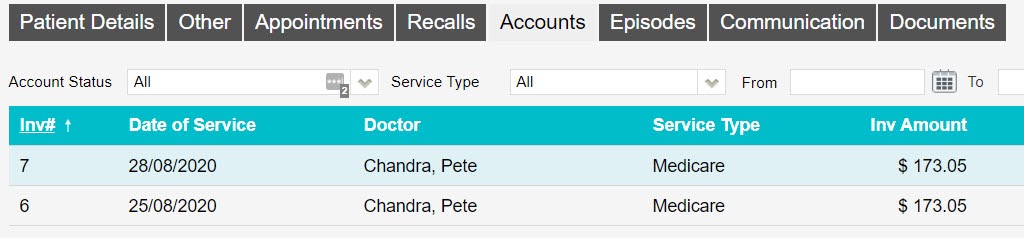
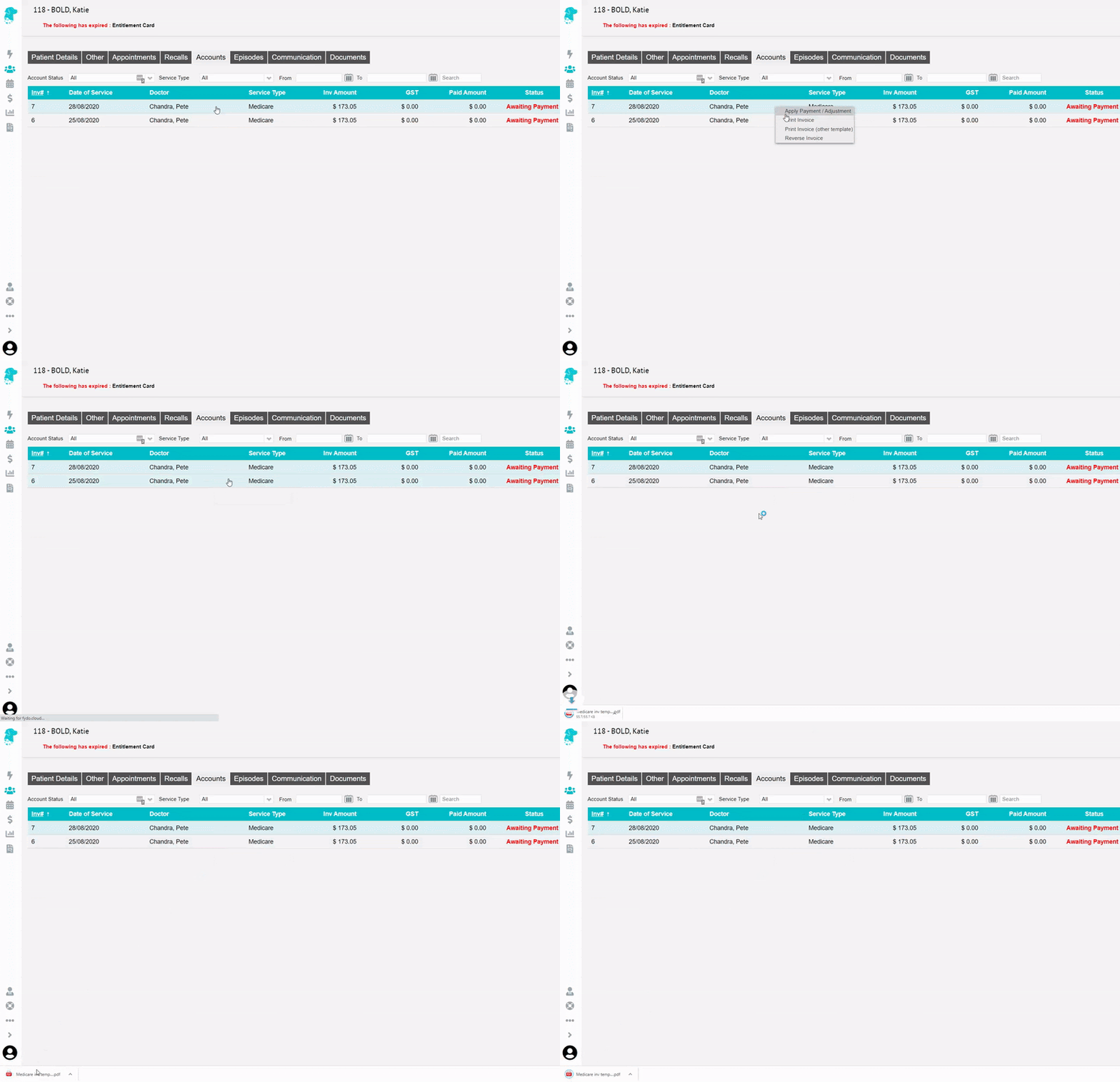
Start off by opening the patient in question’s record and hit the Accounts button.


This button reveals a patient’s billing/ treatment history where each line is an invoice


So from here, simply right click on the desired invoice to be printed and select Print Invoice. This will produce a PDF file of the invoice, which you may print or store/ send electronically.


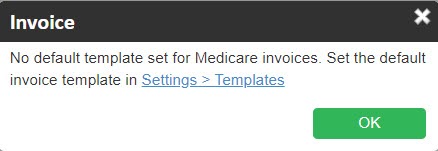
If selecting Print Invoice presents you with the below message, this means you do not have an invoice template for the type of invoice you are attempting to print,

So, click here to view our guide on how to upload an invoice template.


Uploading a Clinic Invoice Template

While you can create your own invoice templates from scratch in Microsoft Word, you may also contact FYDO support and request an invoice template be uploaded to your FYDO account, for you. 

This template will allow you to print invoices right away. You may further customise this template as desired, should you choose to.

Uploading / editing clinic invoice templates

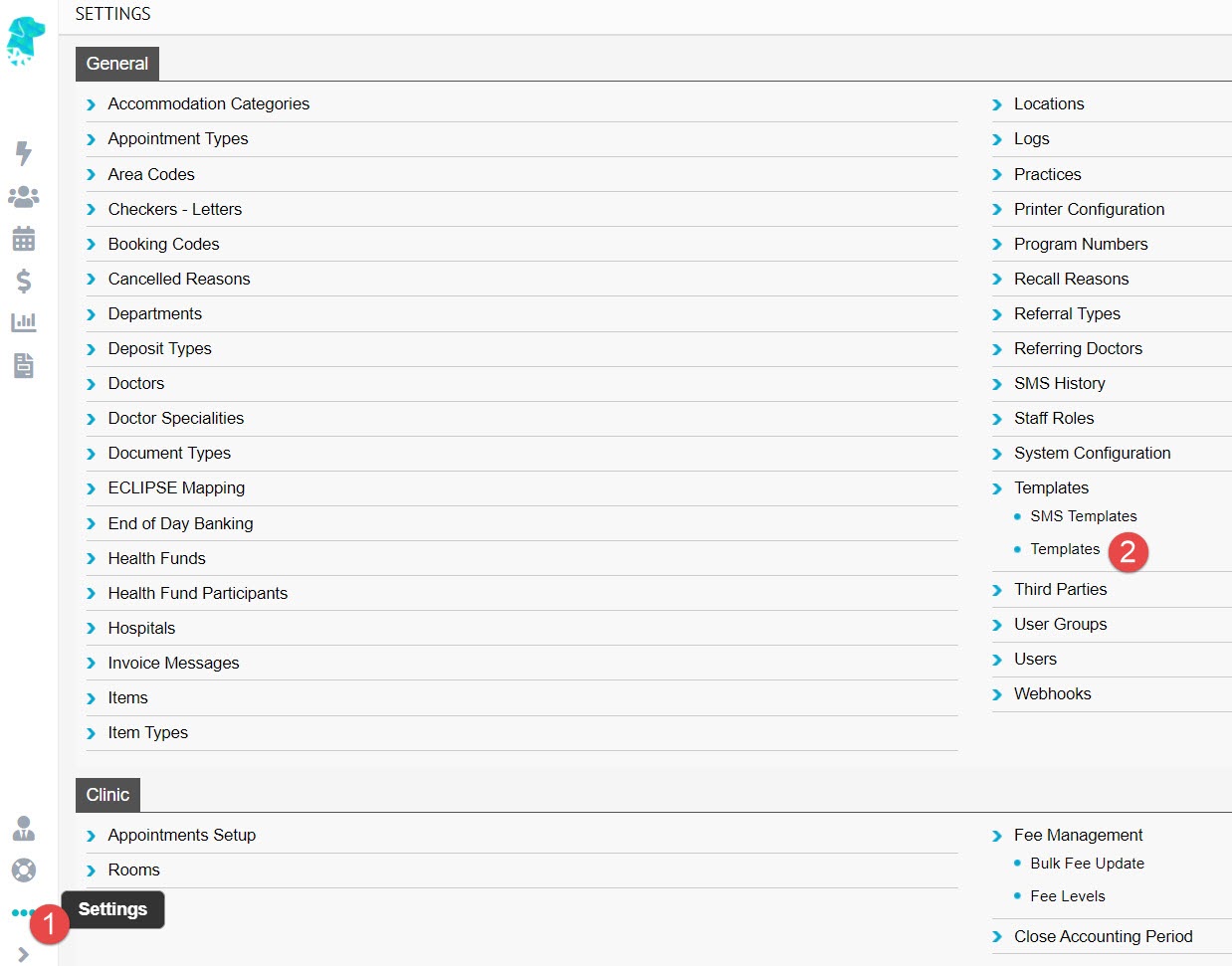
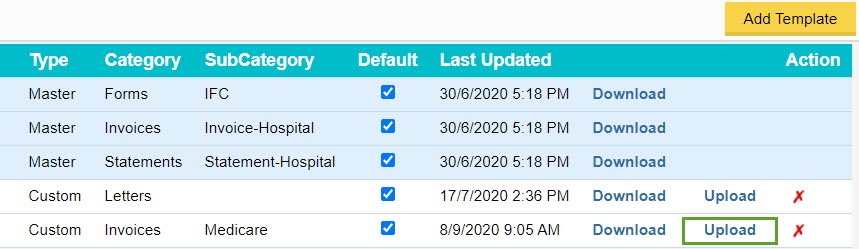
To upload or edit existing templates, you will need to go to Settings > Templates.


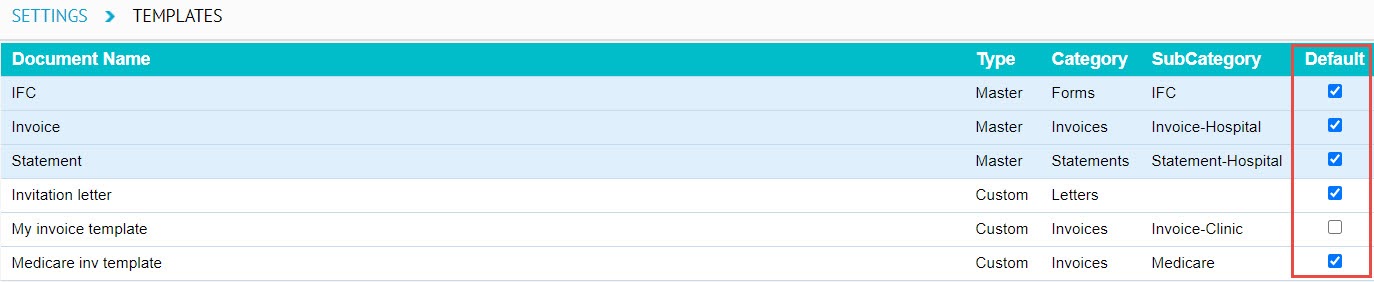
This will reveal the templates currently in your FYDO account.


Note: an invoice template is necessary for each type of invoice; such as Medicare, DVA, and Private.


Adding a new template

So you may upload a template by clicking on the Add Template button to the top right corner of the screen.


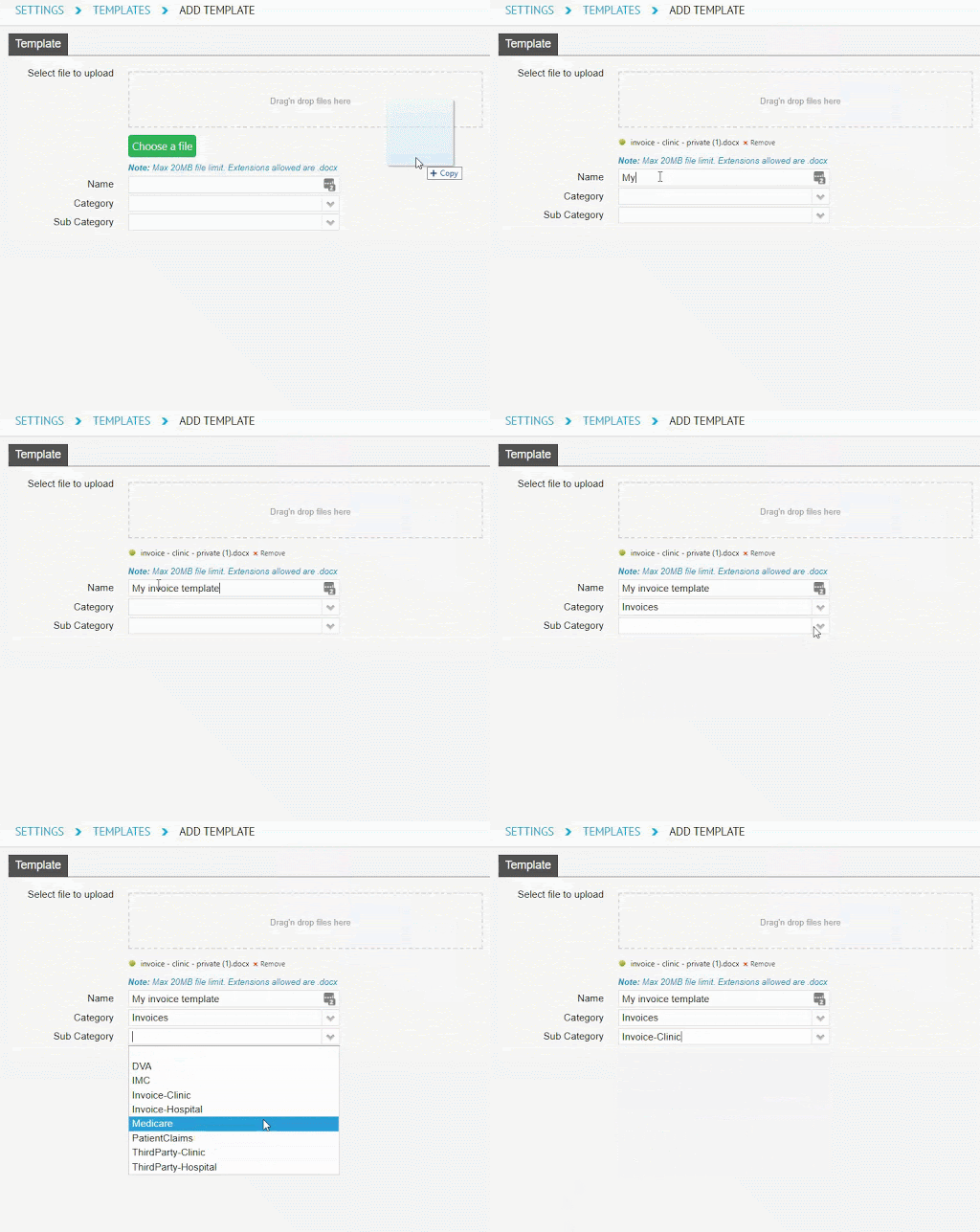
Then, you will need to browse your computer for the template file or simply drag it in, as shown below.

Give it a Name, select a Category (invoices in this case) and a Sub Category (whether it is DVA, Medicare, Private, etc.).

Once you have entered the above details, hit the green Save button and you are all done!


You may also mark a given template as the default template for its category and sub category.


Editing an existing template

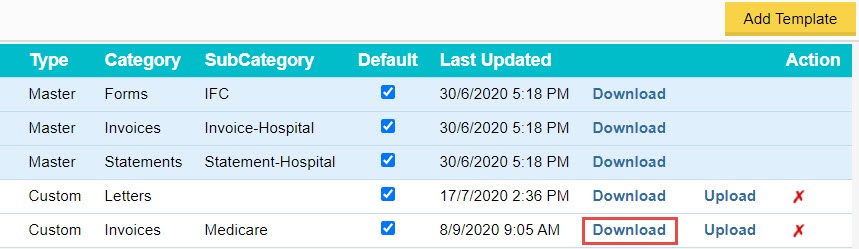
To make edits to existing templates, you will need to download the Word file by clicking on the Download button associated with the template.


Once you have downloaded the file, go ahead and open it, make the desired edits and save the document.

You may type whatever you’d like in plain text or add ‘tokens’ to print things onto the invoice that change from invoice to invoice like patient names, medicare/ health fund card numbers, servicing doctor, etc. 


Click here to view the list of tokens for clinic invoices, or

Click here to view the list of tokens for hospital invoices


Once the document has been updated with the desired edits, it is ready to be re-uploaded. You can do this by going back to where you downloaded the template at Settings > Templates, finding the template downloaded and hitting its associated  Upload button.


How to Delete Clinic Invoices

Needing to remove an invoice? As long as the invoice does not have a payment associated with it, and the accounting period is not yet closed, invoices can be deleted.

Not sure what the accounting period is? Click here to learn more.

There are two places where you could do so:

  1. Via the Patient’s Record, or
  2. Via the Batch in Claiming Medical

Additionally, there are two use cases for deleting invoices:

  1. Deleting the entire invoice (all items within the invoice)
  2. Deleting a part of the invoice (1 or some items deleted, but not all items)


Let’s take a closer look at both options.

Deleting through the Patient’s Record

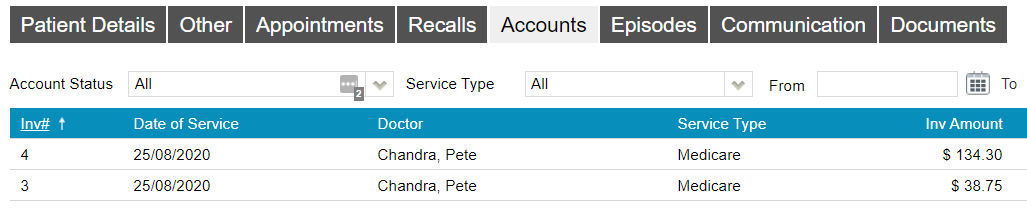
Begin by opening the patient’s record and click on the Accounts button.


This button reveals a patient’s billing/ treatment history where each line is an invoice

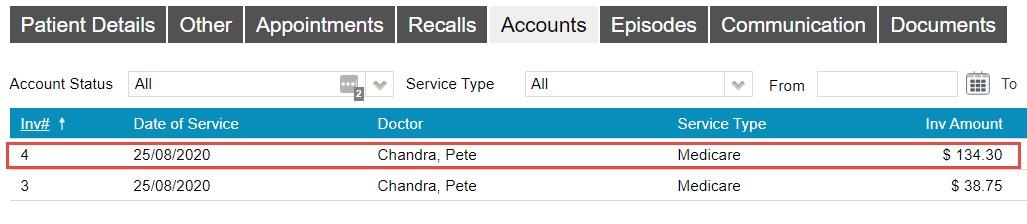
From here, simply double click on the invoice you wish to delete.


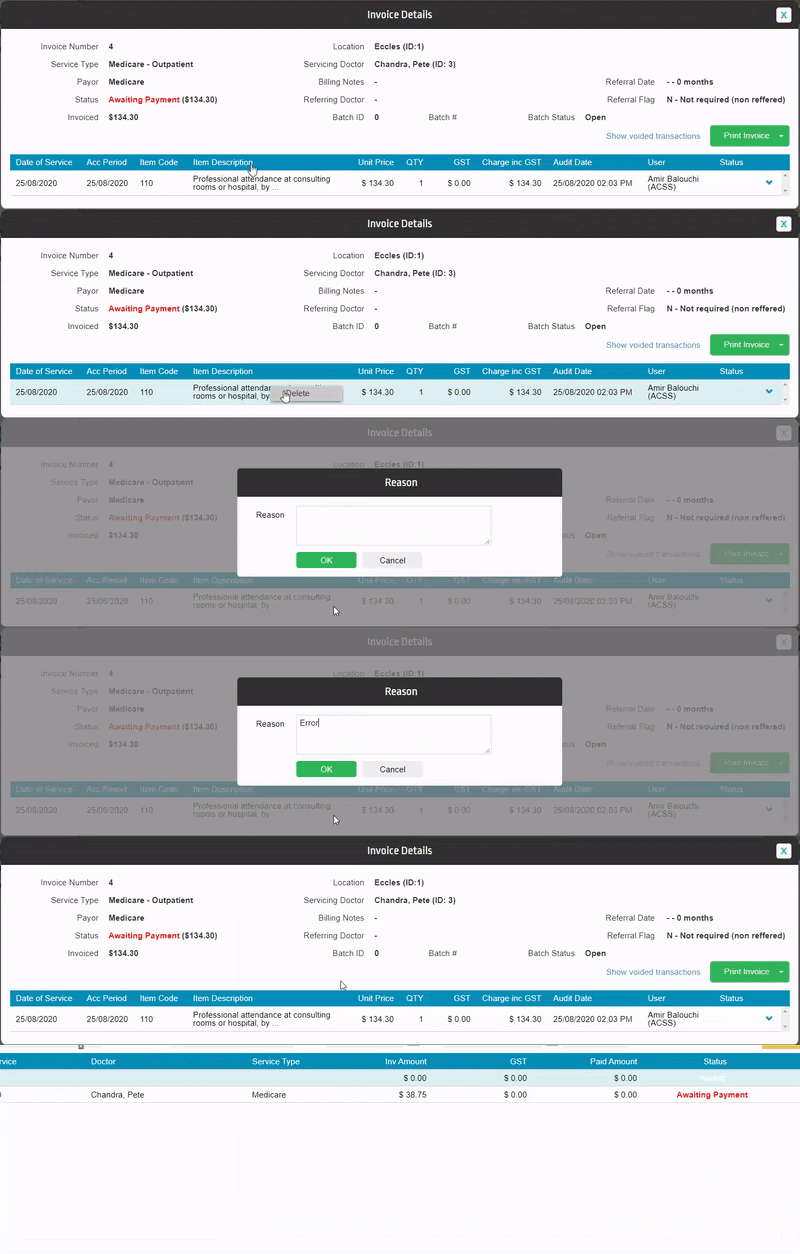
This will open up the invoice, revealing the item numbers inside.

From here, you may simply right click on the desired item and hit delete, enter a reason, and hit OK to delete the item.


Alternatively, you can delete invoices from the Claiming Medical section of FYDO, found under the Claiming tab.


Deleting through the Claiming Medical

Important Note: Private and WorkCover invoices will not appear here as this screen is only for invoices that are to be sent electronically. 

Private invoices are invoices with the Bill Type set to Private in the billing screen.


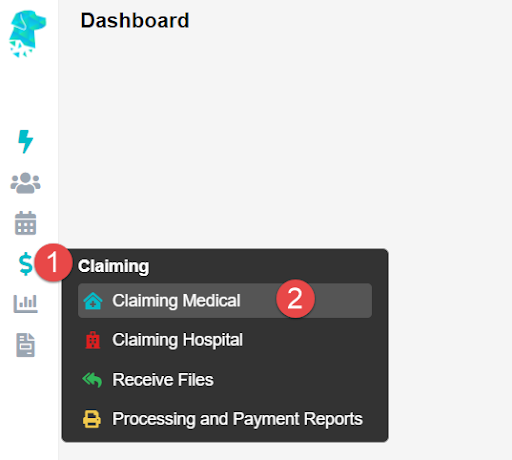
Put your mouse over the Claiming tab and select Claiming Medical.


You will now see all your batches. So select the batch holding the invoice(s) you wish to delete.

Now, double click on the batch holding the desired invoice to be deleted.

You will now see the invoice(s) inside the batch. 

Important note: Pay attention to the number of items in the invoice to be deleted.

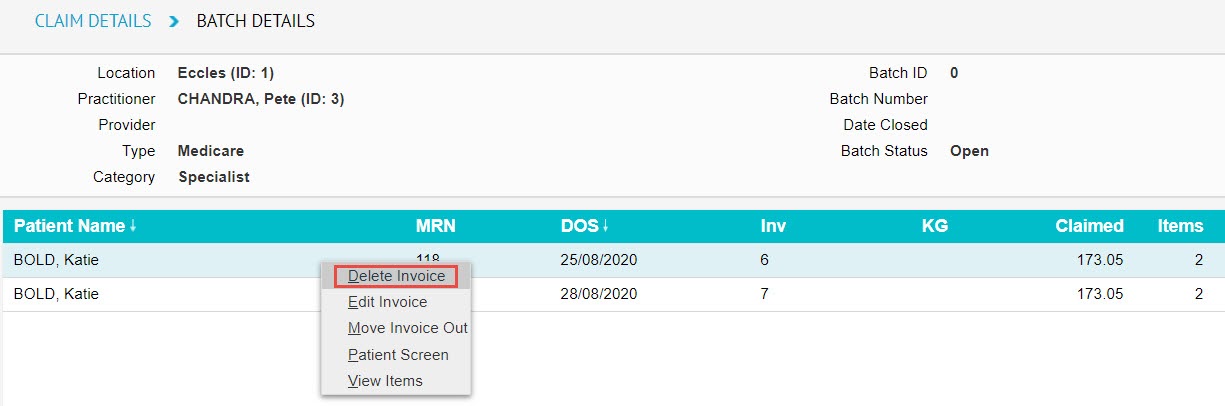
  • If you wish to delete all of the items within the invoice, simply right click on the invoice here, and select Delete Invoice


  • Otherwise, if you wish to only delete a portion of the invoice (some items, but not all), simply double click on the invoice to open it up. Then right click on the items to be deleted and select Move Item


Moving items out
Medicare/ DVA claims Eclipse claims
  • Items go into the current, open batch of the same bill type (e.g. Medicare)
  • If no open batch is present, a new one will be created
  • Items always go into a new, closed batch


Next, you will need to find the moved item(s) in the newly created invoice in the open/ closed batch, at the top of the Claiming Medical screen and delete as desired.


Closing the Accounting Period

Closing the ‘Accounting Period’ refers to locking down your financial figures up to a given date (usually the end of the month) so that they cannot be changed

We do not recommend closing the accounting period for the last month, on the first day of the current month. Rather, give yourself seven to ten days to get your figures to a point where you are happy. That is, after all rejections and adjustments are made. 

In other words, it ensures that the figures seen on your revenue report run out of FYDO match the figures seen on your bank account, to the cent. And that those figures then cannot be amended in FYDO. 

So let’s see where the accounting period is closed.

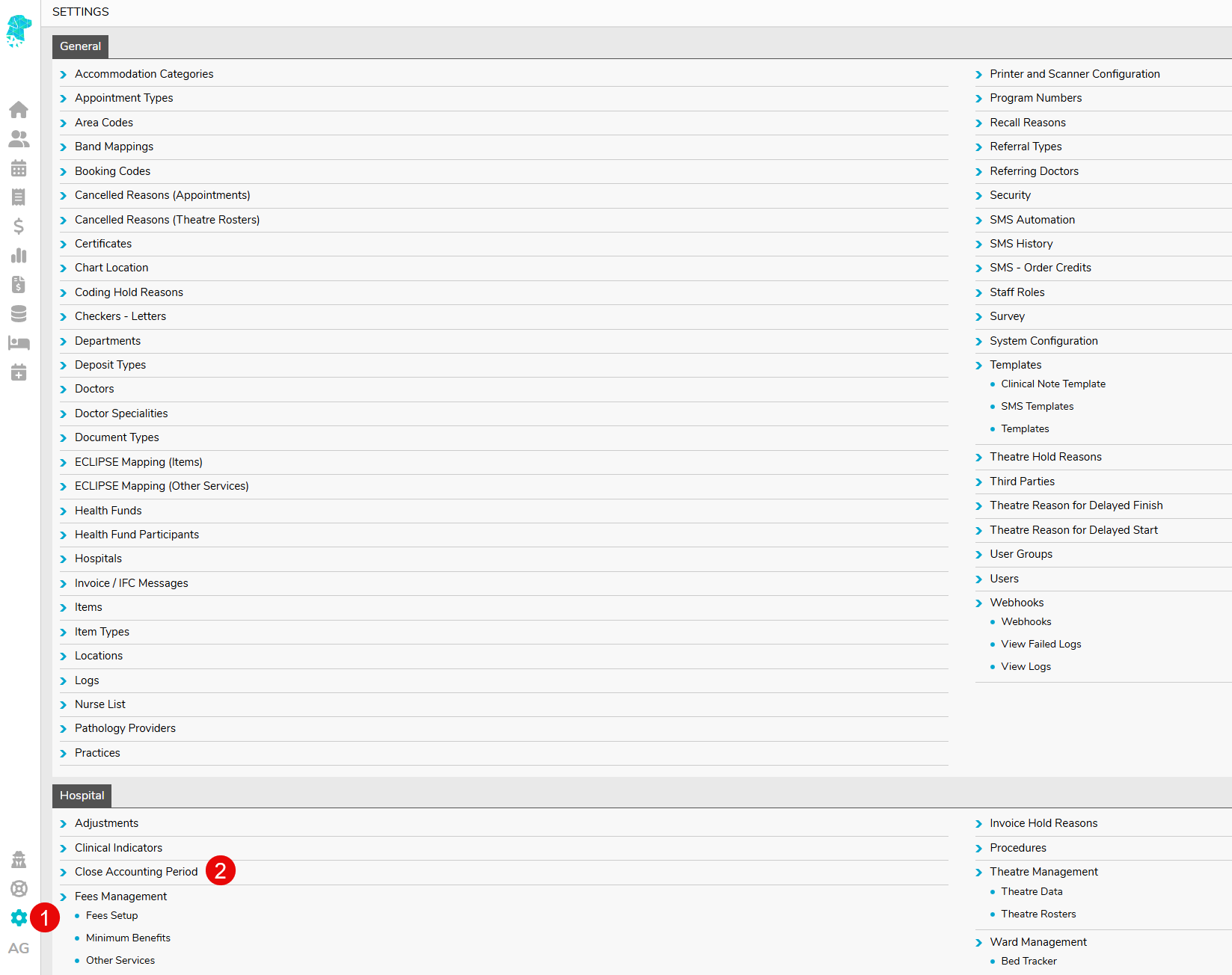
Start off by going over to settings.

Then, click Close Accounting Period.

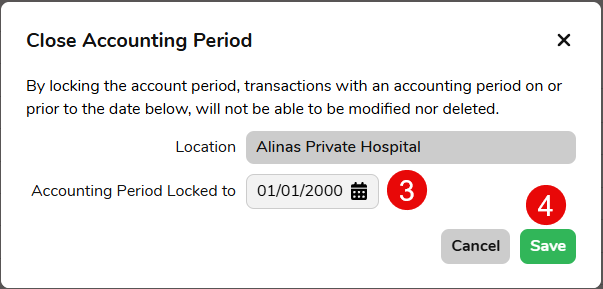
 Enter the date you wish to lock your figures to and click Save.

This action is recorded in FYDO’s audit log, so you can see who closed the accounting period and when.

To view the audit log, go to Settings, then click on Logs.

You will see the log showing when the accounting period was closed.


Adding MBS items – Clinic

Want to know how to add items into Fydo? Follow the below steps and you’ll be billing them in no time!

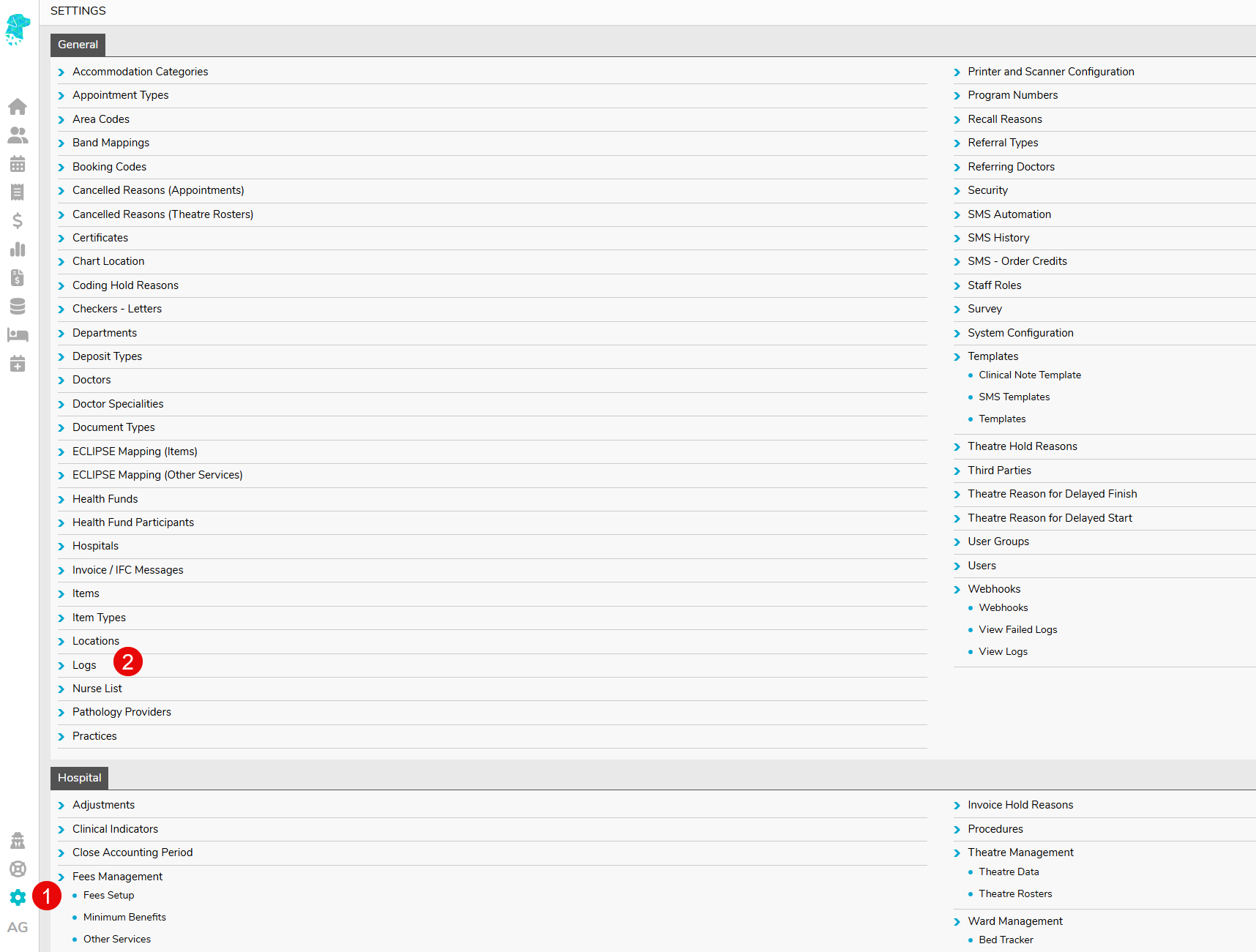
First, lets head to Settings, located in the lower left hand corner of Fydo.


Then select Items, this will display a list of all your current items.

To add a new item, lets click the yellow Add Item button.


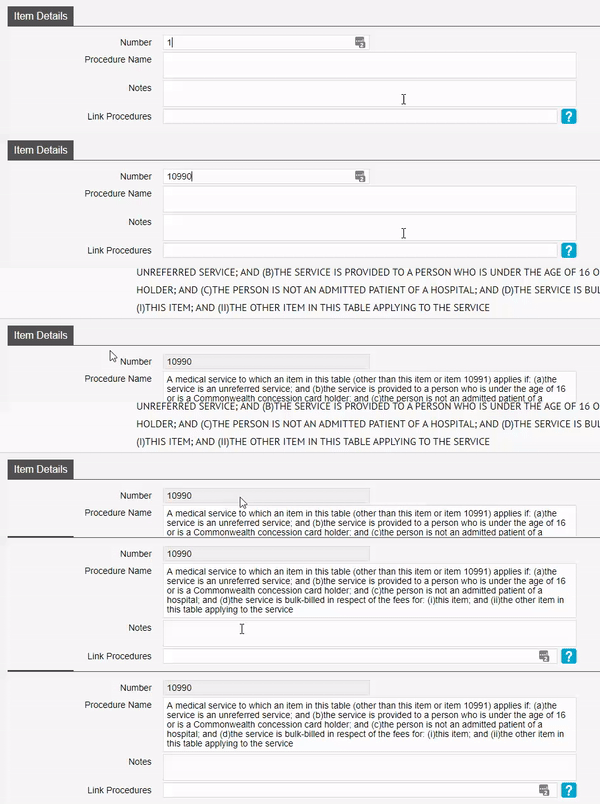
Simply enter the item you need in the Number field as below, found under the Item Details.


You will see the Procedure name be automatically filled.

Now just click on the green Save button.


All done! The rest of the information regarding the item will automatically be added from information via the Medicare Benefits Schedule online Website.

Things such as:

  • Fees (Medicare and DVA rates)
  • Description
  • Rule (If it has one e.g Surgical step down)


Making a Referring Doctor Inactive

Need to delete or remove an existing referring doctor? Read ahead to find out how we can make them Inactive.

1.Click on Settings

2. Then, Referring Doctors

This will display a list of all the referring doctors you currently have.

3. Select the doctor you wish to make Inactive by clicking anywhere on their row in the list of doctors.

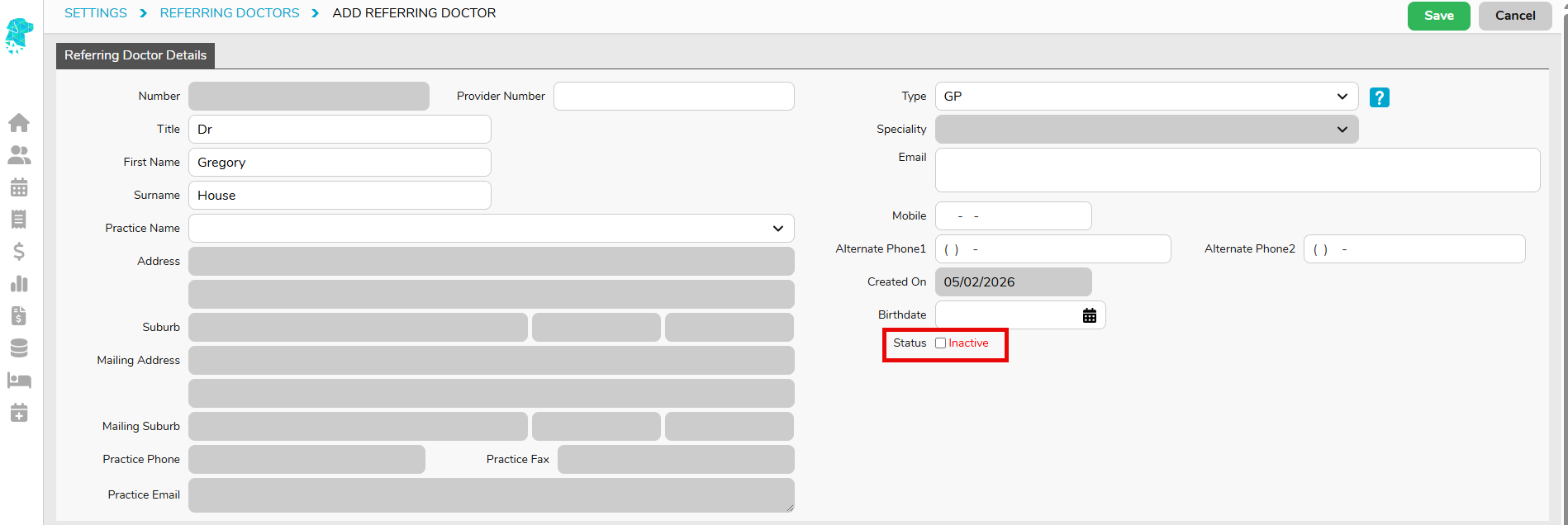
4. You will now see the details for this doctor, click on Edit on the top right-hand corner of the page. Simply untick the Active box next to Status as shown below.

Now the doctor has been made Inactive; they will not appear when searching for them, and they will not be shown on the list of Referring Doctors.

If you wish to view the doctor, or make them Active again, simply tick the Show Inactive box from the Referring Doctors screen.

You will now be able to see the doctor, and you can edit them as per normal, including making them Active again.


Referring Doctors

To access a list of the referring doctors you have added into Fydo simply follow the below steps:

  1. Click on Settings

2. Then, Referring Doctors

This will display a list of all the referring doctors you currently have.

To add a referring doctor, click the yellow Add Referring Doctor button on the top right hand corner of your screen:

To Edit the details of an existing doctor, simply click anywhere along the row for that doctor, and you will be taken to the edit screen:

To get started editing, click on the Edit button on the top right hand corner of the page.

Whether you decided to Add a new Referring Doctor, or Edit an existing one, you will be met with the same screen:

Simply fill out, or change the fields as needed.

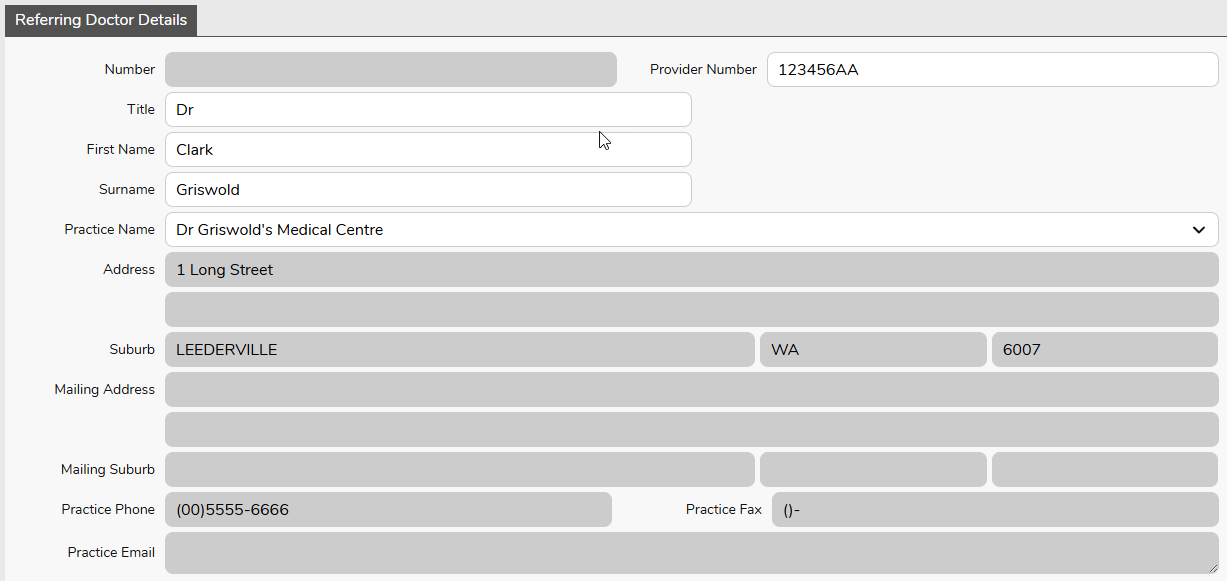
Remember, the required fields for a referring doctor are:

  • Provider Number – You can put a 0 if you do not have the number. Please note that you will need to enter it before submitting your claims, or you will run into rejections.
  • First Name and Surname
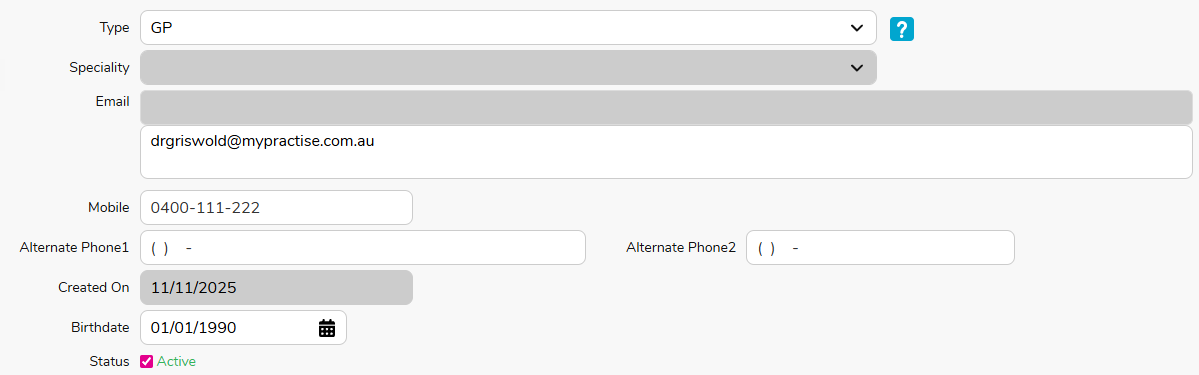
  • Type (GP or Specialist) – This affects the length of the referral, GP: 12 months, Specialist: 3 months.
  • Speciality (If Specialist is selected)

While there are a few other fields, they are optional. You can also upload any Doctors files that may be applicable such as APHRA, Drivers Licence, etc.

Once you are happy with your changes, click the green Save button to lock them in.

You are also able to Create and Edit referrals from within the Patient Details, should you wish to do so, please see our Creating a Patient wiki page.


Eclipse Clinic Billing

Set up your patient and ready to bill? Read ahead to find out how to submit claims to Health Funds via Eclipse.

Important Note: If you have not submitted an Online Patient Verification (OPV) yet for your patient, or you do not know how, see our wiki page here!

To get started, from the Patient Record, we are going to click on the Bill Patient button.

You can also use the hotkey ‘B’!

This will take you to the Clinical Billing page


While you may notice that there are more fields than shown above, for Eclipse we will only be focusing on a few.

Please note that most of these fields are drop down menus.

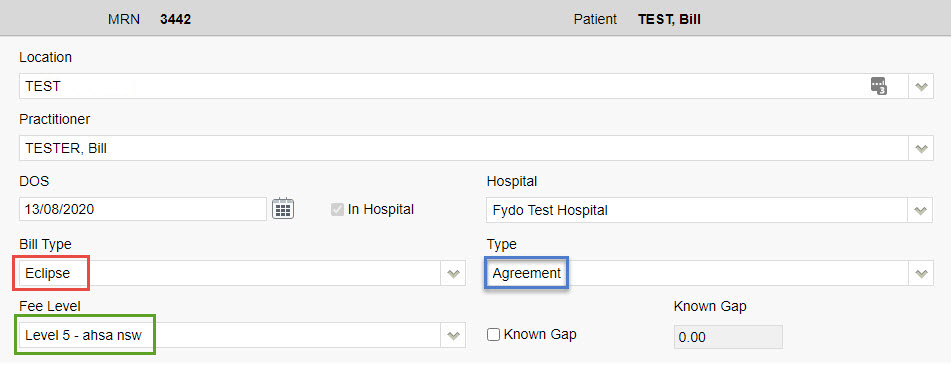
  • Location: The Location the service took place. If you only have one it will be defaulted.
  • Practitioner: The Practitioner who performed the service.
  • DOS: The Date of Service.
  • In Hospital: A tick-box to indicate if this service was performed in a Hospital, this is required for Eclipse

The main fields to ensure are correct for Eclipse are the highlighted ones above, and outlined below:

  • Bill Type: The type of billing; be sure to select Eclipse
  • Fee Level: Which fees this billing will use. Will default based on the patients record.
  • Type: Needs to be set to either Agreement or Scheme depending on the fund.

The last step before we can begin our billing is to enter any needed referral information. If this does not apply to you, skip to the next section: Adding Items

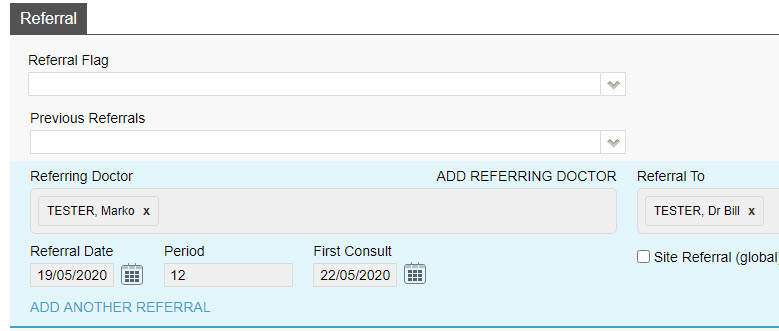
Otherwise, simply fill out the Referral section as seen below. If you only have one referring doctor for this patient, they will be automatically selected here (provided it has not expired)

If you don’t see a Referral you have added, be sure to check the Previous Referrals drop down menu!


Once you are done with the above segments, click on the green Add Items button in the bottom right hand corner of your screen.


Clinic Billing

You will arrive at the Clinic Billing page. Here we can see a brief overview of previous information for the patient, and where we can bill an invoice.

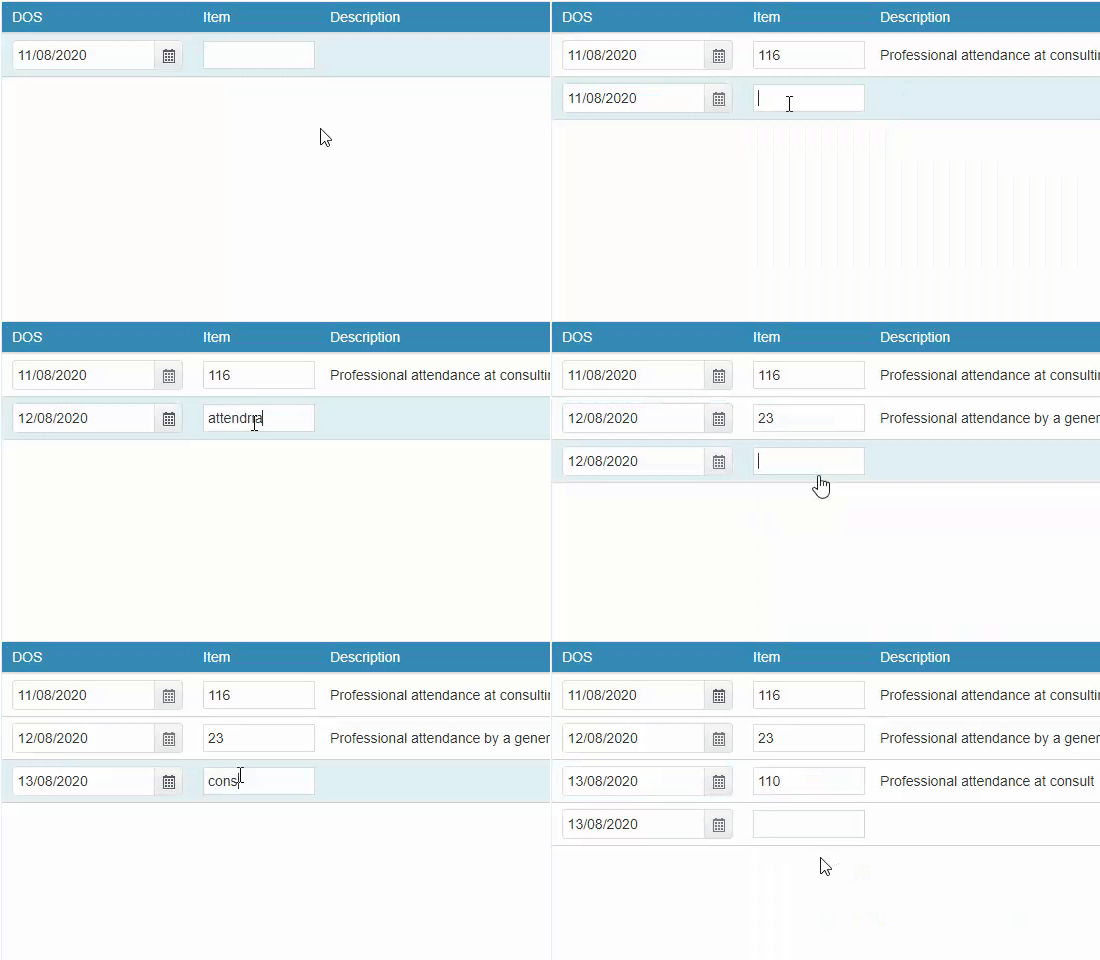
Billing is as easy as typing in the item you need and selecting it. There are two different ways to search for the item as shown below:

  • Search for the item number itself.
  • Search for a word in the description. This can either be at the start, or anywhere within the description!

Don’t forget, for Eclipse you can easily change the Date of Service within the invoice by using the handy calendar!


Once you have entered all your items as desired, click on the Review Charges button to proceed to the final page of billing.


Clinic Review Charges

You may notice that this page looks nearly identical to the previous Clinic Billing page. The only real difference is that you can no longer add or change items, and there are additional buttons at the bottom.

You will also be able to see the Total Charges for the items you have billed like so:


There are a few different options on this screen:


  • Edit Item And Charges: Realised you have made a mistake? click this button to go back to the previous page and fix it up!
  • Cancel: Cancel out of this billing, this will take you back to the Patient Screen.
  • Save: Save this invoice, prompting the final confirmation before it is send to Claiming – Medical. If Save & Print is selected, it will also be printed.

Upon selecting one of the two save options, you will see the final stage of the billing, the Claimant Screen.


Please note that most of the fields are optional, so if you do not wish to fill them out, simply click on the green Send Electronically button.


Otherwise, you can fill them out accordingly, and select if an IFC was issued.

All done! A batch has now been created within Claiming – Medical and will be ready to send off.

If you do not know how to send a batch, see our handy guide here!


Billing DVA Community Nursing (Clinic)

You’re ready to bill DVA community nursing patients. Follow along to learn how

Click on the Patients icon to search a patient or select a patient from the hover 

.

It is a good idea to first run the Online Patient Verification to ensure the correct patient details are entered, as they are known to DVA. 

To learn more about the Online Patient Verification, Click here 

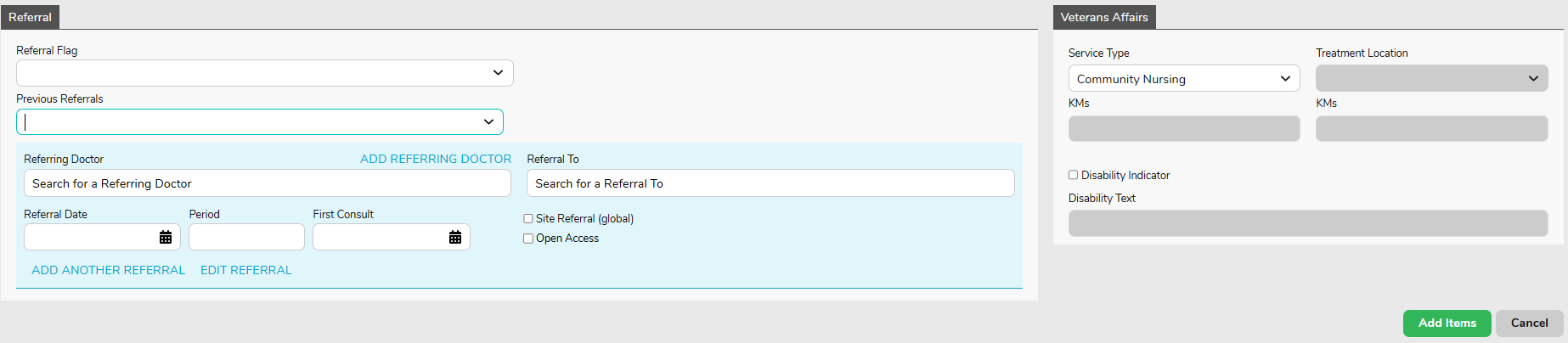
Make sure you have a valid referral entered before commencing the billing.

When you’re ready to bill, click on the Bill Patient button or hit ‘B’ on your keyboard as a shortcut! 

While you may notice a lot of fields, for Community Nursing, we will only be focusing on a few.

Please note that most of these fields are drop down menus.

  • Location: the location where the service took place. If you only have one, it will be defaulted
  • Practitioner: the practitioner who performed the service. If you only have one, it will be defaulted
  • DOS: date of service
  • Referral: This will populate the referral information entered on the patient details screen

Note: The Bill Type will automatically be selected as Veterans, given the patient has a veterans card number on their record. 

All you need to enter is the Date of Service (DOS). The date in this field will always be prefilled as today’s date. Therefore, in almost all cases, you will need to change this date. The date of service should be the first day of the 28 day claiming cycle.

Community Nursing Quick Reference Guide

Conditional: if you have entered a referral on the patient’s record and do not see it in the billing screen, you may click on the ‘Previous Referrals’ drop down to view all previous entered referrals and select the desired one. This would likely occur when the DOS (Date Of Service) is outside of the referral validity.

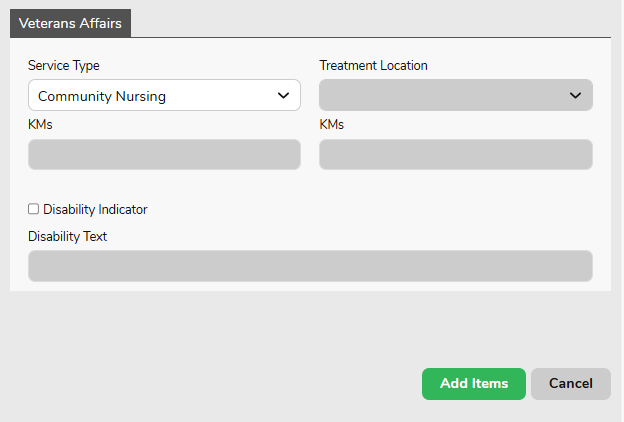
Once you have filled in the DOS (first day of the 28 day claiming cycle) click on the Add Items button. 

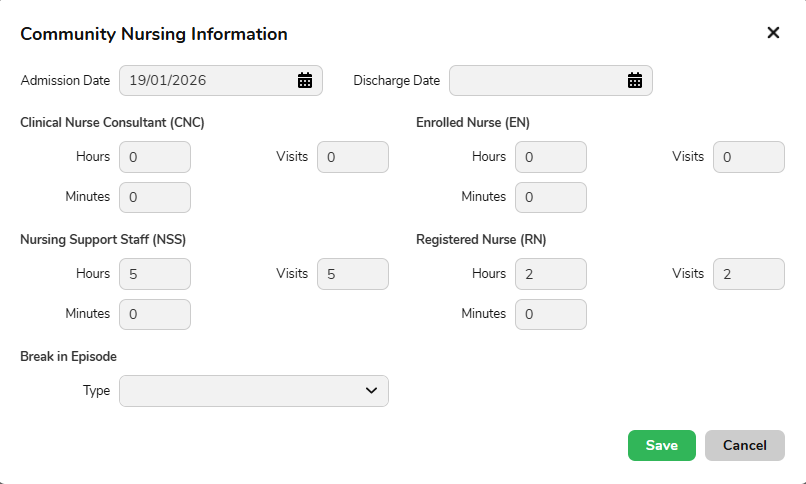
You will now be presented with a pop up asking you to enter the nursing hours/minutes and visits for this period of care (current 28 day cycle). Enter your nursing hours and visits and hit ‘Save’.

Note: hours are only required to be reported when core items are billed. They are not required if you are billing consumables only. 

That said, if you are not billing your core items with the consumables, you will need to bill the core items first, before billing the consumables to avoid rejections.

Forgotten to add some hours, or want to check what you’ve entered? You can invoke the nursing hours pop up again by hitting the ‘CN Info’ button.

Next, go ahead and enter your desired item(s) in the below field. If you are unsure which items are required, refer to the current DVA Community Nursing Schedule Of Fees.

Once you have entered all your desired items, click on:

  • Review Charges
  • Save 

A batch has now been created within Claiming – Medical.

Go to Claiming Medical, there will be a batch with the status “Open”. Once ready to send it off for payment, click the blue action arrow on the far right of the batch and then click Close & Send.

The batch will update to “sent” status. You will now wait for DVA to process the claim.