Dealing with Overdue Hospital Debtors

PLEASE READ FIRST

This guide is intended for users who have too many or out of control debtors. This wiki page does not cover the basics, it is an in depth look at how to work through the debtors. 


First, lets run the report so we can identify patients that need to be investigated. There are 3 Filters we will want to use.

  1. Fund – It may be best to look at one fund at a time, and action those together
  2. Period – We can filter the report to only show us debtors that are 45 days and older, if your debtors is really bad you may wish to start at 60 days.
  3. Details – Offers a detailed view of the report, showing patient information, make sure this is always on.

In the above example, I can see that there are some patients with outstanding debtors, ranging from 45 to 120+ days. The Balance Outstanding column shows me how much each outstanding patient has. The next step is to select one of these patients to follow up on, and we can go through the steps of what has to occur next.


Checking Invoice Status

The next thing we want to do, is head to the patients Episodes so we can see the details of the invoice, the outstanding amount and check the invoice status, so we know what part of the process the invoice had issues on.

To see the Invoice Status, simply select it from the Invoice Options drop down menu, found near the balance for that episode. As you can see below, the status will show us which batch the invoice is currently in, as well as what the Status of the batch currently is. The batch we have investigated below is sitting as Sent. As this episode was from 02/10/2020, this is probably not a good sign, so it is worth taking a further look into it.


There are three main Status’s you may run into:

  • Sent – Invoice received no response
  • Processed – Invoice has an exception file but no payment
  • Rejected – Invoice was just flat out rejected

In all of the above cases, if a batch is old enough to be in the 45+ days Debtors and has an above status, it is time to call or email the Health Fund regarding its issue. They will be able to help with either resubmitting or amending the invoice, depending what is needed.

We also suggest making use of the Financial Notes, also found on the episodes tab. This will let you keep up to date notes, as well as allow all users to see the same notes, so you can track right on the patient record what you have done as a follow up.


Processing Reports

Once you have established that an invoice has an issue, it can be a good idea to check the Processing Report for that claim. Generally, these reports will include a rejection if there was one, and can help you figure out the issue. We can access the processing and payment reports section via the and selecting the appropriate option.


Once here, we need to select the Processing IHC tab at the top.


Now we will be able to view and filter processing reports depending what we need to look at. Make sure to select appropriate filters, since we may be looking at some processing reports we will need to use the From and To filter.


The important date to change is the From date. Since if you have this set to a recent date, Fydo will not display older processing reports. I suggest setting it to the date you sent your claim, so you know the processing report will be in range.

Since we are looking for a specific patient, you should then go ahead and search for that patient.


The can simply search by doing Lastname, Firstname. Now its time to look at the processing report, and try to assess why we were rejected.


Assessing the Processing Report

There are a few main things to look at in the processing report, covered below.


  1. Claimed – This is how much you claimed for the invoice
  2. Approved – This is how much the fund approved. $0 means a rejection, but you may also receive short payments as well.
  3. Assessment – It is important not to just look at this field, as the fund has marked it Accepted, even though we clearly have a rejection. Make sure to look at all appropriate data.
  4. Explanation – This is the important one, here you will see a brief description of why something has been rejected.

In the above case, I can see that for this patient, the service for 09/12/2020 was within the waiting period. My best bet would be to give MPL a call, and see if we are able to get it paid at all, since while we do know the rejection reason, there is no supporting information for how to get it paid.

In the cases of short payments, it is a good idea to compare the invoice you submitted to your Contract with the fund, and make sure you have charged the appropriate amount. If you have charged the correct amount, again contacting the fund is vital.

In almost all cases, it will end up best to contact the health fund, since many Explanations they provide can be unhelpful, or too short to convey the real reason for a rejection, as such they are the main contact for help, and can assist to get it paid.


Contacting Funds

See our health fund contacts page.


How to create a referral

If needing referrals applies to your discipline, read on to learn how to create new referring doctors on your FYDO system; and how to create referrals on patient records.


Start off by opening a patient’s record. Below is an example of a patient record, with the referral section highlighted.


Notice that the data fields on the record are greyed out and you cannot commit any changes. This is because you are not in edit mode and therefore cannot make any edits. 


So click on the Edit button to continue.


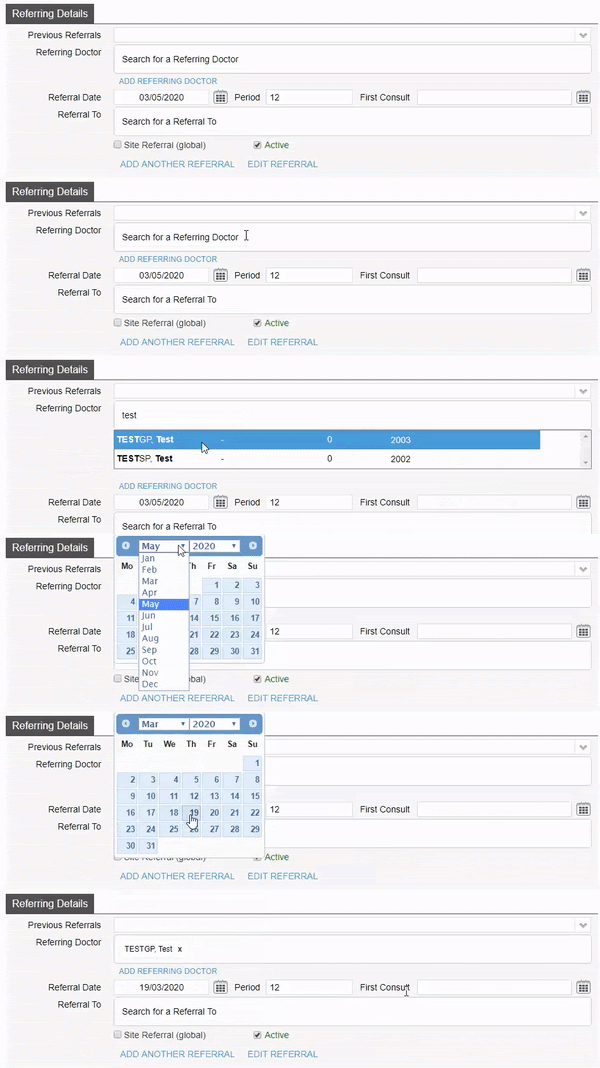
You will now be able to make edits to this record, scroll down to the Referring Details section.


If the referring doctor has never been entered into your FYDO system, click on the blue ADD REFERRING DOCTOR button to add a NEW referring doctor.


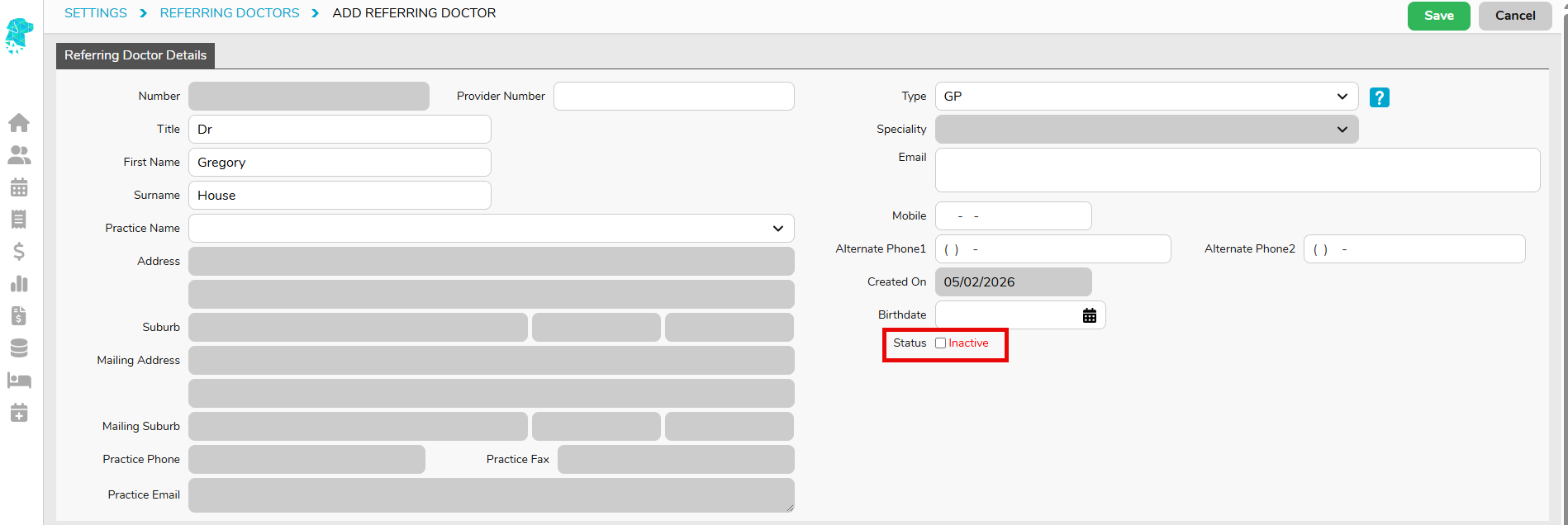
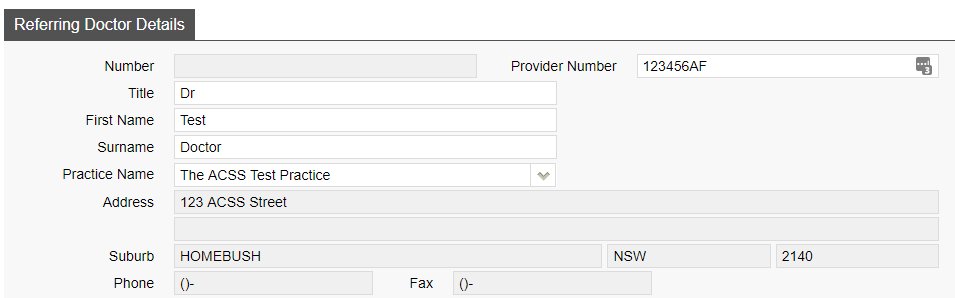
This will present you with the below screen, where the main data fields are highlighted. So go ahead and fill this in along with any other additional information you’d like to store about this referring doctor.


Note: this only needs to be done once per referring doctor. 


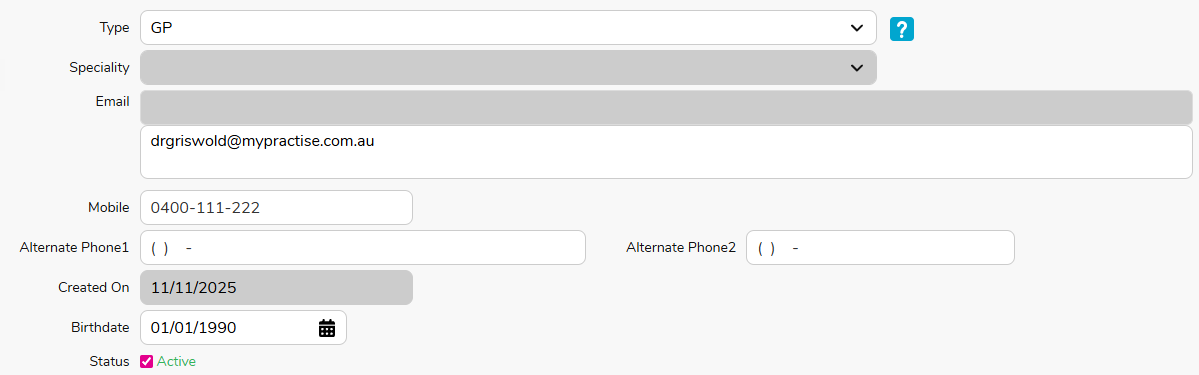
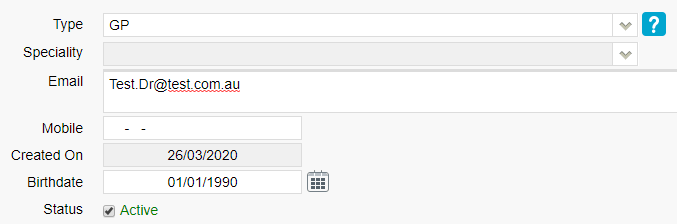
Referring doctor ‘Type’

  • GP: by default, GP referrals have a referral period of 12 months
  • Specialist: by default, Specialist referrals have a referral period of 3 months


If the referring doctor has already been entered into FYDO as a referrer, you will be able to search for them by clicking on the search box pictured below. You may search by the doctor’s first or last name. 


Next, enter the Referral Date and you’re done! This is the minimum data set for adding a referral to a patient’s record. 


Notes on other data fields in ‘Referring Details’

  • Period: this is how many months the referral is valid for. It may be overwritten by the user, at their discretion
  • First consult: if the first Date of Service is after the Referral Date, you may enter the date of service into this field so that the Referral Period is calculated from this date, rather than the referral date
  • Referral to: this is which provider the referral is for. If left blank, upon billing it will get linked to that provider; 
  • Site Referral (global): allows this referral to be used by any provider rather than one specific provider. 


That’s it! You’ve added a new referring doctor to your FYDO system and created a referral on a patient’s record. Click on the green Save button on the top right corner of the patient record to save your changes.


Editing, deleting, and inactivating referrals

Made a mistake when creating the referral? No problem. Read on to see how to edit or delete referrals.

Start off by opening a patient’s record. Below is an example of the referral section of a patient’s record.

  • Add another referral: FYDO allows you to have multiple referrals for a given patient. Use this button to add another referral
  • Edit referral: this button allows you to make changes to any of the data fields of a given referral
  • Delete this referral: this button will remove the referral
  • Active: untick this checkbox to make the referral inactive


Results of an OEC

If you have not submitted an OEC yet, please see our guide found here

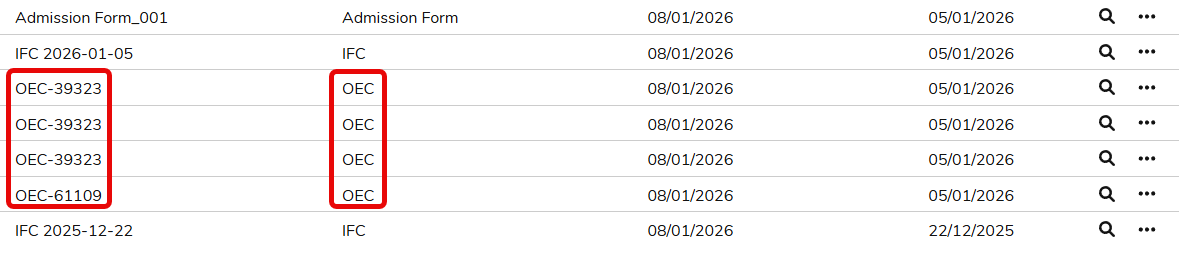
To find your OEC, first access the Documents from the patients record.

You will see a list of all the recorded documents for this patient. The OEC’s that were returned will have the Name and Type of OEC. The MBS item number the OEC was ran on will also be included in the OEC name, eg; OEC-39323. Select one to view. These documents can be printed or downloaded as needed but will always be kept here, within the patient record.
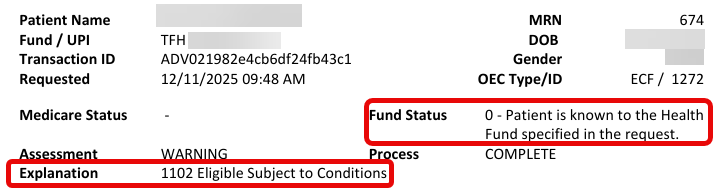
The first part of your OEC contains some patient information, as well as the Fund status on the check. It will also show the Explanation, on our OEC below we can see that the patient is eligible, but subject to conditions. The conditions will need to be confirmed with the fund:
Health Fund Assessment

The next part of the OEC details the patients financial eligibility. We can see any Excess or Co Payments that are applicable, as well as a description of what the patients cover is limited to.
Any Excess shown here will be automatically updated in the Appointments screen for this patient.
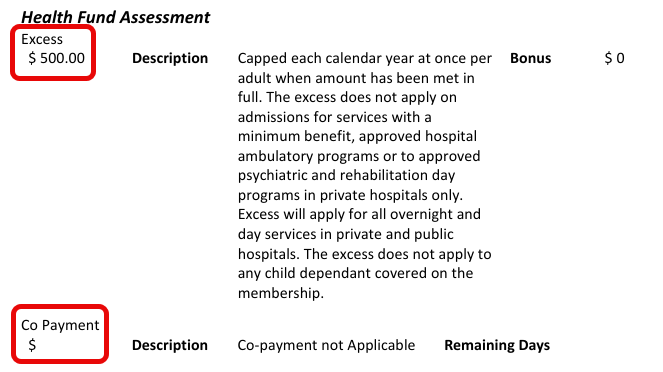
Just below the excess and co payment information, you will find the final details of the OEC. The fund will detail the members cover and the description will mention services that are excluded. There is also space for Benefit Limitations and Exclusions. If your OEC shows the patient as not having cover, these fields will detail what the exclusions are and why the patient is not covered.
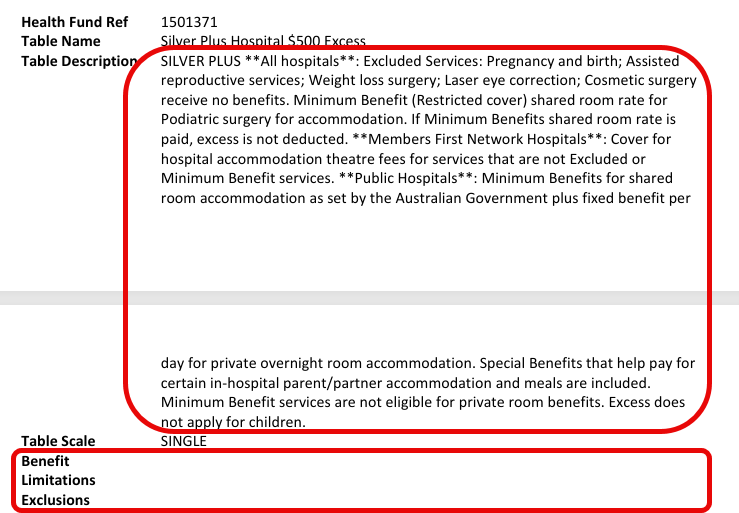
Finally, there is a field for any Other Services that were checked, such as Prosthesis items.



Hospital Data Extracts Setup

Each month you will be required to submit data of patient discharges to various agencies. This data submission is mandatory and is required approximately two weeks into the following month. Hospitals are required to submit data to:
  • PHDB [Private Hospital Data Bureau]
  • HCP [Hospital Casemix Protocol]
  • State health departments also require data – you only need to submit data to the state the facility is located in

PHDB – Private Hospital Data Bureau

This data is collected by the Commonwealth. FYDO easily collects this information during the admission and discharge process, and at the end of month you can run a report to export this data to a file in the format PHDB requires.

Once FYDO produces the file, you will need to upload this file to the Data Submission Portal (DSP). To arrange access to the DSP please email hcp@health.gov.au with the following details:

  • Facility Provider Number
  • Facility Name
  • Facility Address
  • Facility Phone
  • Name of data submitter (an individual)
  • Email where verification reports can be sent to

For more information, please contact PHDB on:
Phone: 02 6289 8058
Email: hcp@health.gov.au

Visit the PHDB website click here.

HCP – Hospital Casemix Protocol

This monthly data submission is in a similar format to the PHDB file, however this data is sent to the patient’s health fund. FYDO can produce a file at the end of each month for each health fund. If in the month of March there were no discharges for Medibank, then FYDO will not produce a file for Medibank.

You will need to contact each health fund and request access to their portal so that you can submit this data at the end of each month. There is only one portal for the entire Australian Health Service Alliance (AHSA) group. For a list of health funds that are part of AHSA, click here.

Below are some of the funds you may need to report to, and how to request access:

State Health Departments

The state your facility resides in also requires data at the end of each month. Like PHDB and HCP data, FYDO makes this easy each month. FYDO is able to create a file in the format your state requires. Each state has a different file format.

You will need to contact the representative in your state and request access, and instructions on where to submit your file each month.

NSW Health – Phisco data

Contact: Roman Leszcynski
Phone: 02 9391 9995
Email: iscos@doh.health.nsw.gov.au
Email: Roman.Leszczynski@health.nsw.gov.au

VIC Health – VAED

Phone: 03 9096 8595
Email: hdss.helpdesk@dhhs.vic.gov.au
Website for more information click here.

QLD Health – QHAPDC

Phone: 07 3708 5679
Email: QHIPSMAIL@health.qld.gov.au
For more information click here.

WA Health – HMDS

Phone: 08 9222 4362 (Inpatient Data Collections)
Email: DoH.AdmittedDataCollection@health.wa.gov.au

ACT Health

Phone: 02 6205 5249
Email: dsd.informationmanagementhub@act.gov.au
Email: Prathima.Karri@act.gov.au
For more information click here.

TAS Health

Contact: Cynthia Rogers
Phone: 03 6166 1081
For more information click here.

SA Health – ISAAC

Email: Health.ISAACSubmissions@sa.gov.au
For more information click here.

Cancer Registers

NSW & ACT

Email: information@cancerinstitute.org.au
Phone: 02 8374 5600
For more information click here.

VIC

Email: vcr@cancervic.org.au
For more information click here.

For instructions on how to Extract Hospital Data from FYDO visit our wiki page:
Hospital Data Extraction

For instructions on how to Re-Extract Hospital Data from FYDO visit our wiki page:
Re-Submitting a Hospital Data Extraction


Medicare and Fund Contacts – Dealing with Rejections

Medicare & DVA

Organisation Phone/ Email
Medicare P: 1800 700 199F: 02 9895 3190
MBS Interpretation P: 13 21 50E: askMBS@health.gov.au
DVA P: 1300 550 017

Health Funds

Fund name Contact for clinics Contact for hospitals
ACA Health
ECLIPSE code: ACA
HCP code: ACA
P: 1300 368 390
acahealthit@acahealth.com.au
P: 1300 368 390
acahealthit@acahealth.com.au
Alliance (AHSA) P: 03 9813 4088
access@ahsa.com.au
 
AHM
ECLIPSE code: AHM

HCP code: AHM

P: 1300 524 456
Eclipse@medibank.com.au
P: 1300 560 680
Eclipse@medibank.com.au

AHM and Medibank have the same support team

Australian Unity
ECLIPSE code: AUH

HCP code: AUF

P: 1800 035 360 P: 1800 035 360
dgilder@australianunity.com.au
BUPAE
CLIPSE code: BUP

HCP code: BUP

P: 134 135F: 1300 130 623 for sending claims manuallydr.billing@bupa.com.au

Only for sending claims with Problems / Rejections

gapscheme@bupa.com.au

Only for if you are unable to fax

P: 134 135
gordon.barrett@bupa.com.au
CBHS Corporate Health & CBHS Health Fund
ECLIPSE code: CBC & CBH

HCP code: CBC & CBH

P: 1300 654 123
providers@cbhs.com.au
P: 1300 654 123
access@cbhs.com.au

Alternatively
julie.mckinnon@cbhs.com.au

Hunter Health Insurance
(Formally known as ‘Cessnock’ or ‘CDHBF Health’)

ECLIPSE code: CDH

HCP code: CDH

P: 02 4990 1385
enquiries@hunterhi.com.au
P: 02 4990 1385
CDH.BenefitsFund@Hunterhi.com.au
CUA Health Limited
ECLIPSE code: CHF

HCP code: CPS

P: 1300 499 260 cuahealth@cuahealth.com.au P: 1300 499 260 
cuahealth@cuahealth.com.au

Alternatively
karen.coventry@cua.com.au

Defence Health
ECLIPSE code: DHF

HCP code: AHB

P: 1800 656 329 P: 1800 656 329
providerrelations@defencehealth.com.au
Doctors Health Fund
ECLIPSE code: AMA

HCP code: AMA

P: 1800 226 586 P: 1800 226 586
lesley.rutter@doctorshealthfund.com.au 
Emergency Services Health (also managed by Police Health)

ECLIPSE code: ESH

HCP code: SPE

P: 1300 703 703 
F: 1300 151 152
P: 1300 703 703 
providerenquiries@eshealth.com.au
GMHBA
ECLIPSE code: GMH

HCP code: GMH

P: 1300 446 422
F: (03) 5222 7478
P: 1300 446 422
Jamie-LeeGardham@gmhba.com.au

joannesheldon@gmhba.com.au

GU Health (FAI)
ECLIPSE code: FAI

HCP code: FAI

P: 1800 249 966
corporate@guhealth.com.au
providers@honeysucklehealth.com.au
HBF
ECLIPSE code: HBF

HCP code: HBF

P: 1300 810 475
expresspayqueries@hbf.com.au
P: 1300 810 475
lorraine.hort@hbf.com.au
HIF(Health Insurance Fund of Australia Limited)

ECLIPSE code: HIF

HCP code: HIF

P: 1300 134 060
claims@hif.com.au
P: 1300 134 060
michelle.peacock@hif.com.au
HCF
ECLIPSE code: HCF

HCP code: HCF

P: 1800 670 302
medicoverenquiry@hcf.com.au
P: 1800 670 302
MFarlow@hcf.com.au (Maria) 

Alternatively

dfernandez@hcf.com.au (David)

Health Care Insurance
ECLIPSE code: HCI

HCP code: HCI

P: 1800 804 950 P: 1800 804 950
jamie.gillam@hciltd.com.au
Health Partners
ECLIPSE code: SPS

HCP code: SPS

P: 1300 113 113 P: 1300 113 113
hospitalclaims@healthpartners.com.au

davids@healthpartners.com.au

Health.com.au
ECLIPSE code: HEA

HCP code: HEA

P: 1300 199 802 P: 1300 199 802
hospitalteam@health.com.au 

Alternatively

Catherine.Ngo@health.com.au 

Gemma.Oliver@health.com.au

Latrobe
ECLIPSE code: LHS

HCP code: LHS

P: 1300 362 144
E: info@lhs.com.au
P: 1300 362 144
tan@lhs.com.au
Medibank
ECLIPSE code: MPL

HCP code: MPL

P: 1300 130 460 P: 1300 130 460
medibankhospital.network@medibank.com.au
Mildura
ECLIPSE code: MDH

HCP code: MDH

P: 03 5023 0269
providers@mildurahealthfund.com.au 
P: 03 5023 0269
eclipse@mildurahealthfund.com.au
MO Health
ECLIPSE code: MYO

HCP code: MYO

P: 1800 333 004 P: 1800 333 004
Vaibhav.Makin@aia.com
Navy Health
ECLIPSE code: NHB

HCP code: NHB

P: 1300 217 736
query@navyhealth.com.au
NIB
ECLIPSE code: NIB

HCP code: NIB

P: 1300 853 530
medigap@nib.com.au
Overseas Claims: internationalclaims@nib.com.au
P: 1300 853 530
hospitaleclipse@nib.com.au

provrel@nib.com.au

Nurse and Midwives
ECLIPSE code: NMW

HCP code: NMW

P: 1300 344 000
submit.claim@nmhealth.com.au
P: 1300 344 000
EclipseClaims@nmhealth.com.au 

Alternatively

George.Drakakis@nmhealth.com.au dianne.roe@teachershealth.com.au

OneMediFund
ECLIPSE code: OMF

HCP code: OMF

P: 1800 148 626
F: 1300 673 406
P: 1800 148 626
info@onemedifund.com.au
Peoplecare Health Insurance
ECLIPSE code: LHM

HCP code: LHM

P: 1800 808 690 P: 1800 808 690
info@peoplecare.com.au
Phoenix Health
ECLIPSE code: PHF

HCP code: PWA

P: 1800 028 817 P: 1800 028 817
enquiries@phoenixhealthfund.com.au

info@peoplecare.com.au

Police Health (also managed by Emergency Services Health)

ECLIPSE code: POL

HCP code: SPE

P: 1800 603 603
F: 1800 008 554
P: 1800 603 603
providerenquiries@policehealth.com.au
Queensland Country
ECLIPSE code: QCH

HCP code: QCH

P: 1800 813 415 P: 1800 813 415
rharding@qccu.com.au 
TUH(Queensland Teachers)

ECLIPSE code: QTU

HCP code: QTU

P: 1300 360 701 P: 1300 360 701
alice.caldwell@tuh.com.au
Reserve Bank health
ECLIPSE code: RBH

HCP code: RBH

P: 1800 027 299
F: 1300 309 704
P: 1800 027 299
info@myrbhs.com.au
RT Health
ECLIPSE code: RTH

HCP code: RTE

P: 1300 886 123 (option 5)
access@rthealthfund.com.au
P: 1300 886 123
hospitals@rthealthfund.com.au
St Lukes
ECLIPSE code: SLM

HCP code: SLM

P: 1300 651 988 P: 1300 651 988
general@stlukes.com.au
Teachers Federation
ECLIPSE code: TFH

HCP code: NTF

P: 1300 728 188 P: 1300 728 188
elizabeth.cashman@teachershealth.com.au 

Alternatively, try: 

EclipseClaims@teachershealth.com.au 

George.Drakakis@nmhealth.com.au 

dianne.roe@teachershealth.com.au

Transport Health
ECLIPSE code: TFS

HCP code: TFS

P: 1300 806 808 P: 1300 806 808
hospitals@transporthealth.com.au
Westfund
ECLIPSE code: WFD

HCP code: WFD

P: 1300 937 838
medicalbenefits@westfund.com.au
P: 1300 937 838
sharpg@westfund.com.au


Closing the Accounting Period

Closing the ‘Accounting Period’ refers to locking down your financial figures up to a given date (usually the end of the month) so that they cannot be changed

We do not recommend closing the accounting period for the last month, on the first day of the current month. Rather, give yourself seven to ten days to get your figures to a point where you are happy. That is, after all rejections and adjustments are made. 

In other words, it ensures that the figures seen on your revenue report run out of FYDO match the figures seen on your bank account, to the cent. And that those figures then cannot be amended in FYDO. 

So let’s see where the accounting period is closed.

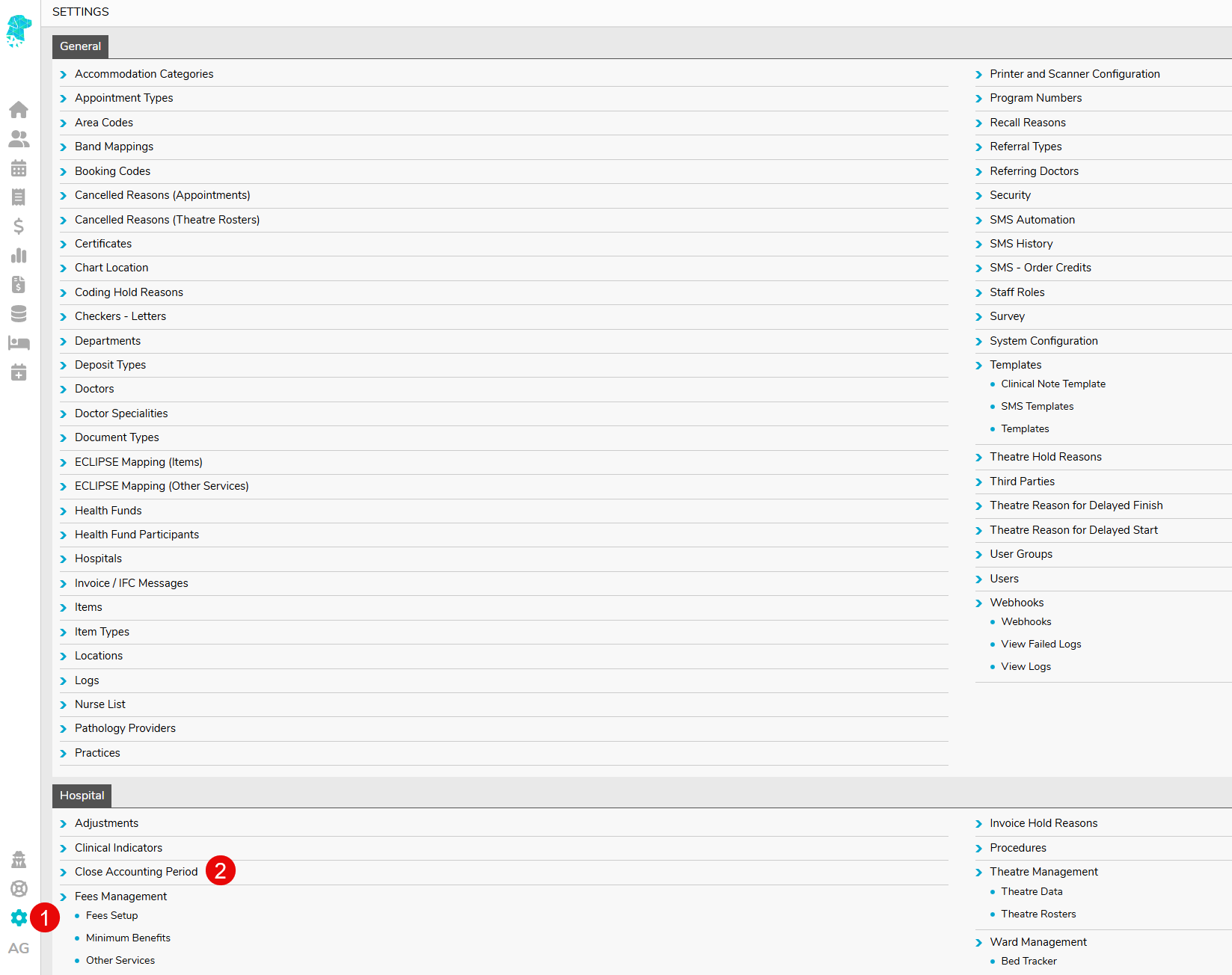
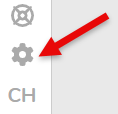
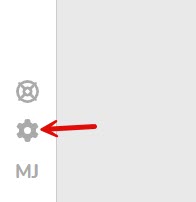
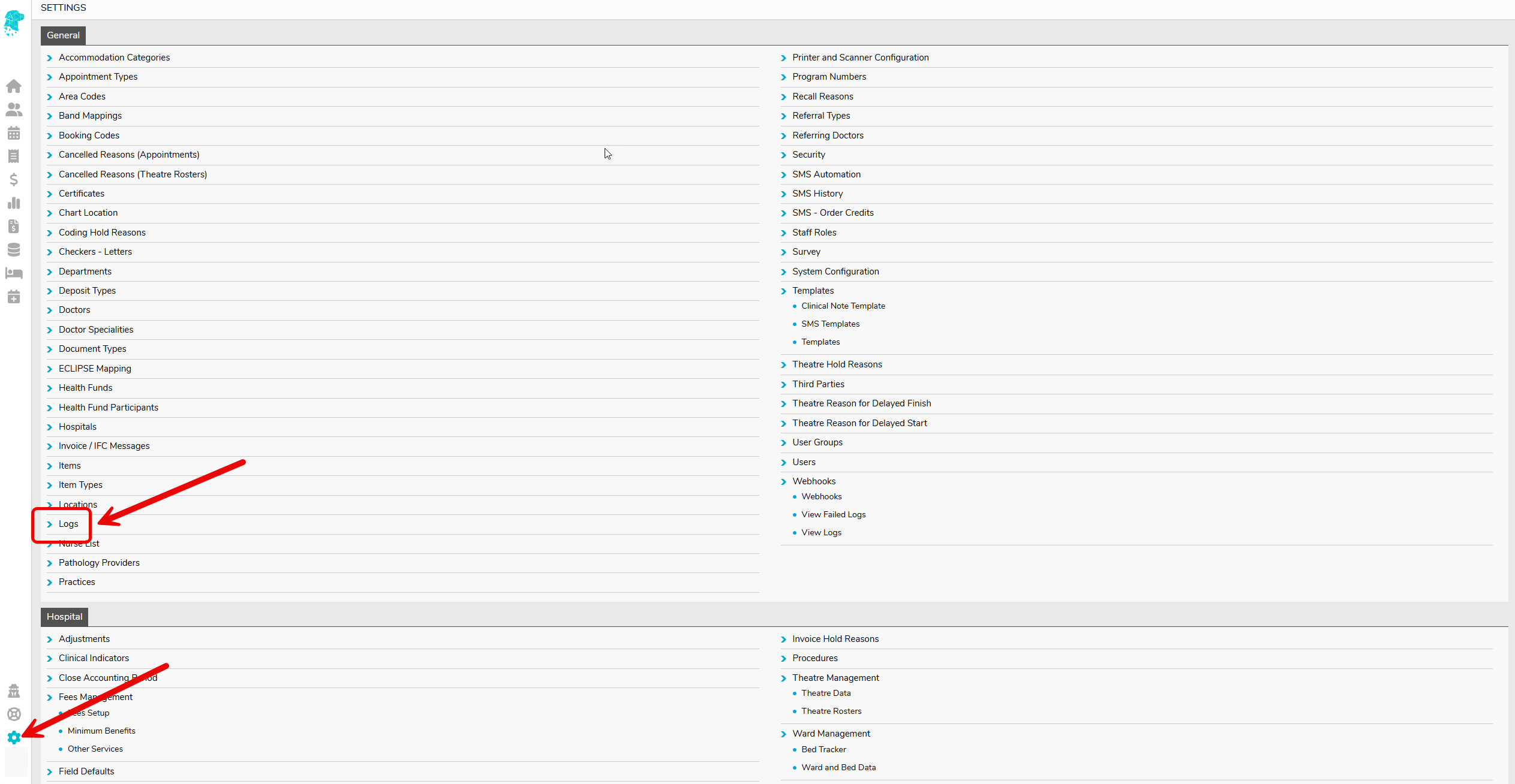
Start off by going over to settings.

Then, click Close Accounting Period.

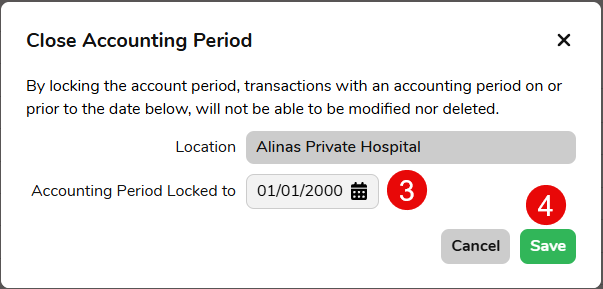
 Enter the date you wish to lock your figures to and click Save.

This action is recorded in FYDO’s audit log, so you can see who closed the accounting period and when.

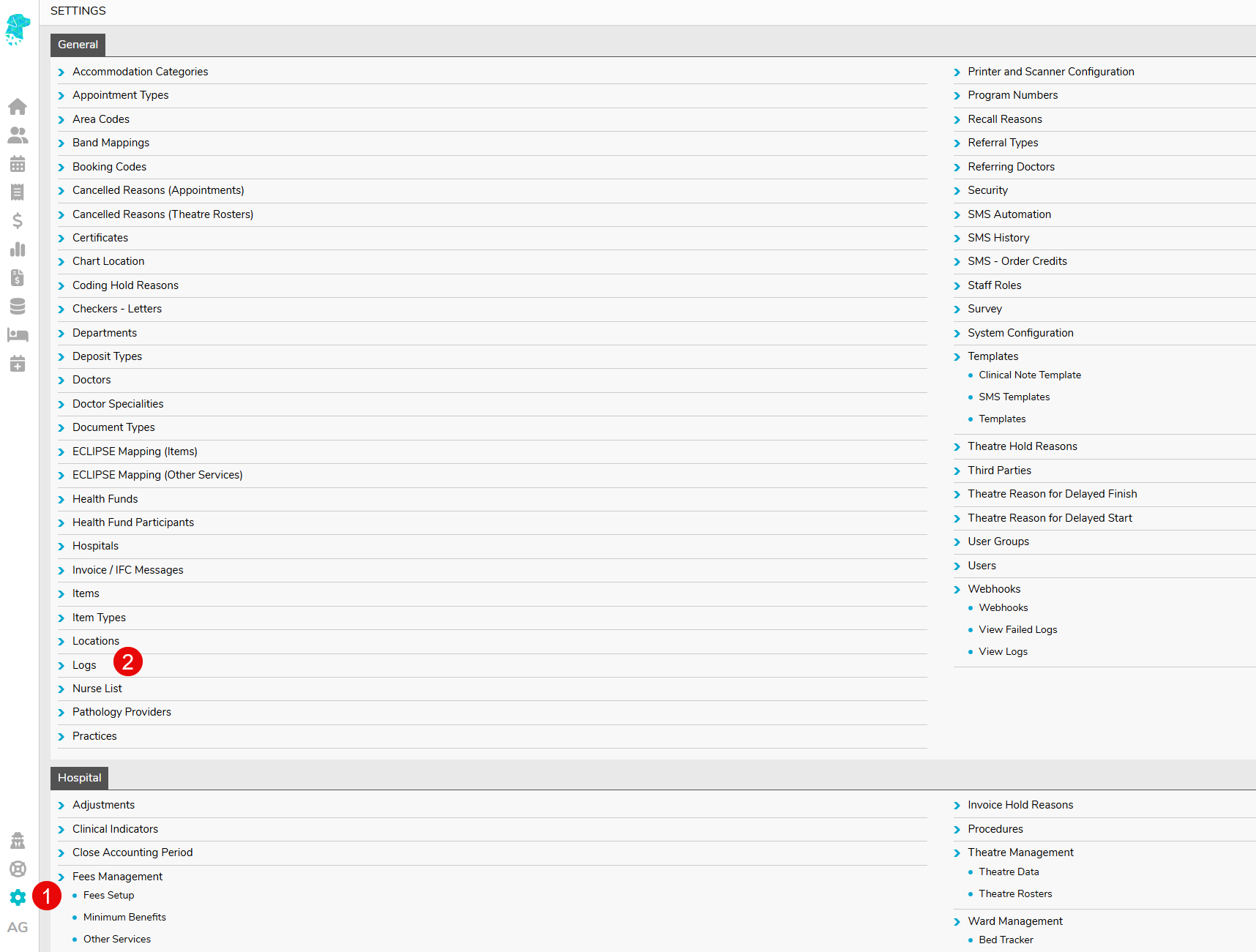
To view the audit log, go to Settings, then click on Logs.

You will see the log showing when the accounting period was closed.


Making a Referring Doctor Inactive

Need to delete or remove an existing referring doctor? Read ahead to find out how we can make them Inactive.

1.Click on Settings

2. Then, Referring Doctors

This will display a list of all the referring doctors you currently have.

3. Select the doctor you wish to make Inactive by clicking anywhere on their row in the list of doctors.

4. You will now see the details for this doctor, click on Edit on the top right-hand corner of the page. Simply untick the Active box next to Status as shown below.

Now the doctor has been made Inactive; they will not appear when searching for them, and they will not be shown on the list of Referring Doctors.

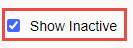
If you wish to view the doctor, or make them Active again, simply tick the Show Inactive box from the Referring Doctors screen.

You will now be able to see the doctor, and you can edit them as per normal, including making them Active again.


Referring Doctors

To access a list of the referring doctors you have added into Fydo simply follow the below steps:

  1. Click on Settings

2. Then, Referring Doctors

This will display a list of all the referring doctors you currently have.

To add a referring doctor, click the yellow Add Referring Doctor button on the top right hand corner of your screen:

To Edit the details of an existing doctor, simply click anywhere along the row for that doctor, and you will be taken to the edit screen:

To get started editing, click on the Edit button on the top right hand corner of the page.

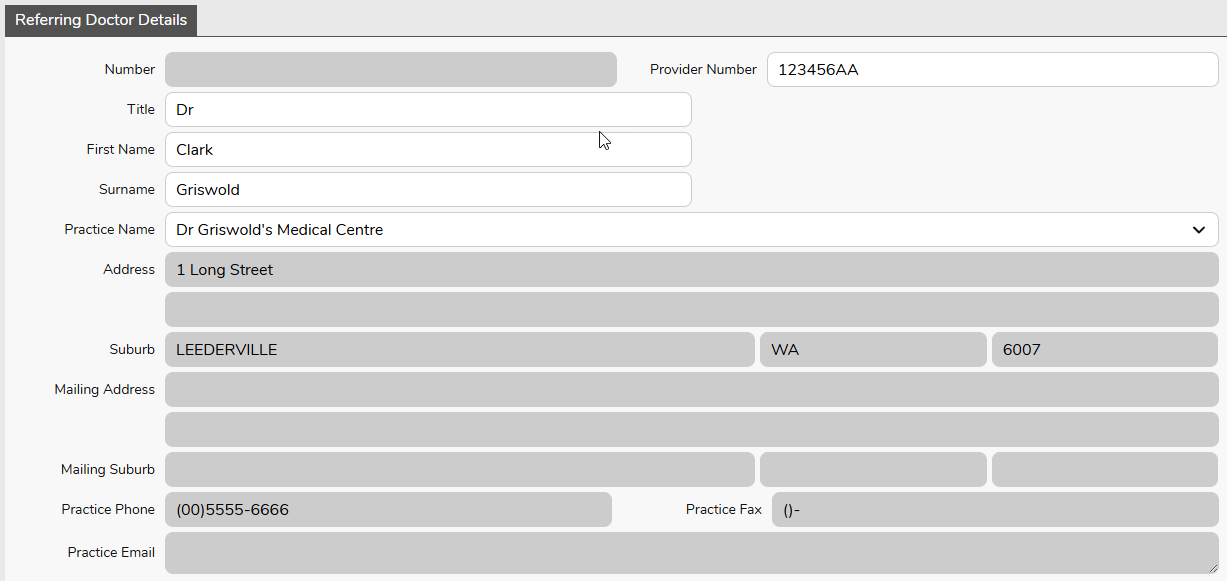
Whether you decided to Add a new Referring Doctor, or Edit an existing one, you will be met with the same screen:

Simply fill out, or change the fields as needed.

Remember, the required fields for a referring doctor are:

  • Provider Number – You can put a 0 if you do not have the number. Please note that you will need to enter it before submitting your claims, or you will run into rejections.
  • First Name and Surname
  • Type (GP or Specialist) – This affects the length of the referral, GP: 12 months, Specialist: 3 months.
  • Speciality (If Specialist is selected)

While there are a few other fields, they are optional. You can also upload any Doctors files that may be applicable such as APHRA, Drivers Licence, etc.

Once you are happy with your changes, click the green Save button to lock them in.

You are also able to Create and Edit referrals from within the Patient Details, should you wish to do so, please see our Creating a Patient wiki page.


Searching for a Patient

In Fydo, there are a few different ways we can search a patient.


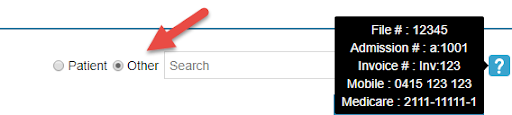
Depending on if we have Patient or Other selected, there are different filters available. An easy way to see this, is to hover your mouse over the blue question mark.


This will bring up a helpful menu like so:


Lets go over the two ways to search, and the filters associated with them.


Patient:


Date of Birth: Search by Date of Birth

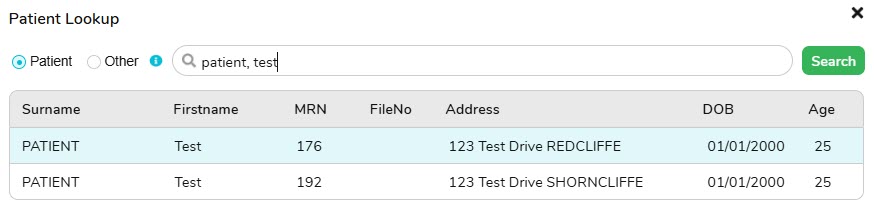
Name: A search by Last Name,First Name

There are a few different ways to use this filter, here are some examples of how I can search for the patient Alan Smith.

  • Last Name Only: Smith,
  • First Name Only: ,Alan
  • Partial Search: Sm,Al
  • Full Name: Smith,Alan

While there are a few different ways to search for a patient, some searches will narrow the results greatly compared to others, try out a few to see what works best for you.

MRN: A search by the patient’s Medical Record Number

Please note that you can search for a partial number. In the case of Alan Smith and his MRN of 123; we can search a few different ways.

  • Full Number: 123
  • Partial Number23 or 12

Searching for the full number will narrow your results down compared to a partial search.


Other:


File #: The file number of the patient. Can be set in the Patient Details.


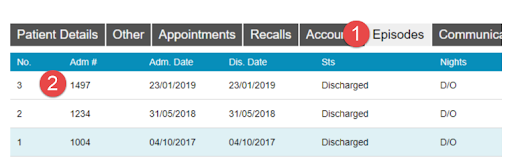
Admission #: Admission number for the patient (this is a number for patients that have Hospital episodes). Can be found in Episodes, from the Patient Details screen.

To search for the below Admission, I would have to search: a:1497


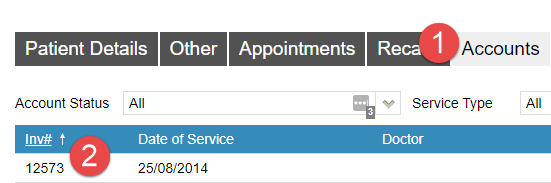
Invoice #: If the patient has been billed, you can search by an Invoice Number. This can be found in Accounts, from the Patient Details screen if you are a Medical Practice. For Hospitals, this can be found in Episodes, similar to the Admission #

To search for the above Invoice, I would have to search: Inv:12573


Mobile: Mobile number of the patient.

Medicare: Medicare number of the patient.