FYDO Webhook URL Verification

The new Webhook URL Verification feature will be released on 7 October 2026. From 8 October 2026, verification will be required for all new webhook URLs added in FYDO.

Existing webhook URLs will continue to remain operational as normal unless

  • the webhook URL is changed or
  • the Recipient Group Secret is regenerated/rotated.

at which point verification is required

What is changing?

A webhook URL must have a status of Verified before FYDO will send normal webhook events to it.

Why are we making this change?

Webhooks send patient and operational data from FYDO to external systems. Verification makes sure that data is only delivered to an endpoint that has proven it is the intended recipient.

Before a webhook URL starts receiving events, the receiving system must show that it controls the endpoint and holds the shared Recipient Group Secret. This helps prevent:

  • data being sent to an incorrect or mistyped URL
  • delivery to an endpoint that accepts any request without checking it
  • a webhook being enabled for a system that hasn’t been set up to receive data securely

It adds a further layer of protection alongside HMAC signing, and supports our obligations to protect personal and health information.

1. Add the webhook URL

Configure the webhook URL in FYDO as normal.

Webhook URLs are grouped by their Recipient Group Domain. Each recipient group has its own Recipient Group Secret. All webhook URLs belong to that recipient group use the same Recipient Group Secret for verification.

2. Configure the Recipient Group Secret

FYDO > Settings> Security, this can be accessed by FYDO subscriber or shared via 1Password (or other secure way) by the Altura Support team. The receiving system must use this same secret when generating the HMAC-SHA256 response for webhook verification.

3. Select Action → Verify

Once the new webhook URL is added in FYDO, status will set as “Pending”, use: Action → Verify

FYDO will send an HTTP POST request to the webhook URL, the verification request will look like

For example:

  • Challenge: A unique challenge value generated by FYDO for that verification attempt. The challenge value is valid for 5 minutes from the time it is issued.
  • ExpiresAt: The time at which the verification challenge expires

4. Generate the verification response

When your system receives the verification request, it must:

  1. Read the challenge value sent by FYDO
  2. Use the Recipient Group Secret as the HMAC Key
  3. Generate an HMAC-SHA256signature from the challenge
  4. Convert the result to lowercase Hexadecimal
  5. Return the original challenge and generated signature

In simple terms

The response must use this format

For example:

Response requirements

The receiving endpoint must:

  • return HTTP 200
  • return the response within 10 seconds
  • return the same challenge value sent by FYDO
  • generate the signature using the correct Recipient Group Secret
  • return the signature as lowercase hexadecimal

5. FYDO validates the response

FYDO generates its own HMAC-SHA256 signature using the same challenge and Recipient Group Secret. If the returned signature matches FYDO’s calculation, the webhook URL is marked as Verified.

Normal webhook events can then be delivered to that endpoint.

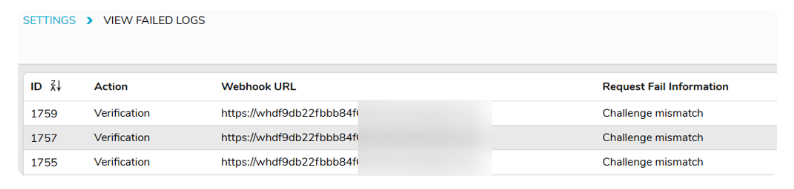
6. What happens if verification fails

If verification is unsuccessful, the webhook URL will remain Pending/Failed and normal webhook events will not be sent to it.

The reason for the failed verification can be viewed in FYDO settings > VIEW FAILED LOGS

Common causes include

  • webhook URL is unavailable
  • endpoint does not return HTTP 200
  • response takes longer than 10 seconds
  • challenge returned does not match the challenge sent from FYDO
  • incorrect Recipient Group Secret
  • incorrect HMAC-SHA256 Calculation
  • signature returned in the wrong format
  • verification challenge has expired

Once the issue has been corrected, select Action > Verify again to retry


FYDO API Authentication Guide

How to implement HMAC-SHA256 request signing for the FYDO API, including code samples, error responses and the enforcement timeline.

As part of our ongoing commitment to security and reliability, we are introducing HMAC-SHA256 request signing for all FYDO API integrations. This provides stronger authentication, request integrity verification, and replay protection for every API call.

This guide covers everything you need to implement the new authentication model and transition your integration.

Legacy API Key authentication continues to be accepted until 8 October 2026, so you can migrate at a time that suits you within that window.

What’s New

FYDO API integrations now authenticate using HMAC-SHA256 request signing. Every API request includes a signed Authorization header that verifies the caller’s identity and ensures the request has not been tampered with in transit.

  • Request signing – every request is signed using your HMAC Secret. The secret never leaves your environment and is never transmitted over the wire.
  • Replay protection – a timestamp is included in every signature. Requests older than 5 minutes are automatically rejected.
  • Request integrity – the request body is included in the signature hash. Any modification to the payload after signing will cause the request to be rejected.
  • Server-side tenant resolution – the server resolves your hospital context automatically from your Integrator ID. No hospital identifiers are required in the request body.

How It Works

Your Credentials

Your hospital administrator will provide you with two credentials:

  • Integrator ID – a unique identifier for your integration, in GUID format. This is included in the Authorization header to identify your integration.
  • HMAC Secret – a shared secret used to sign your requests. This must be stored securely and never transmitted, committed to source control, or shared over unencrypted channels.

Base URL and Endpoints

All API requests are made over HTTPS to:

https://fydo.cloud/WebhooksApi/Api/

For example, the patient list endpoint is:

https://fydo.cloud/WebhooksApi/Api/Patient/getPatientList

Plain HTTP is not supported.

A new, comprehensive FYDO API reference is being finalised and will be published shortly. It will cover all available endpoints, request and response schemas, and the data each endpoint returns.

Your hospital controls which endpoints your integration can access. If an endpoint returns 403, contact your hospital administrator to request access.

Authorization Header Format

Every request must include an Authorization header in the following format:

FYDO-HMAC-SHA256 IntegratorId:Signature:Timestamp
  • IntegratorId – your unique Integrator ID (GUID format)
  • Signature – Base64-encoded HMAC-SHA256 signature of the canonical string (see below)
  • Timestamp – current UTC time in ISO 8601 format

Timestamp Format

The timestamp must be UTC in the following ISO 8601 format, with exactly three decimal places for milliseconds and a trailing Z:

yyyy-MM-ddTHH:mm:ss.fffZ

Example: 2026-08-06T06:14:22.123Z

IMPORTANT — Timestamps with no milliseconds, more than three decimal places, or an offset such as +00:00 instead of Z will be rejected. Several language defaults do not produce this format, so use the code samples below rather than a built-in ISO 8601 helper.

The timestamp must be within 5 minutes of the server time.

Canonical String

The signature is computed over a canonical string with the following format:

HTTP_METHOD\nREQUEST_PATH\nTIMESTAMP\nBODY_SHA256_HASH

\n means a newline character (LF), not a literal backslash followed by n.

  • HTTP_METHOD – the HTTP method in uppercase, e.g. POST
  • REQUEST_PATH – the path component of the URL, converted to lowercase
  • TIMESTAMP – the same timestamp included in the Authorization header
  • BODY_SHA256_HASH – Base64-encoded SHA-256 hash of the raw request body

IMPORTANT — REQUEST_PATH is the path only, not the full URL, and it must be lowercase. For https://fydo.cloud/WebhooksApi/Api/Patient/getPatientList the value used for signing is /webhooksapi/api/patient/getpatientlist. Do not include the scheme, host, or any query string.

Request Body

The request body contains only your business payload. For example:

{
“PageIndex”: 1,
“PageSize”: 1000
}

Numeric values may be sent as JSON numbers or as quoted strings. Both are accepted. No authentication or hospital routing fields are required in the body.

Signing Process Summary

  1. Construct the request body with your business payload
  2. Compute the SHA-256 hash of the body and Base64-encode it
  3. Build the canonical string
  4. Compute the HMAC-SHA256 of the canonical string using your HMAC Secret
  5. Base64-encode the signature
  6. Set the Authorization header
  7. Send the request over HTTPS

Code Samples

C#

using System;
using System.Security.Cryptography;
using System.Text;

string secret = "";       // Your HMAC Secret
string integratorId = ""; // Your Integrator ID

string method = "POST";
string path = "/WebhooksApi/Api/Patient/getPatientList".ToLowerInvariant();
string timestamp = DateTime.UtcNow.ToString("yyyy-MM-ddTHH:mm:ss.fffZ");

string body = @"{
    ""PageIndex"": 1,
    ""PageSize"": 1000
}";

using (SHA256 sha = SHA256.Create())
{
    string bodyHash = Convert.ToBase64String(
        sha.ComputeHash(Encoding.UTF8.GetBytes(body))
    );

    string canonical = $"{method}\n{path}\n{timestamp}\n{bodyHash}";

    using (HMACSHA256 hmac = new HMACSHA256(Encoding.UTF8.GetBytes(secret)))
    {
        string signature = Convert.ToBase64String(
            hmac.ComputeHash(Encoding.UTF8.GetBytes(canonical))
        );

        string authorization =
            $"FYDO-HMAC-SHA256 {integratorId}:{signature}:{timestamp}";
    }
}

Note: DateTime.UtcNow.ToString(“o”) produces seven decimal places and will be rejected. Use the explicit format above.

Python

import hashlib
import hmac
import base64
from datetime import datetime, timezone

secret = ""          # Your HMAC Secret
integrator_id = ""   # Your Integrator ID

method = "POST"
path = "/WebhooksApi/Api/Patient/getPatientList".lower()
timestamp = datetime.now(timezone.utc).strftime("%Y-%m-%dT%H:%M:%S.%f")[:-3] + "Z"

body = '{"PageIndex": 1, "PageSize": 1000}'

body_hash = base64.b64encode(
    hashlib.sha256(body.encode("utf-8")).digest()
).decode()

canonical = f"{method}\n{path}\n{timestamp}\n{body_hash}"

signature = base64.b64encode(
    hmac.new(
        secret.encode("utf-8"),
        canonical.encode("utf-8"),
        hashlib.sha256
    ).digest()
).decode()

authorization = f"FYDO-HMAC-SHA256 {integrator_id}:{signature}:{timestamp}"

Note: datetime.isoformat() produces +00:00 and six decimal places, and will be rejected. Use the format above.

JavaScript (Node.js)

const crypto = require("crypto");

const secret = "";       // Your HMAC Secret
const integratorId = ""; // Your Integrator ID

const method = "POST";
const path = "/WebhooksApi/Api/Patient/getPatientList".toLowerCase();
const timestamp = new Date().toISOString();

const body = JSON.stringify({
    PageIndex: 1,
    PageSize: 1000
});

const bodyHashBase64 = crypto
    .createHash("sha256")
    .update(body, "utf8")
    .digest("base64");

const canonical = `${method}\n${path}\n${timestamp}\n${bodyHashBase64}`;

const signature = crypto
    .createHmac("sha256", secret)
    .update(canonical, "utf8")
    .digest("base64");

const authorization =
    `FYDO-HMAC-SHA256 ${integratorId}:${signature}:${timestamp}`;
    

PHP

<?php
$secret = "";       // Your HMAC Secret
$integratorId = ""; // Your Integrator ID

$method = "POST";
$path = strtolower("/WebhooksApi/Api/Patient/getPatientList");

$timestamp = (new DateTime('now', new DateTimeZone('UTC')))
    ->format('Y-m-d\TH:i:s.v\Z');

$body = json_encode([
    "PageIndex" => 1,
    "PageSize"  => 1000
], JSON_UNESCAPED_SLASHES);

$bodyHash = base64_encode(hash('sha256', $body, true));

$canonical =
    $method . "\n" .
    $path . "\n" .
    $timestamp . "\n" .
    $bodyHash;

$signature = base64_encode(
    hash_hmac('sha256', $canonical, $secret, true)
);

$authorization =
    "FYDO-HMAC-SHA256 {$integratorId}:{$signature}:{$timestamp}";
?>

Note: gmdate() cannot produce milliseconds and will be rejected. Use DateTime with the v format character as above.

Postman

Add the following as a Pre-request Script. It signs the request automatically, so you only need to set the secret and Integrator ID once.

const secret = "";       // Your HMAC Secret
const integratorId = ""; // Your Integrator ID

const method = pm.request.method.toUpperCase();
const path = pm.request.url.getPath().toLowerCase();
const timestamp = new Date().toISOString();

let body = "";
if (pm.request.body && pm.request.body.raw) {
    body = pm.variables.replaceIn(pm.request.body.raw);
}

const bodyHash = CryptoJS.SHA256(body);
const bodyHashBase64 = CryptoJS.enc.Base64.stringify(bodyHash);

const canonical = `${method}\n${path}\n${timestamp}\n${bodyHashBase64}`;

const signature = CryptoJS.enc.Base64.stringify(
    CryptoJS.HmacSHA256(canonical, secret)
);

pm.request.headers.upsert({
    key: "Authorization",
    value: `FYDO-HMAC-SHA256 ${integratorId}:${signature}:${timestamp}`
});

Error Responses

Authentication and authorisation failures return a JSON body in the following shape:

{
  "message": "unauthorized",
  "details": "<specific reason>"
}
Scenario HTTP message details
Authorization header present but not FYDO-HMAC-SHA256 401 unauthorized Invalid Authorization format
Malformed header, not exactly IntegratorId:Signature:Timestamp 401 unauthorized Malformed Authorization header
Integrator ID is not a valid GUID 401 unauthorized Invalid IntegratorId format
Invalid timestamp format 401 unauthorized Invalid timestamp format. Expected UTC ISO 8601 format: yyyy-MM-dd’T’HH:mm:ss.fff’Z’
Timestamp outside the 5-minute window 401 unauthorized Timestamp expired
Signature does not match 401 unauthorized Signature mismatch
Integrator ID is a valid GUID but not recognised 401 unauthorized Invalid IntegratorId
Endpoint not permitted for this integration 403 forbidden endpoint not permitted
Source IP not on the hospital’s allow list 403 unauthorized Source IP is not allowed.

Until the enforcement date, a request with no Authorization header is processed using Legacy API Key authentication rather than rejected. After the enforcement date, requests without a valid Authorization header will be rejected.

Troubleshooting a signature mismatch

  • The request path in your canonical string is the path only, lowercase, with no scheme, host, or query string
  • The timestamp in the canonical string matches the one in the Authorization header exactly
  • The request body has not been modified after signing, including whitespace, field ordering, and encoding
  • You are using the correct HMAC Secret for your Integrator ID
  • The canonical string uses actual newline characters, not the literal text backslash-n

Troubleshooting other failures

  • Invalid timestamp format – confirm your timestamp has exactly three decimal places and ends in Z.
  • Timestamp expired on requests you have just sent – check your server clock is synchronised via NTP. Clock drift beyond 5 minutes will cause rejections.
  • 403 on an endpoint that previously worked – your hospital may have changed your endpoint permissions or enabled an IP allow list. Contact your hospital administrator, and confirm the public IP addresses your integration sends from.
  • 401 after your hospital regenerated your HMAC Secret – the previous secret is invalidated immediately. Obtain the new secret from your hospital administrator.

Enforcement Timeline

HMAC-SHA256 authentication will become mandatory for all FYDO API integrations.

Milestone Date
HMAC authentication available 7 August 2026
Migration support period begins 7 August 2026
Enforcement date (HMAC mandatory) 8 October 2026

IMPORTANT — From 8 October 2026, requests without a valid HMAC Authorization header will be rejected. Please ensure your integration is updated before this date.

If you need assistance with the migration, contact your hospital administrator or Altura support.

Best Practices

  • Store your HMAC Secret securely. Treat it like a password. Do not hardcode it in source files, commit it to version control, or share it over email or chat. Use environment variables or a secrets manager.
  • Generate timestamps at request time. Do not reuse timestamps across requests. Each request must have a fresh timestamp within the 5-minute window.
  • Keep your server clock synchronised. Use NTP. Clock drift is the most common cause of unexpected timestamp rejections.
  • Sign the exact body you send. Any difference between the signed body and the transmitted body, including whitespace, field ordering, or encoding, will cause a signature mismatch.
  • Use lowercase paths in your canonical string. Always convert the request path to lowercase before signing.
  • Coordinate secret rotation with your hospital. If your HMAC Secret is compromised, contact your hospital administrator immediately. Regenerating the secret invalidates the previous one straight away, with no overlap period, so your integration will stop authenticating until you apply the new secret. Agree a time with your hospital before they regenerate.
  • Do not log your HMAC Secret. Ensure your application does not write the secret to log files, error reports, or monitoring systems.

Coming Soon

We are actively working on enhancements to the FYDO API platform:

  • Updated API documentation – a new, comprehensive API reference covering all endpoints, request and response schemas, and the data each endpoint returns.
  • Incremental (delta) sync support – the ability to retrieve only records changed since your last successful sync, rather than full data sets, significantly reducing payload sizes and run times for daily syncs. This is separate from the authentication change and will not affect the enforcement date, so please proceed with your HMAC migration independently.
  • Endpoint and integration improvements – ongoing work to improve API performance, reliability, and experience across the platform.

Further details will be communicated as these become available.

Support

For questions about this guide, your credentials, or migration assistance, please contact:



FYDO API Security Changes

How the move from Legacy API Keys to HMAC authentication affects your FYDO API integrators, and what to do before enforcement.

FYDO is enhancing security around API usage. The authentication model is changing from Legacy API Keys to a HMAC (Hash-Based Message Authentication Code) model.

There will be a 2-month grace period where the Legacy API Key model will be supported, while hospital API Integrators work towards transitioning to the HMAC method of authentication.

IMPORTANT — From 8 October 2026, only HMAC-authenticated API calls will be accepted. Any calls using Legacy API Keys will fail from this date.

A guide on HMAC integration will be advised shortly in a follow up email to all Facilities identified as having API Users.

What’s Changing

Security screen changes

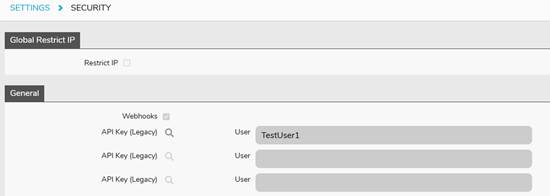
  • Existing API Keys are now hidden.
  • A key can now be rotated manually, which also gives the old key a 72-hour grace period, so the old key will work for 72 hours, giving integrators time to change to the new key at a time that suits them.

New API Integrators screen

  • All existing API Users from the Security screen automatically have an Integrator ID set up.
  • Under each Integrator, there is now the ability to add a contact email and phone number.
  • All API endpoints are listed, with permissions that can be set to “Allowed” or “Not Allowed” for each user.
  • An IP address allow list is available to restrict API Integrators to specific IP addresses.
  • An HMAC Secret Key can be generated to support the new method of making API calls, which will be replacing the Legacy API Key in 2 months’ time.

API Log screen

  • A new Audit Log screen is available, logging changes made to the API Integrator screen.

Security Screen

Under this screen, you will have a 1-time opportunity to edit any API Usernames that are generic, such as “FYDO User”, so these users can be properly identified by the name only.
A warning screen will prompt you to update any usernames upon the first save.

Settings > Security

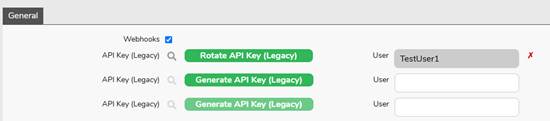
If an API Key is lost or forgotten, it will need to be rotated:

  1. Click on the Edit button.
  2. Click on the Rotate API Key (Legacy) button to generate a new API Key.

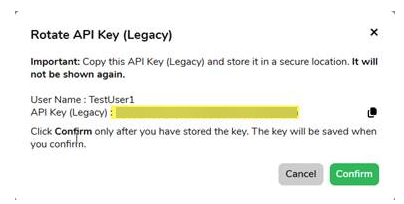
Rotating a Legacy API Key

  • Copy the API Key shown and click Confirm to save.

The new key is shown once — copy it before confirming

Integrators Screen

All existing API Users that were set up in the Security screen will have an Integrator ID created within the Integrators screen. This ID is used along with the HMAC Secret Key generated on the same screen, which will replace the Legacy API Key for authentication in 2 months.

To access the Integrators screen:

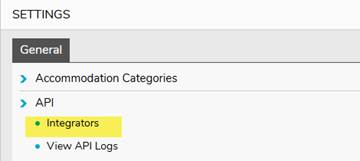
  1. Go to Settings > Integrators, under the API menu.

Settings > API > Integrators

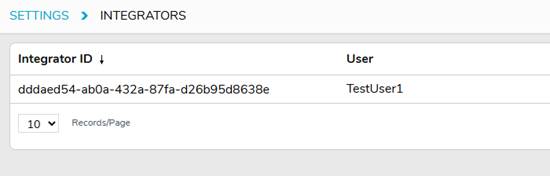
2. Open an Integrator’s settings by clicking on the Integrator.

The Integrators list

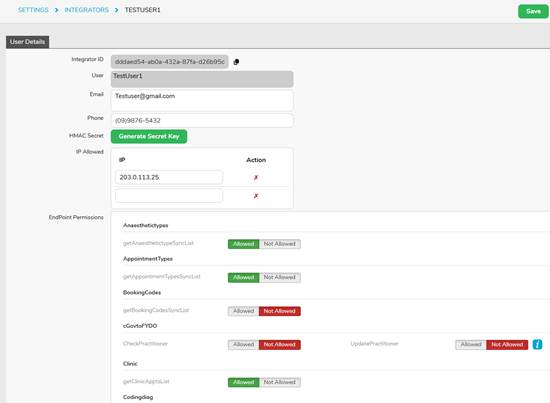
3. Within the Integrator screen, you can:

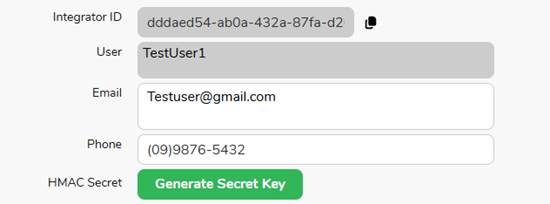
  • Add the contact details (email and phone) of the API Integrator, used for future contact.
  • Generate an HMAC Secret Key, used for authenticating API calls along with the Integrator ID.
  • Set a restriction on IP addresses that are allowed to make API calls to your FYDO database.
  • Set Endpoint Permissions — to either allow or deny access to particular data within FYDO.

Integrator detail — contact details, HMAC Secret, IP allow list and Endpoint Permissions

Note — Existing API users will have permissions all set to “Allowed”, but it is encouraged to set permissions to “Not Allowed” for endpoints the API Integrator doesn’t need.
New API Users created will have all Endpoint Permissions set to “Not Allowed” by default, so will need to be enabled for all required endpoints.

The details of each endpoint are described in the FYDO Wiki here: FYDO API Details – FYDO Wiki

Creating an HMAC Secret Key

The HMAC Secret Key is the new method of authenticating an API Integrator with your FYDO database. This is required along with the Integrator ID.

To create an HMAC Secret Key:

  1. While editing the Integrator screen, click on the Generate Secret Key button.

Generate Secret Key

  • Click Yes to confirm.
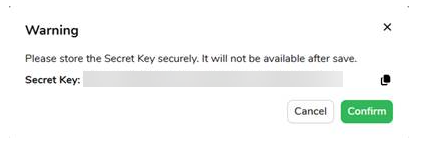
  • Click the copy button to copy the key and store it securely, then confirm to save the HMAC Key.

The Secret Key is shown once — copy it before confirming

Regenerating a Lost or Forgotten HMAC Secret Key

  1. Edit the Integrator screen.
  2. Click on the Regenerate Secret Key button, and click Yes to confirm.
  3. Copy the new key and store it securely.

Disabling/Re-enabling an API Integrator

  1. Under the Integrators list, click on the Action function
  2. Click on the “Disable Access” button
  3. Click on Yes to confirm
  4. Once confirmed the Status will show “Inactive” for that Integrator and they will not be able to make any further API calls.

Note- Under the same action function, you can re-enable an Integrator which will give them access also.


Receive HealthLink Referrals and Results Directly in FYDO

We’re excited to announce that FYDO now supports inbound HealthLink messaging, allowing supported referrals, clinical correspondence and results to be received directly into FYDO.

What can FYDO receive through HealthLink?

FYDO currently supports the following inbound HealthLink messages:

  • Referrals and referral letters
  • Clinical correspondence
  • Pathology and laboratory results
  • Attached reports and documents supplied in a supported format

FYDO supports:

  • REF messages received through the HealthLink RSDAU channel
  • ORU messages received through the HealthLink LAB2 channel

Messages delivered through other HealthLink message channels are not currently supported by FYDO.

Messages are received through your facility’s local HealthLink Messaging Client and automatically transferred into FYDO using the FYDO HL7 Connector.

What are the benefits?

Connecting HealthLink with FYDO can help your facility:

  • Receive supported HealthLink referrals and results directly into FYDO
  • Reduce the manual handling of incoming referrals and clinical correspondence
  • Reduce reliance on email, scanning and manual document uploads
  • Improve the visibility and availability of patient information
  • Streamline administrative and clinical workflows

How do I get started?

1. Establish or confirm your HealthLink account

Your facility requires an active HealthLink EDI account.

If you do not already have a HealthLink account, contact HealthLink Australia through its website or call 1800 125 036.

When contacting HealthLink, advise that your facility wants to receive electronic referrals, clinical correspondence and results for delivery into FYDO.

HealthLink will assist your facility with:

  • Establishing or confirming your HealthLink EDI account
  • Providing your HealthLink EDI address
  • Supplying the credentials required to install the HealthLink Messaging Client
  • Installing or configuring the HealthLink Messaging Client
  • Advising how senders can address messages to your facility

Any HealthLink account, installation or messaging charges should be confirmed directly with HealthLink.

2. Install and configure the HealthLink Messaging Client

The HealthLink Messaging Client must be installed and configured before it can be connected to FYDO.

Where your facility already uses HealthLink, the existing HealthLink client may be suitable. However, FYDO Support must review the existing configuration before any HealthLink message directories are changed.

The HealthLink client should be installed on a reliable and regularly available computer or server. A server environment is recommended where possible.

3. Contact FYDO Support

Once your HealthLink account and Messaging Client are ready, contact FYDO Support to arrange the FYDO connection.

Please provide:

  • Your facility name
  • Your HealthLink EDI address
  • Confirmation that the HealthLink Messaging Client has been installed
  • The name and contact details of your IT representative or service provider
  • Details of any existing software already connected to the HealthLink client

FYDO Support will review the environment and coordinate the installation and configuration of the FYDO HL7 Connector.

Technical requirements

To connect HealthLink with FYDO, your facility will require:

  • An active HealthLink EDI account
  • A supported HealthLink Messaging Client installation
  • A reliable Windows server or computer for the FYDO HL7 Connector
  • Administrative access for installation and configuration
  • Access to the configured HealthLink LAB2 and RSDAU message directories
  • Reliable internet connectivity
  • Assistance from your IT provider where required

The FYDO HL7 Connector operates within your facility’s Windows environment. It monitors the configured HealthLink message directories, transfers supported messages into FYDO and returns the required technical acknowledgements to HealthLink.

Facilities with multiple HealthLink EDI accounts

A single FYDO HL7 Connector installation can connect to only one FYDO client or site.

If your HealthLink Messaging Client contains multiple EDI accounts that relate to separate FYDO clients or facilities, an additional FYDO HL7 Connector installation will be required for each FYDO client.

Because only one FYDO HL7 Connector can be installed for a FYDO client on a Windows environment, this may require:

  • An additional Windows server or computer
  • Network access from that environment to the relevant HealthLink message directories
  • Configuration of UNC network paths to access the HealthLink files

FYDO Support and your IT provider will assess the existing environment and confirm the required configuration.

Existing HealthLink integrations

If your HealthLink Messaging Client is already connected to another clinical, practice management or document management system, please advise FYDO Support before any changes are made.

Multiple programs must not be configured to independently process the same HealthLink message directories without first reviewing the configuration. This could result in:

  • Messages being moved before another system can process them
  • Duplicate message processing
  • Missing or conflicting acknowledgements
  • Disruption to an existing HealthLink integration

Depending on the existing setup, HealthLink or the customer’s IT provider may need to create separate message paths or make other configuration changes.

Existing HealthLink directory settings should not be changed until the integration has been reviewed by FYDO Support.

Providing your EDI address to senders

Connecting HealthLink with FYDO does not automatically cause doctors, practices or laboratories to begin sending messages to your facility.

Your facility must provide its HealthLink EDI address to the relevant:

  • General practitioners
  • Specialists
  • Medical practices
  • Pathology providers
  • Laboratory providers
  • Other clinical organisations

The sending organisation must add your facility as a HealthLink recipient and support the appropriate REF or ORU message format.

Ready to get connected?

To begin:

  1. Contact HealthLink to establish or confirm your EDI account.
  2. Arrange installation and configuration of the HealthLink Messaging Client.
  3. Contact FYDO Support to arrange installation of the FYDO HL7 Connector.

FYDO Support will work with your facility and IT provider to review the environment and complete the FYDO-side configuration.


FYDO API Details

This page provides an overview of the available API endpoints within FYDO, along with a summary of the data shared through each endpoint.

For clarity, the following terms are used throughout this document:

  • PII (Personally Identifiable Information): Any data that can be used to identify an individual, such as name, date of birth, contact details, or identifiers like MRNs.
  • PHI (Protected Health Information): Health-related information that is linked to an individual, including clinical data, diagnoses, procedures, and appointment details.

This information is intended to support your internal governance, privacy compliance, and decision-making when enabling access for third-party systems to your FYDO database via APIs.

Endpoint Description Details of Data shared 
/api/Anaesthetictype/getAnaesthetictypeSyncList Anaesthetic Type  Anatype code and description (no PII or PHI)
/api/AppointmentTypes/getAppointmentTypesSyncList Appointment Type Appointment type name, length, color, status (no PII or PHI)
/api/BookingCodes/getBookingCodesSyncList Booking Code 1 and 2 Booking code 1 and 2 description and status (no PII or PHI)
/api/Doctor/CheckPractitioner Cgov Integration
/api/Doctor/UpdatePractitioner Cgov Integration
/api/Clinic/getClinicApptsList Clinic Appointments Contains PHI for clinical appointments
/api/Codingdiag/getCodingdiagSyncList Episode Diagnosis Codes ICD diagnosis code (de-identified PHI)
/api/CodingProc/getCodingprocSyncList Episode Procedure Codes ICD procedure code (de-identified PHI)
/api/Countries/getCountriesSyncList Country List Country of birth code and description (no PII or PHI)
/api/Diag/getDiagSyncList Diagnosis Codes List Latest version of ICD diagnosis code,
description and effective date (no PII or PHI)
/api/Doctors/getDoctorsSyncList Doctor List Doctor ID, specialty, name, contact details,
APHRA, provider number, specialty and
insurance details
/api/Drg/getDrgSyncList DRG List DRG codes and description (no PII or PHI)
/api/DrSpeciality/getDrSpecialitySyncList Doctor Specialty List Specialty code, type, description and status
(no PII or PHI)
/api/Episode/getEpisodeList Episode Details Contains PHI and PII for each episode within
the selected period e.g.: Adm/discharge date/time and Doctor ID etc. 
/api/Episode/getEpisodeListAnon Episode Details De-identified episodic details 
/api/Episode/EpisodeDetailReportList Episode Details Aligns with the Episode Stats Report output
(Contains PII and PHI)
/api/Episode/EpisodeSurvey Cemplicity Integration Contains PHI
/api/Episodeitems/getEpisodeitemsSyncList Episode MBS Items Episode identifier and MBS item (no PHI)
/api/Episodeitems/getEpisodeOSSyncList Episode Other Service Items Episode identifier and other service item
codes e.g.: prosthesis, misc. items etc.
(no PHI)
/api/Episodevisits/getEpisodevisitsSyncList Theatre Time Values Episode identifier, theatre time, proc time,
other theatre personnel e.g.: nurse, surgical
assistant etc. (no PHI)
/api/Healthfunds/getHealthfundsSyncList Health Fund List Fund code, name, status and other relevant
settings (no PHI)
/api/InProcSch/getInProcSchSyncList Inpatient Procedure Information Episode ID, theatre, proc date and booking
code (no PHI)
/api/Languages/getLanguagesSyncList Language List Language code, description, state code and
threshold date (no PHI)
/api/Locations/getLocationsSyncList Location List Hospital location, address, contact, BSB and
account details (no PHI)
/api/LoginDetails/getLoginDetails FYDO User Login Details UserID, user Type, username and created
date (no PHI)
/api/Mbsitem/getMbsitemSyncList MBS List MBS code, description, theatre band, day
band, other relevant settings and status
(no PHI)
/api/Misccode/getMisccodeSyncList Misc code list Code (Prosthesis rebate code and misc/other service code) and description (no PHI)
/api/Morp/getMorpSyncList Morphology List ICD morphology code, description and ICD
date (no PHI)
/api/Patient/getPatientList Patient List Patient demographics (Contains PII)
/api/Patient/Cemplicity Cemplicity Integration
/api/Patrefs/getPatrefsSyncList Patient Referral Details Patient ID, referral no, referral period and
referral first visit date (no PHI)
/api/Practice/getPracticeSyncList Practice List Practice name, address, contract and status (no PHI)
/api/Proc/getProcSyncList ICD Procedure List ICD procedure code, description, sex code
and ICD date (no PHI)
/api/Prostheses/getProsthesesSyncList Prothesis List Billing code, prod name, company and status
/api/Recdata/getRecdataSyncList Patient Recall Details MRN, next recall date, reason, action and
recall date
/api/Ref/getRefList Referring Doctors List Referral #, name, provider number and
contact
/api/Report/GetUnbilledRevenueData Unbilled Revenue Report Derived from the same data source and
business logic as Unbilled Revenue Report
(contains PII and PHI)
/api/Report/ArrearsReportHospital Arrears Report Derived from the same data source and
business logic as Arrears Report (contains PII and PHI)
/api/Service/getServiceSyncList Financials Revenue De-identified episodic ID, service code, date
of service, date of transaction, date of audit,
charges, GST charges and service code type
/api/Service/getserviceListDoc De-Identified Financials Same output as getServiceSyncList, however, no doctors’ names and drawer
/api/Theatres/getTheatresSyncList Theatre List Theatre name, type, location ID, color and
theatre no (no PHI)
/api/TheatreSchedule/getTheatreScheduleSyncList Theatre Roster Date, time, length, theatre, Doctor ID,
anaesthetist ID, other nursing staff, reason
for delay and cancel status (no PHI)


FYDO / CGOV Integration

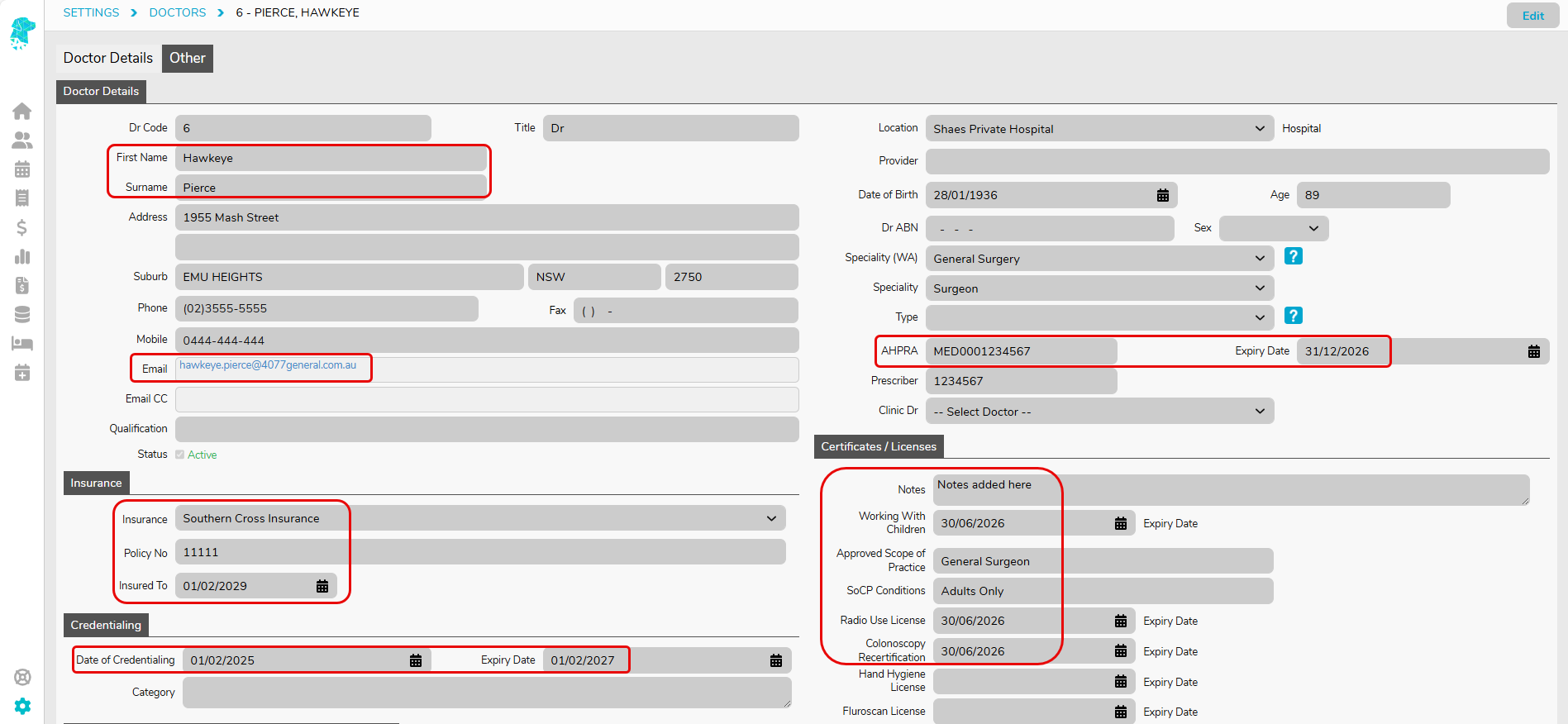
Information can be synchronised from CGOV to FYDO using an API. This feature is helpful for hospitals that utilise CGOV for doctor credentialling, as it can reduce the need for double data entry. The following fields are able to be imported:


HL7 – Endobase File Format

Sample File

MSH|^~\&|FYDO|ACSS Bondi Hospital|Endobase|ACSS Bondi Hospital|20220208115840||ADT^A08|ACSS96215702|P|2.3.1|||||AU|ASCII|ENG|
PID|1||101||Romero^Michelle^^^Miss||19681119|F|||12 top st^^EAST MELBOURNE^VIC^8002||0211223344|0299887744|||||2111-11111-1||||||||NX123456|||
PV1|1|S|NORTH SYDNEY||||234458GH^Philliposis^M^^^Dr|005803CL^Smith^Sam^^^Dr|||
NK1|1|Sampras^Pete^^^|0^0^RELTN|9 tennis st^BONDI^NSW^2026||0411111111|
AL1|1||^nuts||||
IN1|1||HCF|HCF Health Fund||||||||||||||||||||||||||||||||1234567|

MSH|^~\&|FYDO|ACSS Bondi Hospital|Endobase|ACSS Bondi Hospital|20220208115840||SIU^S13|ACSS96215702|P|2.3.1|||||AU|ASCII|ENG|
SCH|101-114-1|446|||8^Theatre 1||Endoscopy||20|MIN^Minutes^ISO+|^^^20220208092000^20220208000000|
PID|1||101||Romero^Michelle^^^Miss||19681119|F|||12 top st^^EAST MELBOURNE^VIC^8002||0211223344|0299887744|||||2111-11111-1||||||||NX123456|||
RGS|1|A|
AIS|1|A|ENDO^Endoscopy|20220208000000092000|0||20|MIN^Minutes^ISO+||BOOKED|
AIG|1||||||||||||||
AIL|1|A|8^^^^^^^^Theatre 1|SCHEDULED||20220208092000|0||20|MIN^Minutes^ISO+||BOOKED|
AIP|1|A|17^Celes^Monica^^^Dr|^Anaesthetics||||8^Philliposis^M^^^Dr|^Surgeon||||


Explanation

MSH – Message Header

Name Description Segment Fields
Sending Application FYDO MSH-3.1
Sending Facility Hospital Name MSH-4.1
Receiving Application Set to Endobase MSH-5.1
Receiving Facility Hospital Name MSH-6.1
Date/Time of Message YYYYMMDDHHMMSS MSH-7.1
Message Type Message Type MSH-9.1, 9.2
Message Control ID Identification number of message – ADT, SIU etc

For SIU

SIU^S12 – New Appointment
SIU^S13 – Edited Appt (Nothing may have changed)
SIU^S14 – Modification of Appt (rescheduled time or date, procedure change, doctor change etc)
SIU^S15 – Cancellation of AppointmentSIU
^S17 – Deletion of Appointment (No ADT sent with this message)Consists of the following segments – SCH, PID, RGS (blank), AIS, AIG (blank), AIL, AIP

MSH-10.1
Version ID HL7 version – 2.3.1 MSH-12.1
Country Code AU MSH-17.1
Character Set ASCII MSH-18.1
Principal Language of Message ENG MSH-19.1


PID – Patient Identification

Demographic Includes Segment Fields
Patient Identifier Medical Record Number PID-3.1
Name Surname, first name, middle name, blank, title PID-5.1, 5.2, 5.3, 5.5
Date of Birth Date of birth – YYYYMMDD PID-7.1
Sex Sex – M,F,U PID-8.1
Address Street Address 1 and 2, Suburb, State, and Postal Code PID-11.1, 11.2, 11.3, 11.4, 11.5
Phone Number – Home Area code, number for home number type PID-13.1
Phone Number – Work Area code, number for work number type PID-14.1
Medicare Number Medicare number and individual reference number PID-19.1
DVA Card DVA number PID-27.1


PV1 – Patient Visit

Name Description Segment Field
Patient Location Hospital Suburb PV1-3.3
Attending Doctor Provider No, Surname, First Name, blank, blank, title PV1-7.1, 7.2, 7.3, 7.6
Referring Doctor Provider No, Surname, First Name, blank, blank, title PV1-8.1, 8.2, 8.3, 8.6


NK1 – Next of Kin

Name Description Segment Field
Name Surname, First Name, blank, blank, title NK1-2.1, 2.2, 2.5
Relationship Relationship to patient NK1-3.1
Home Address Street Address 1 and 2, Suburb, State, and Postal Code NK1-4.1, 4.2, 4.3, 4.4


Home Phone Area code, number for home number type NK1-5.1
Mobile Phone Mobile Phone NK1-6.1


AL1 – Patient Allergies (Repeating Segment)

Name Description/Notes Segment Fields
Allergy Type Allergies AL1-3.2

IN1 – Insurance

Name Description/Notes Segment Fields
Insurer Code Insurer 3 character code INI-3.1
Insurer Name Insurer Description INI-4.1
Fund Membership Number Health Fund Membership Number INI-36.1

SCH – Scheduling Activity Information

Name Description/Notes Segment Fields
Patient Identifier Medical Record Number, Episode Number SCH-1.1
Appointment ID Unique Appointment or Admission Number SCH-2.1
OR/Theatre Identifier Theatre Number SCH-5.1, 5.2
Appointment Reason Procedure Description SCH-7.1
Appointment Duration Length of Appt SCH-9.1
Appointment Duration Units Minutes, hours etc – Will always be MIN SCH-10.1, 10.2, 10.3
Appointment Start Date/Time YYYYMMDDHHMMSS SCH-11.4


AIS – Appointment Information Service

Name Description/Notes Segment Fields
Service ID Procedure Code and Description AIS-3.1, 3.2
Start Date and Time YYYYMMDDHHMMSS – same as SCH-11.4 AIS-4.1
Duration Length of Appt – same as SCH-9.1 AIS-7.1
Duration Units MINS etc – Same as SCH-10.1 etc AIS-8.1, 8.2, 8.3
Status BOOKED always AIS-10.1


AIL – Appointment Information Location

Name Description/Notes Segment Fields
Location Identification Theatre Number and Name AIL-3.1, 3.9
Start Date and Time YYYYMMDDHHMMSS – Same as dates and times above AIL-6.1
Duration Length of Appt – same as above AIL-9.1
Duration Units MINS etc – same as above AIL-10.1, 10.2, 10.3


AIP – Appointment Information Personnel

Name Description/Notes Segment Fields
Personnel Resource ID Anaesthetist ID Code, Surname, First name and Title AIP-3.1, 3.2, 3.3, 3.6
Resource Role Speciality of Doctor AIP-4.2
Personnel Resource ID Treating Doc/Surgeon Code, Surname, First name and Title AIP-8.1, 8.2 , 8.3, 8.6
Resource Role Speciality of Treating Doc/Surgeon AIP-9.2