Clearing Cookies and Cache in Microsoft Edge
There may be times where you are asked to clear your browser cookies and cache when troubleshooting issues within FYDO or Preadmit. Cached data stored within your browser can sometimes cause problems such as pages not loading correctly, old information continuing to display, login issues, or unexpected system behaviour after updates have been applied.
The below steps will guide you through how to clear cookies and cache within Microsoft Edge.
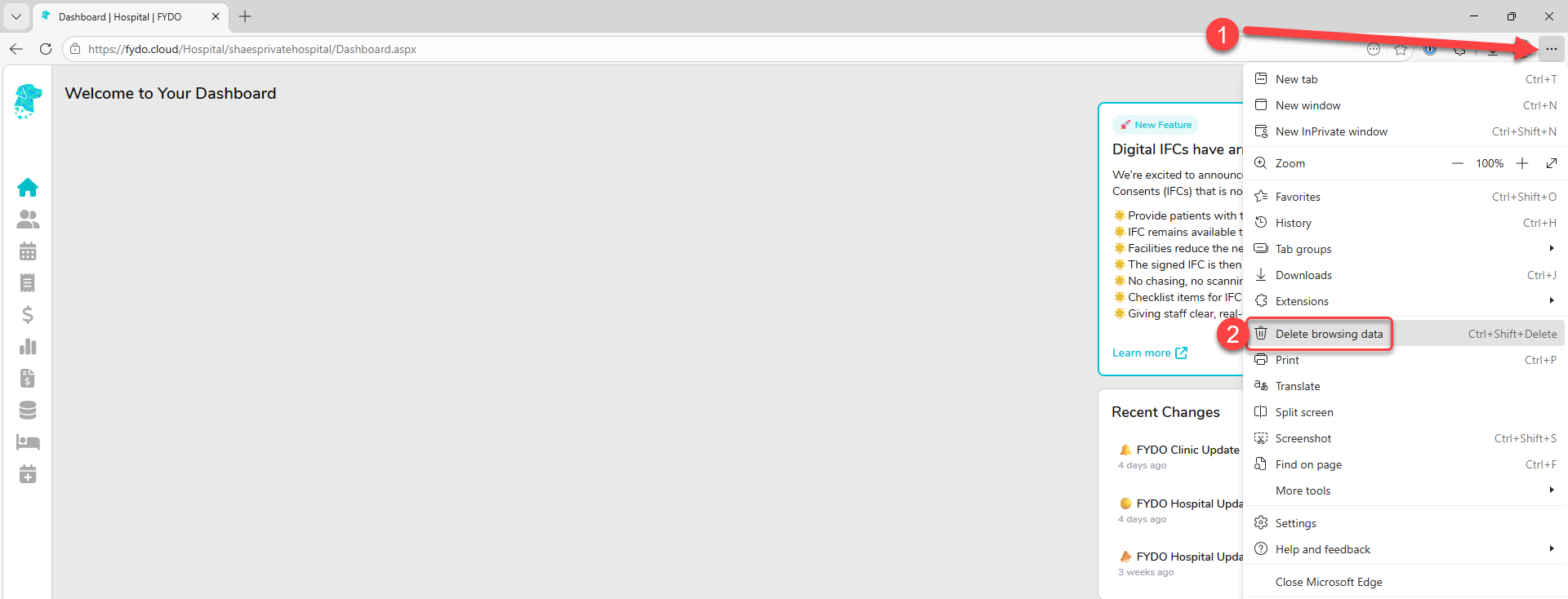
- Select the 3 dots menu in the top right corner of Microsoft Edge
- Select Delete browsing data
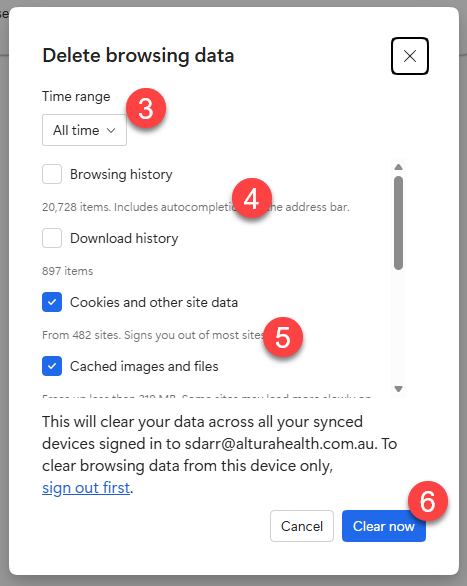
- Change the Time range to All time
- Tick Cookies and other site data
- Tick Cached images and files
- Click Clear now