Data Migration Testing
When we migrate your data across from your old system into FYDO, it is important you check the data to ensure all information has come across correctly and there is no data missing.
Please ensure you follow the steps below and test your data before we move to the final migration stage. We recommend you have your old system open as well as your new FYDO account and compare all information listed below.
Please compare at least 40 patients records from a range of different dates to ensure we get a comprehensive overview of data that has been transferred.
Please check:
- 10 very old patients select patients from 5-10 years ago (depending on how long you’ve used your previous system)
- 10 patients who have been admitted within the last 2-3 years
- 10 Patients who have been admitted within the last 12 months
- 10 Patients who have been admitted within the last 6 months
When reviewing these records, please ensure the following information is accurate:
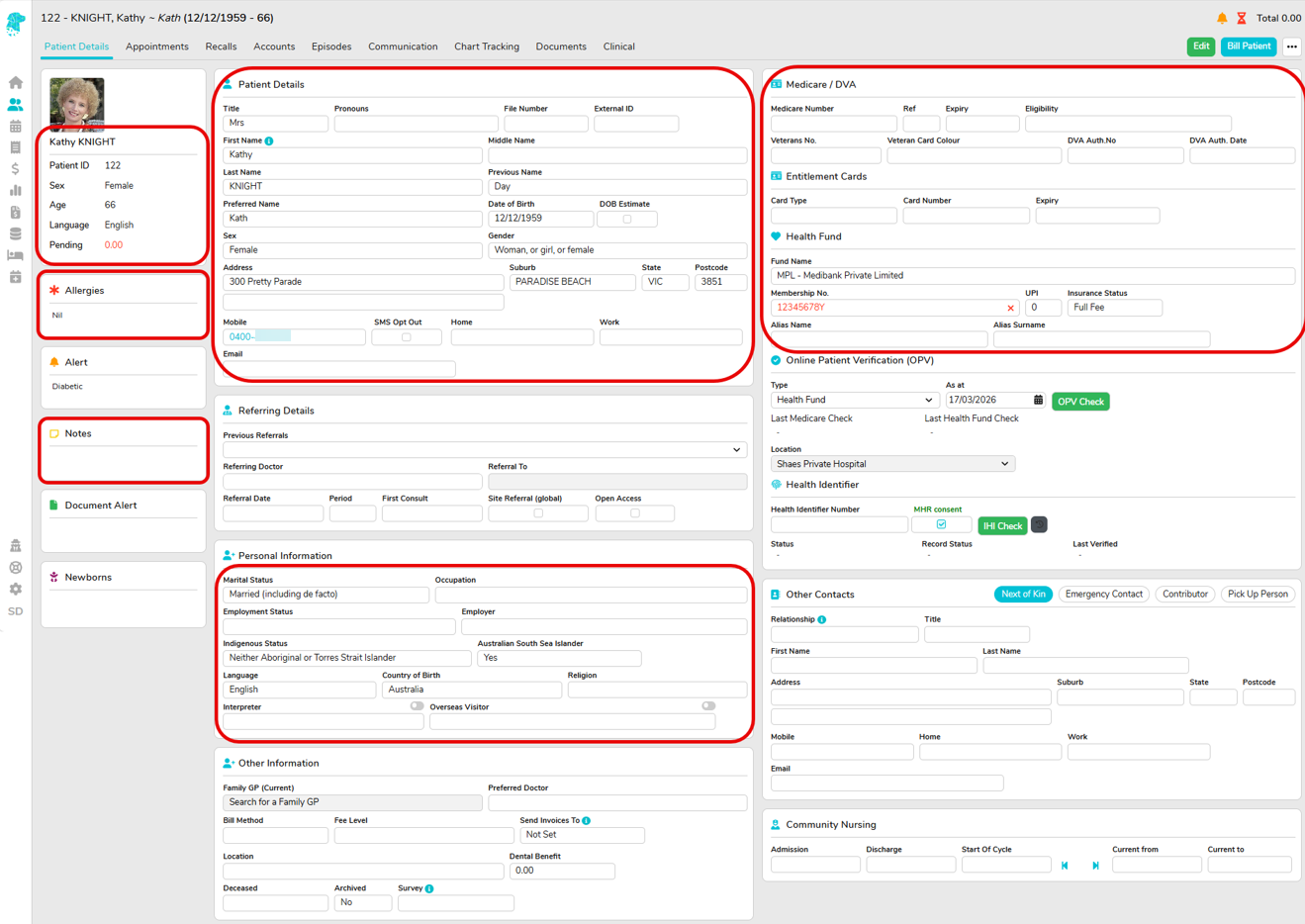
Patient Screen Example:
- Patient demographics – Patient Names, DOB, address
- Medicare Number or DVA Number
- Private Health Fund and Number
- Other Information Fields – Allergies and Notes if applicable
- Personal Information – Marital Status, Indigenous Status, Language
- Referring doctor information if applicable
- Next of Kin details if applicable
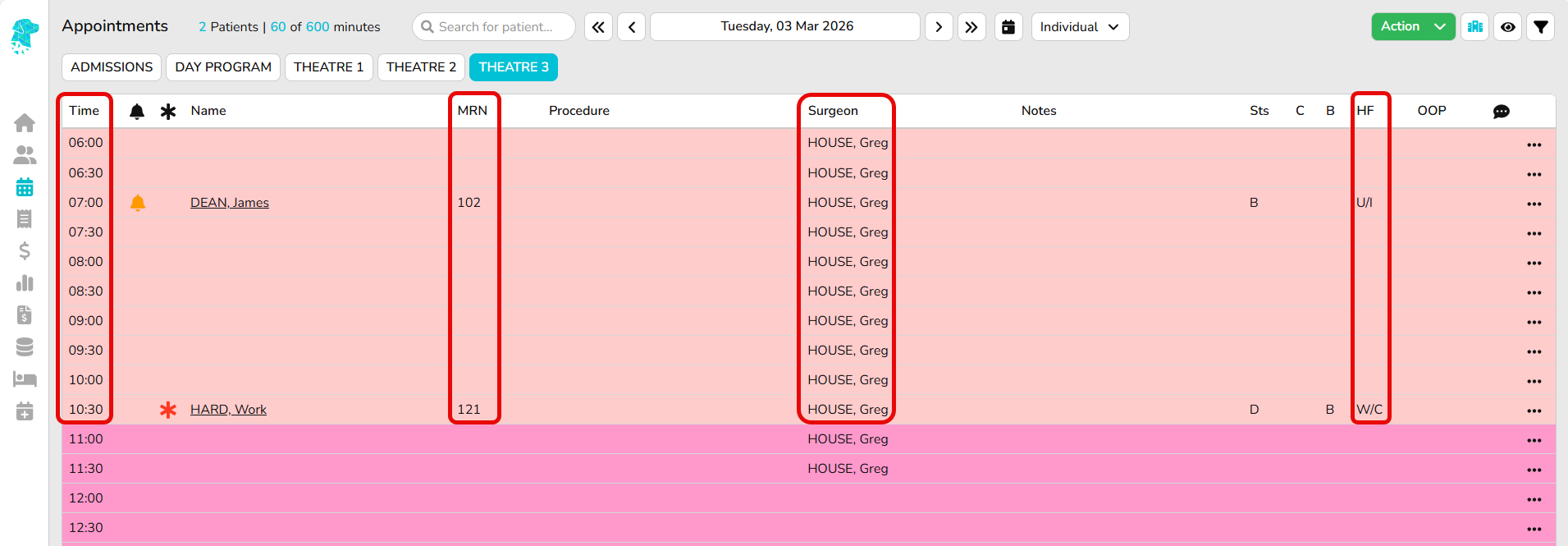
Hospital List Example:
- Episode information – For example: If a patient in your old system has 3 episodes, please ensure there are 3 episodes in your FYDO database.
- Appointment Information – Validate Appointment Date and Time, Admission Time, Discharge Time.
- Cancelled Appointments – Please also check some cancelled appointments to ensure they appear correctly.
- Time, MRN, Patients Name, Surgeons Name (this is the admitting doctor for the hospital episodes that is needed for ECLIPSE claiming), Health Fund or Uninsured.
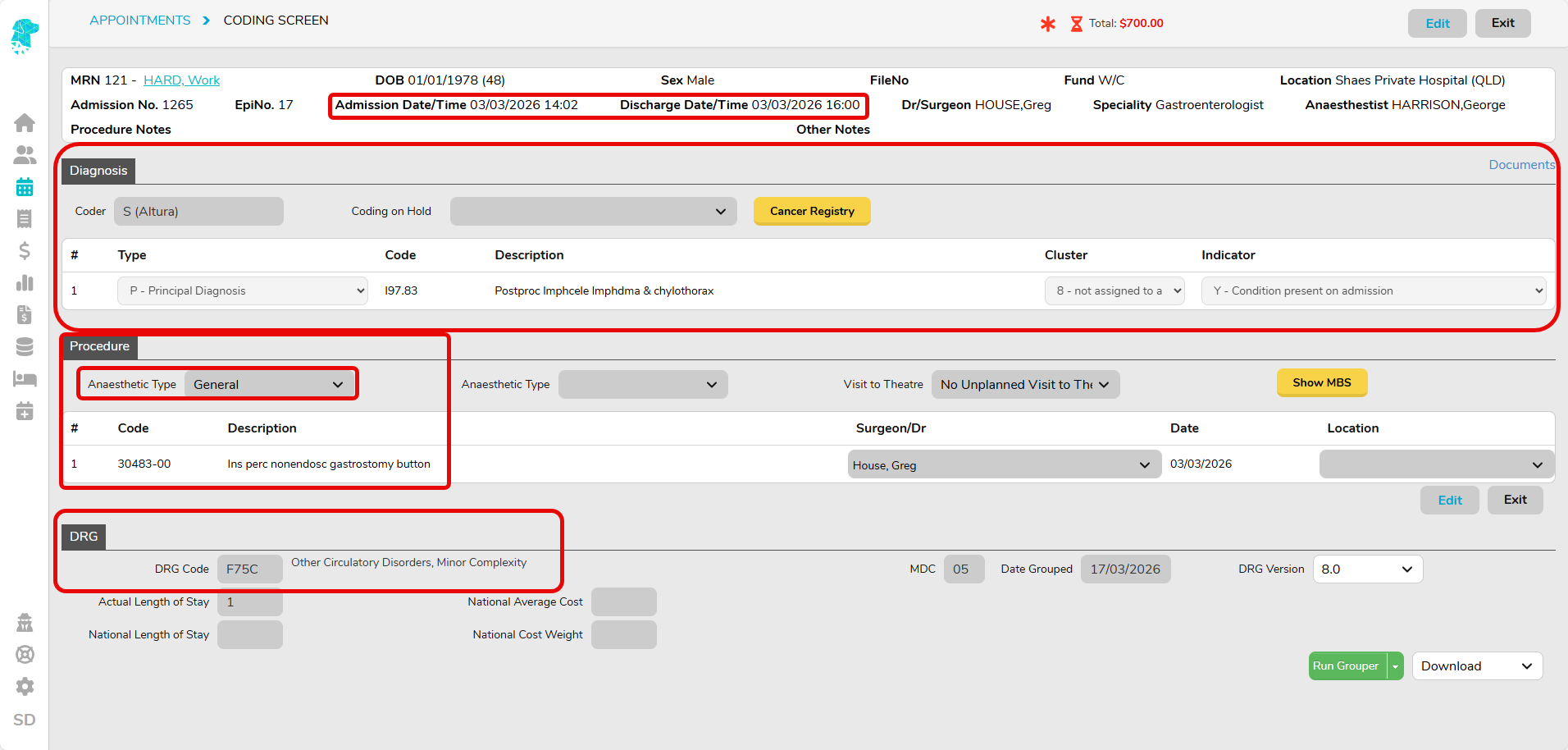
Hospital Coding Details:
Coding Screen – Diagnosis Codes, Procedure Codes, Anaesthetic Type, DRG
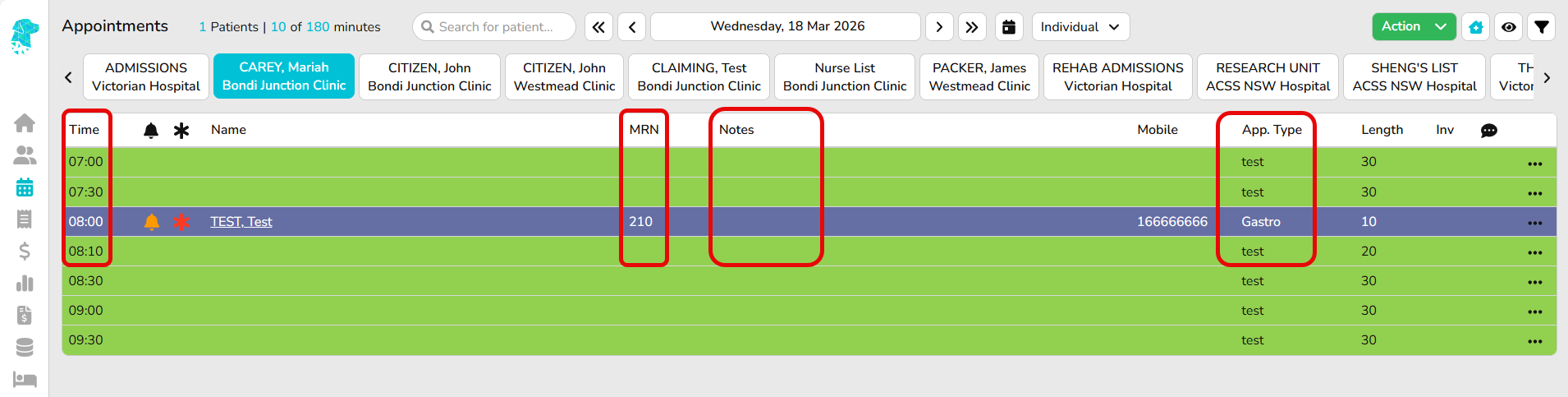
Clinic List Example:
Time, Cancelled Patients, MRN, Patients Name, Notes, Appointment Type
Please note: Depending on the system we are migrating your data from, bringing across all this information may not be possible and in this case, your FYDO onboarding specialist will highlight the information you need to check. Once you have checked the data is correct, please email us at sales@alturahealth.com.au to confirm you are happy with the data migration, and we will proceed to the final migration stage. If you have any issues with your data migration, please contact your FYDO Onboarding Specialist as soon as possible.