Digital Hospital Informed Financial Consent (IFC)
This fantastic feature allows patients to receive, review, and sign their IFC before arriving at the facility, with the signed document automatically returned to FYDO for staff to view.
Patients will require a Preadmit ID to send the IFC electronically. You can check they have this by finding this icon on the Patient Details screen.
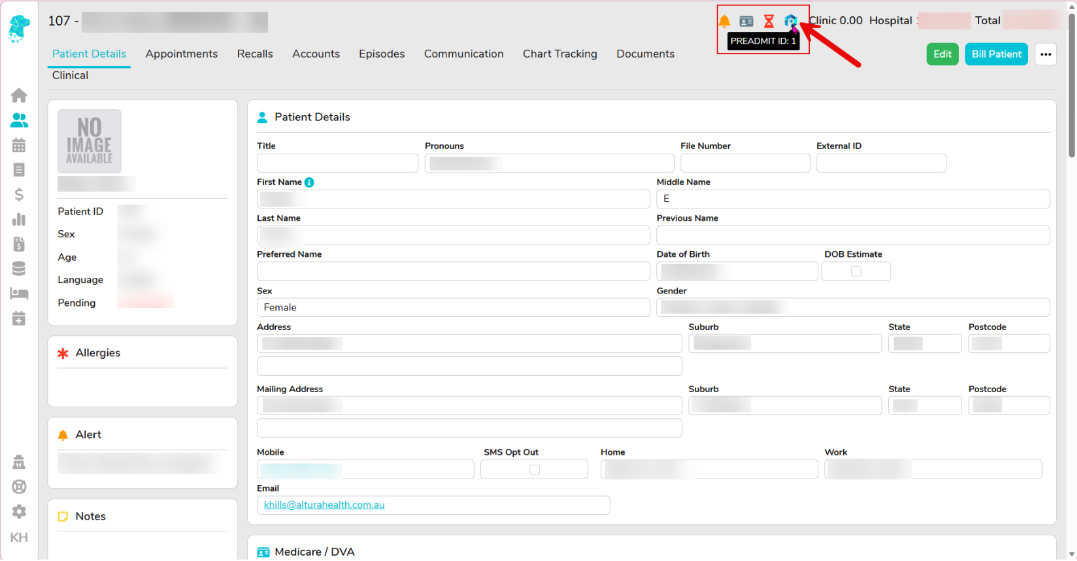
If the patient does not have a Preadmit icon, this means they have not been linked to Preadmit or they do not have a Preadmit Account.
To link a patient to Preadmit, ensure they have a valid email address in the email field and click the three dots in the top right-hand corner to select Get Preadmit ID.
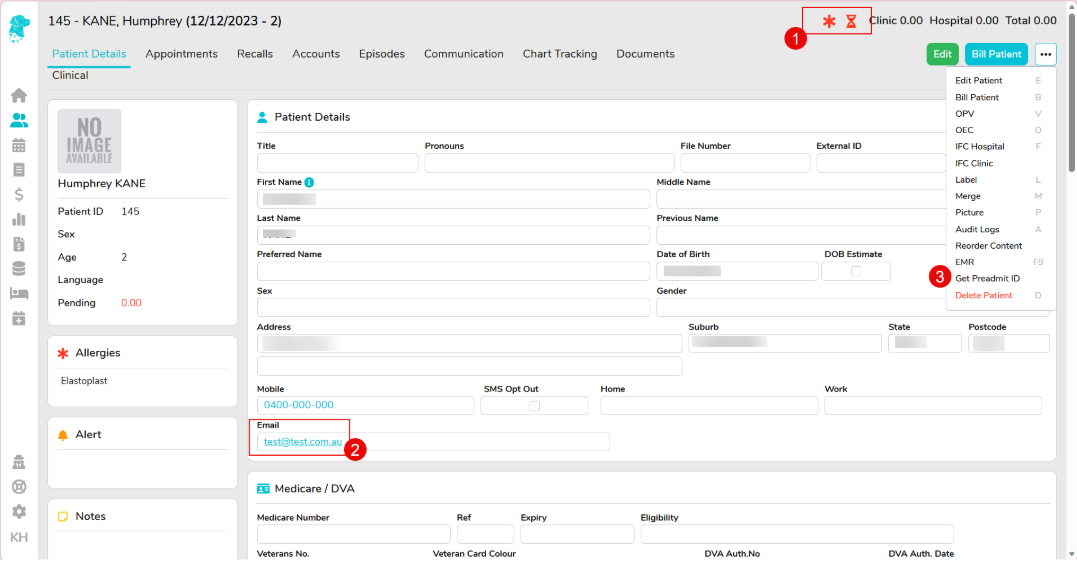
This will perform a check with Preadmit and if the patient has a Preadmit account matching the email listed in FYDO, it will link up with a Preadmit ID.
If a message appears saying No Preadmit ID Found, you will need to instruct the patient to create a Preadmit account as they most likely do not have one. You can also check the Hospital Preadmit Portal to see if they potentially have an account under a different email. If this is the case, you can update their email in FYDO and re-run the check.
Once the patient has a Preadmit ID, you can create the IFC as normal.
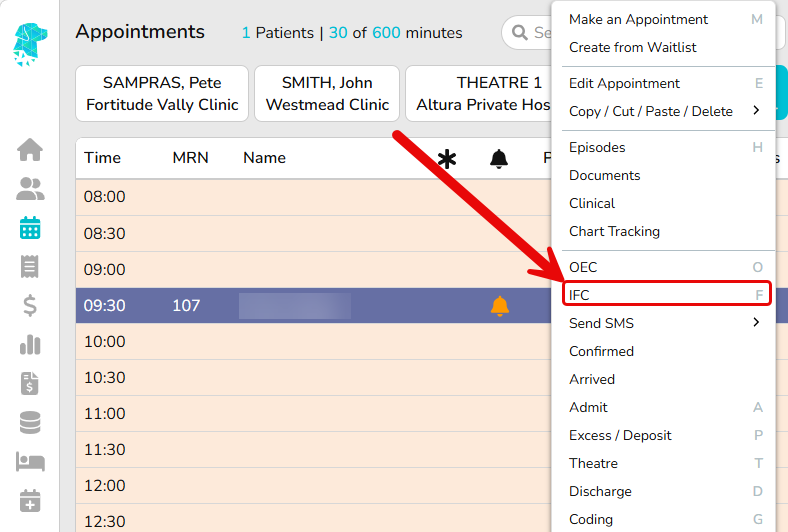
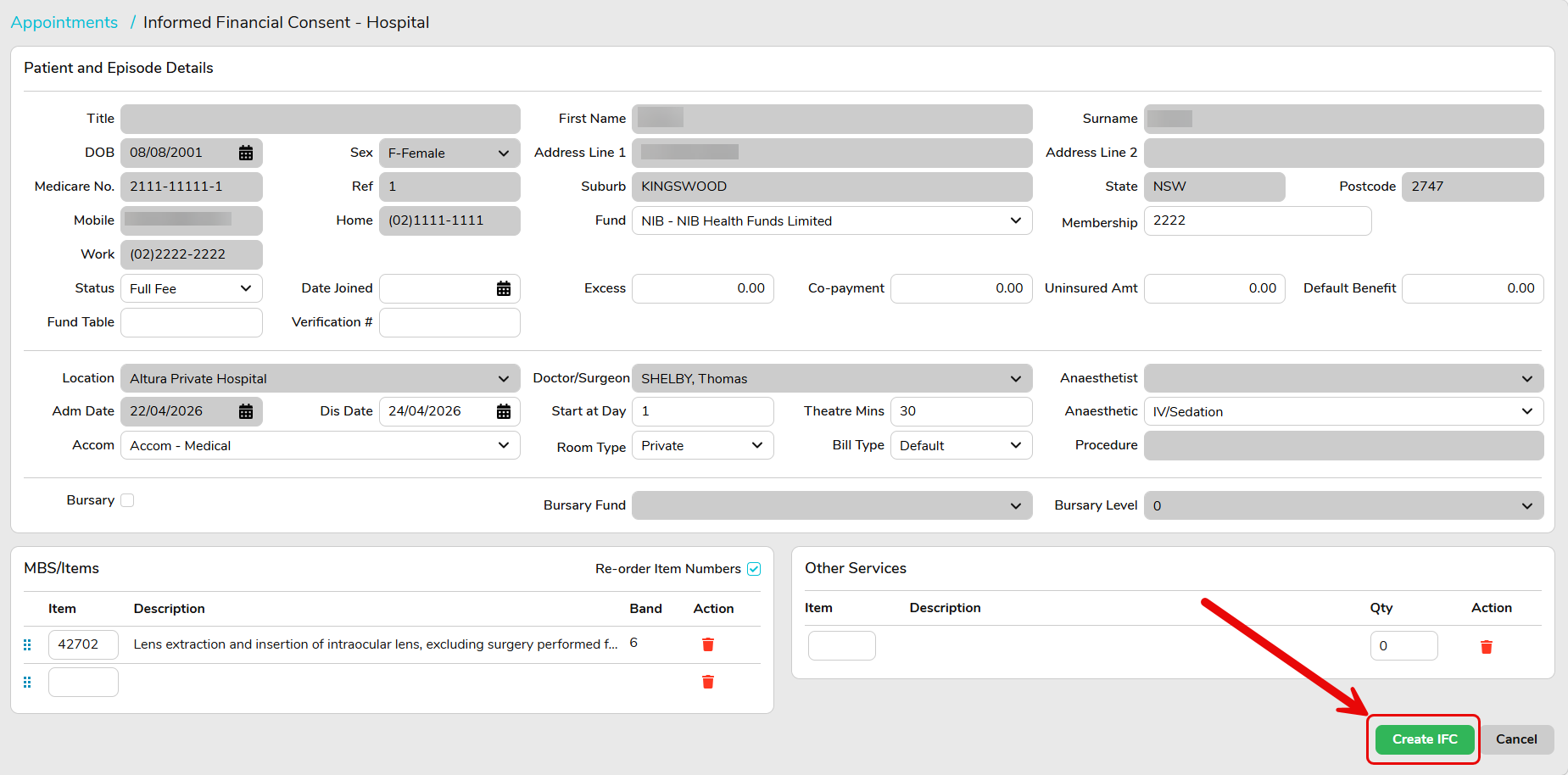
On the IFC fees page, there are two buttons that will be automatically ticked if the patient has a Preadmit ID. These buttons are Send IFC to Patient Portal and Send HC21 to Patient Portal. If you want to send the IFC and HC21 to the Patient Portal, ensure these remain ticked. (They will automatically be ticked for all patients with a Preadmit ID. If the patient does not have a Preadmit ID, you will be unable to tick these boxes, they will be greyed out.)
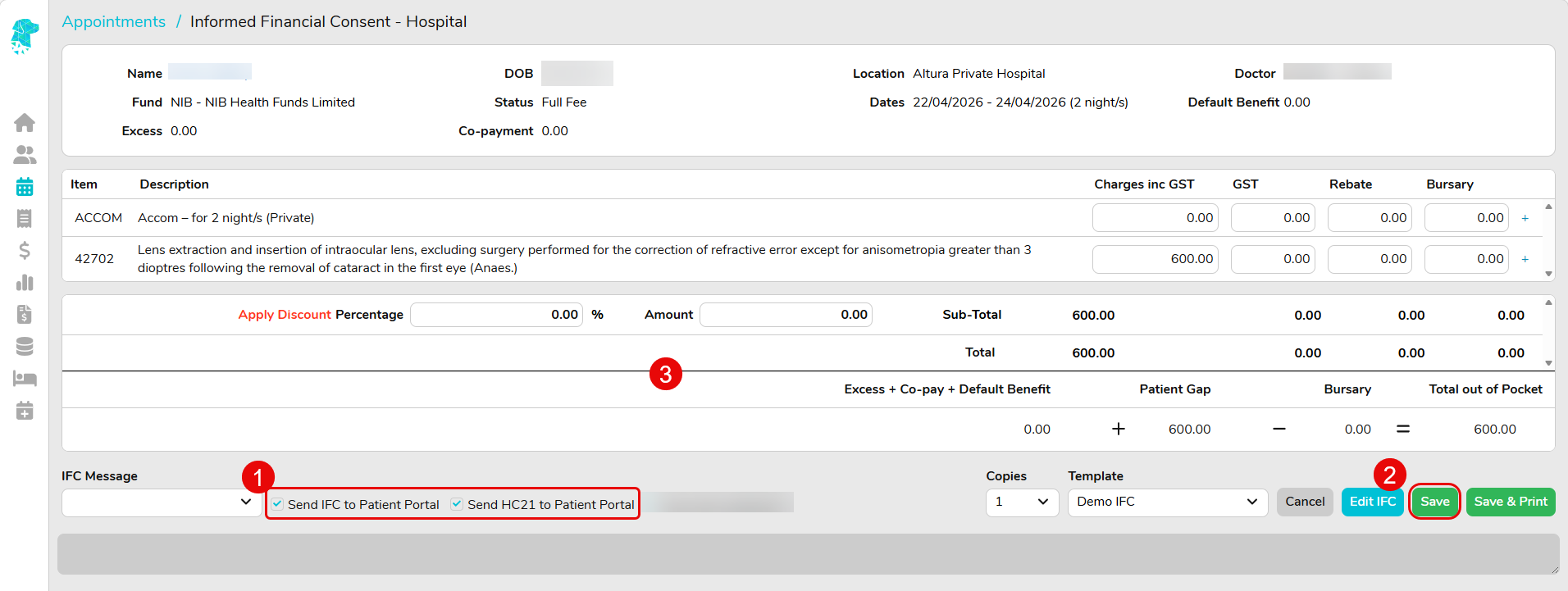
**Once the IFC has been sent to the Patient, it will take you back to the Appointment Screen and give you a message to say it has been successfully sent to Preadmit**
Once the patient has signed their forms, they will be sent back to FYDO. The forms will automatically allocate themselves to the patients MRN, however, you will need to open the Preadmit Holding Bay in order for the forms to download.
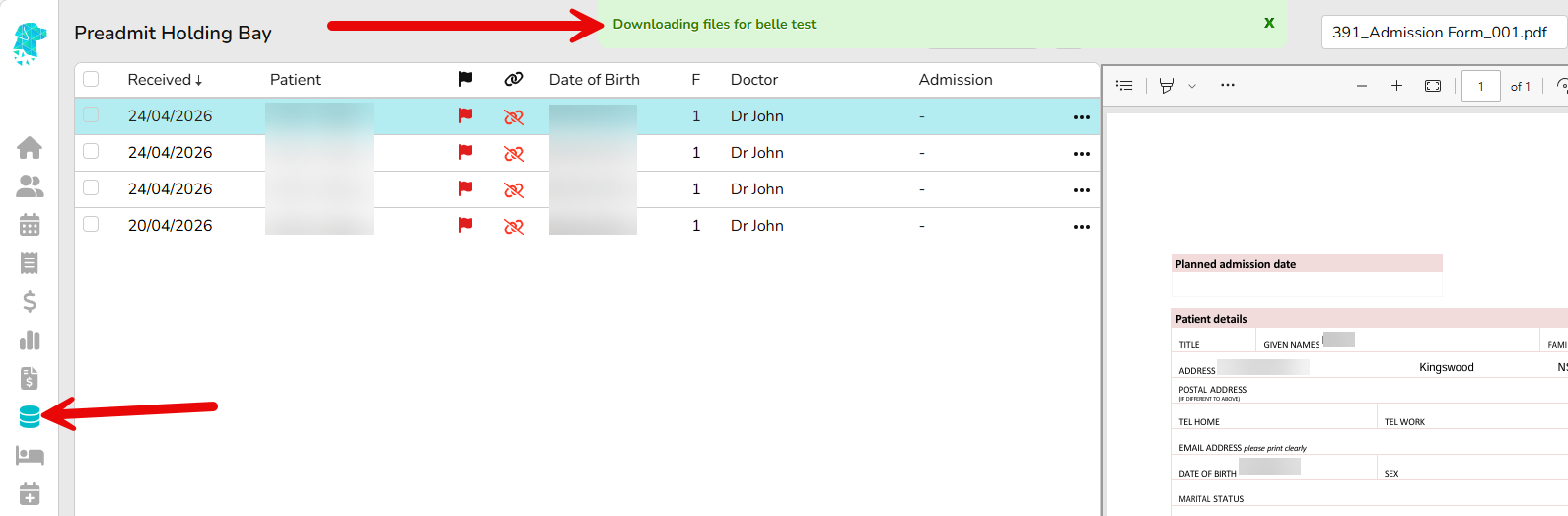
**You WILL NOT need to link and commit the IFC and HC21, the holding bay just needs to be opened for the forms to download.**
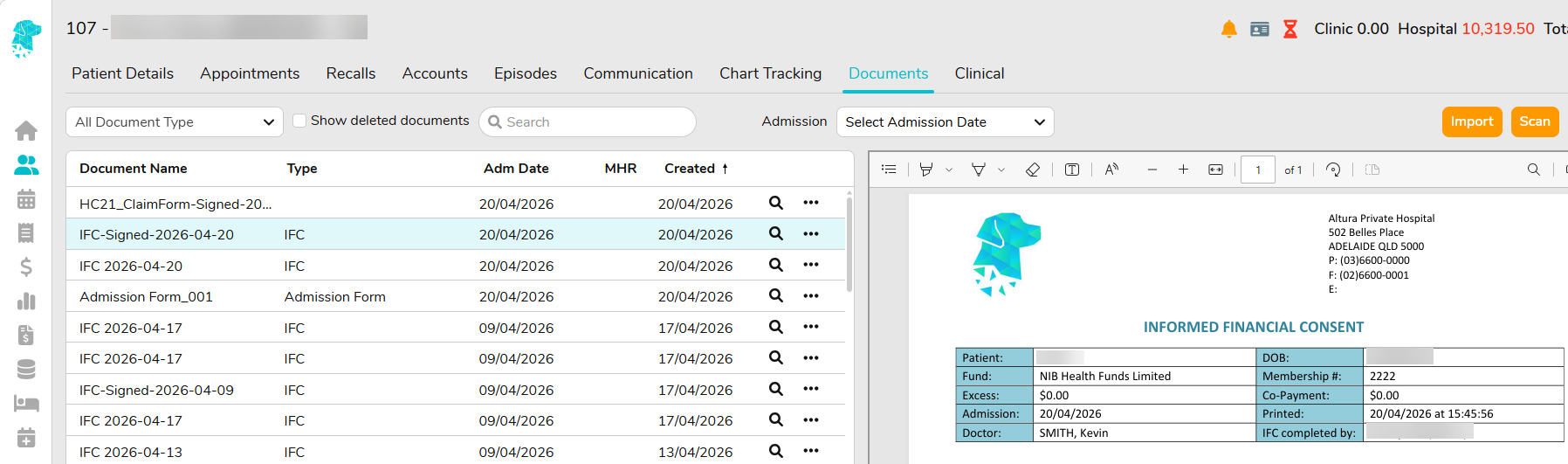
Once the Preadmit Holding Bay has been opened and the forms have automatically downloaded, they will be present in the Documents tab on the patients file.
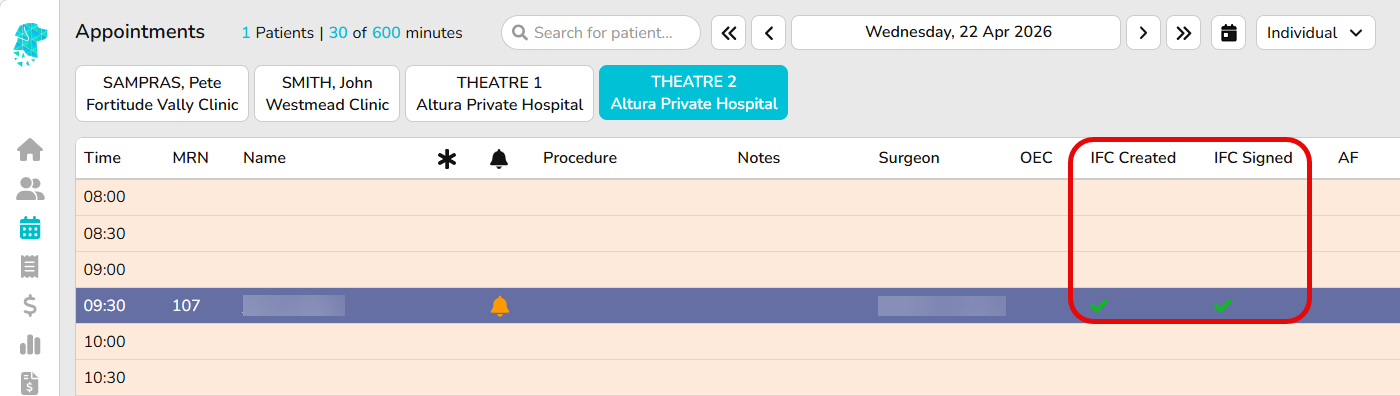
Custom Appointment View
You also have the ability to add IFC Created and IFC Signed to your Appointment screen by using the custom views. (See below image). These columns will automatically tick based on the actions performed.
If you would like to set up custom views, please see the wiki for instructions Creating Custom Hospital Views in the Appointments Screen.