Navigating Appointment Screen
The FYDO Appointments Screen gives our users so many options and features to best compliment any workflow.
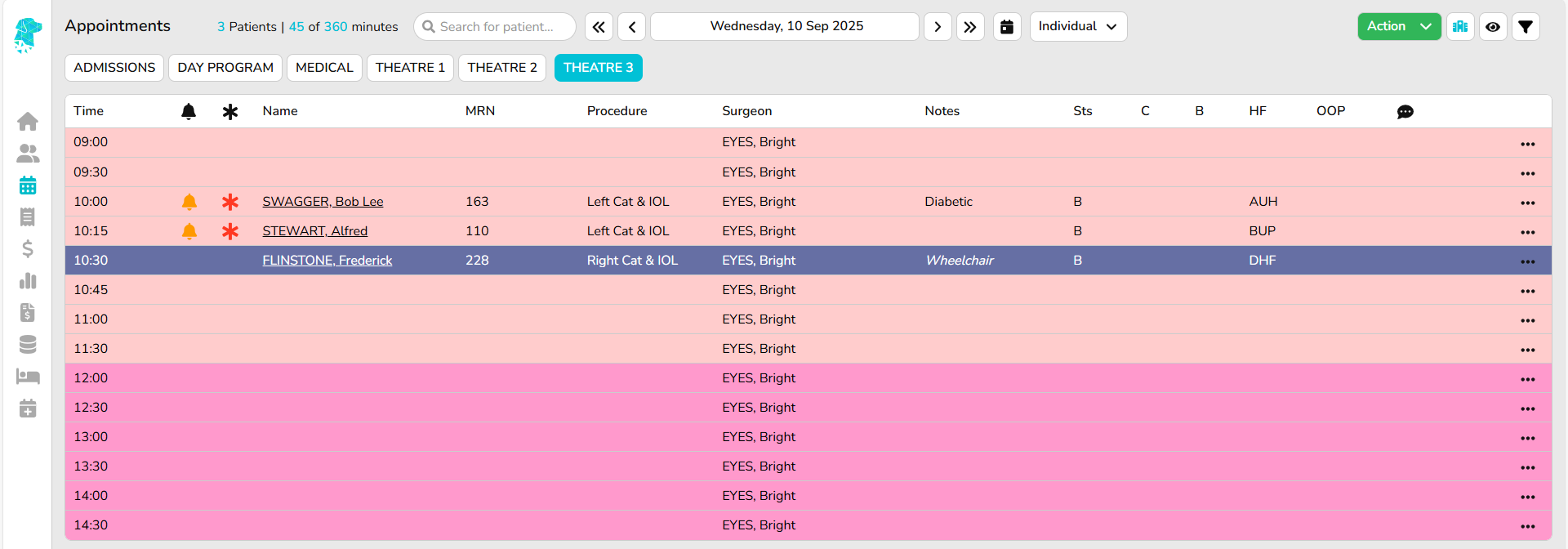
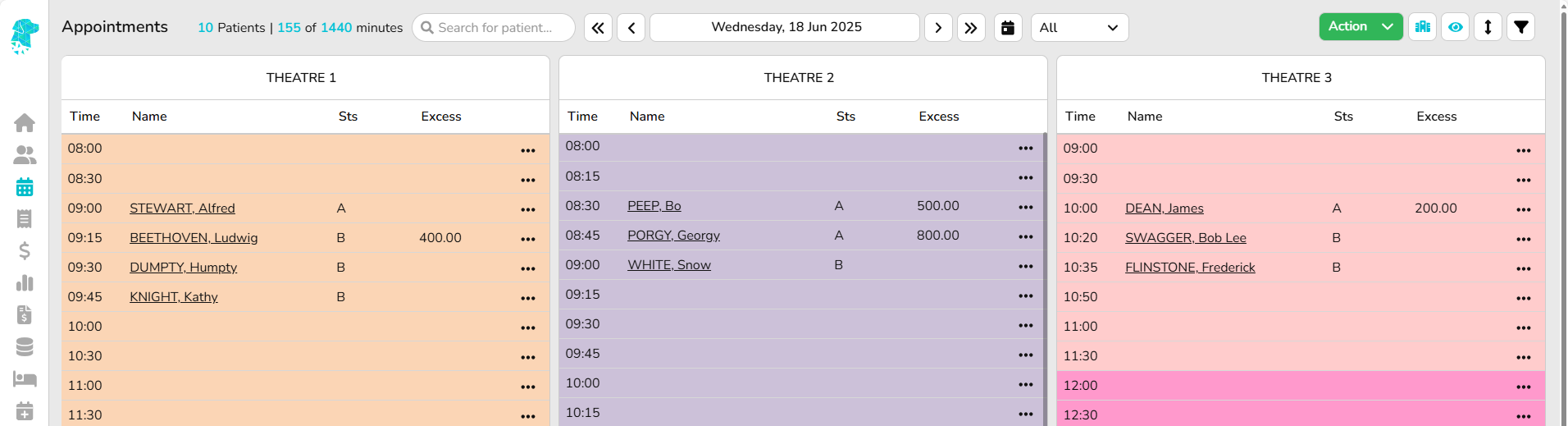
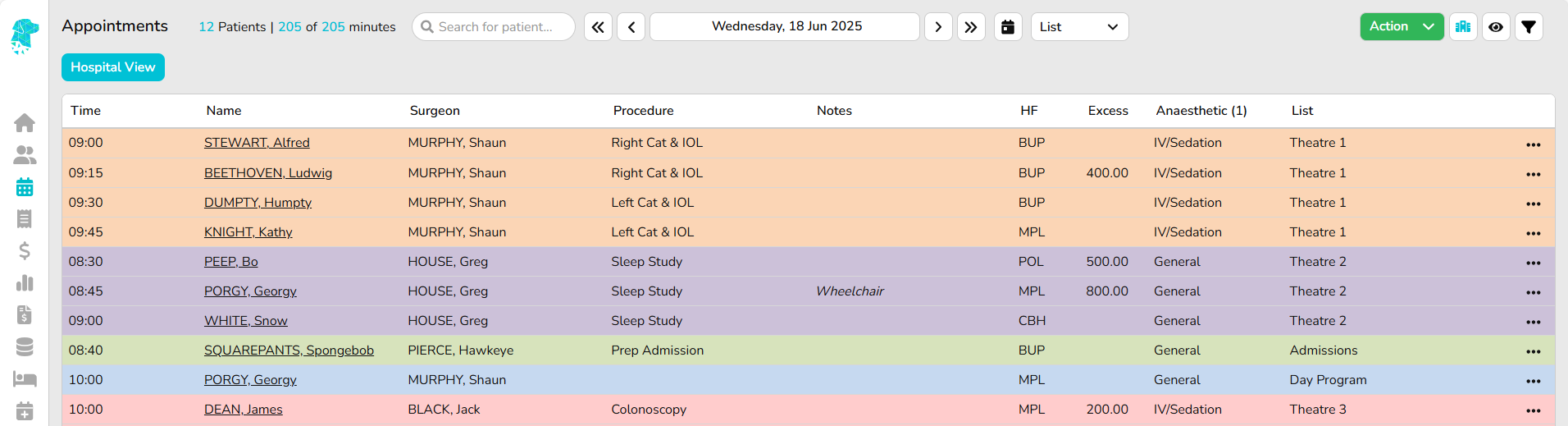
To choose your preferred view – All, Individual, Week, List, or Waitlist – use the dropdown menu located on the right-hand side of the date.
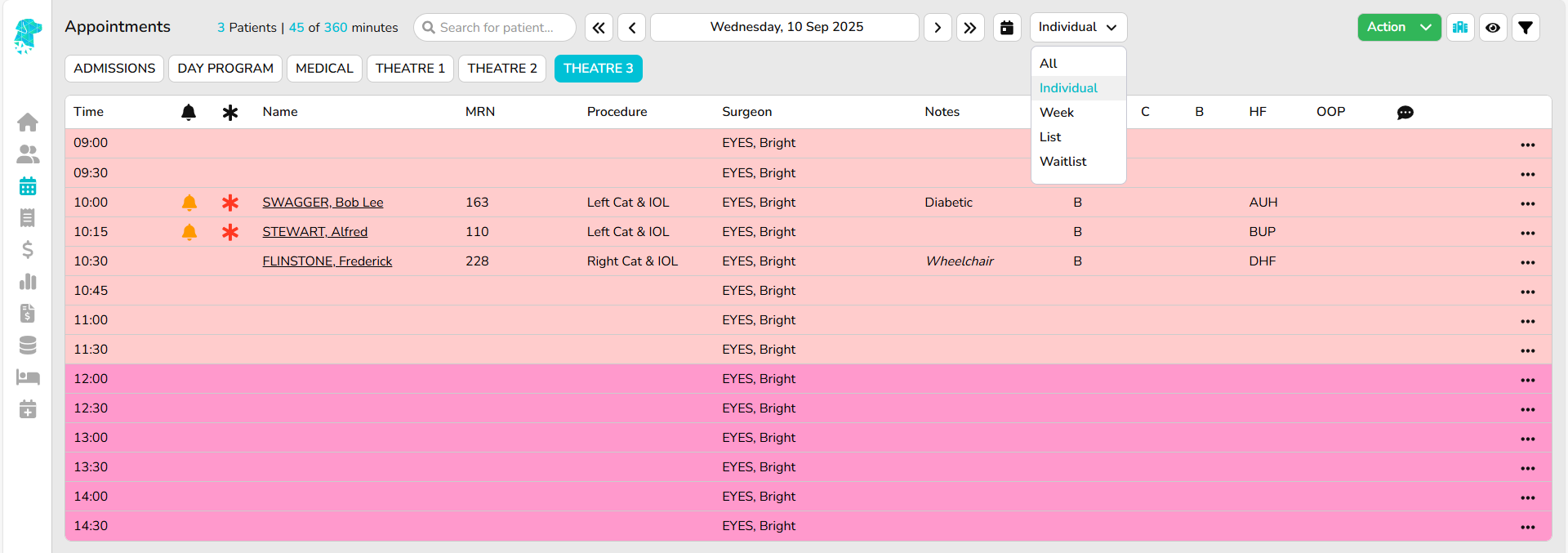
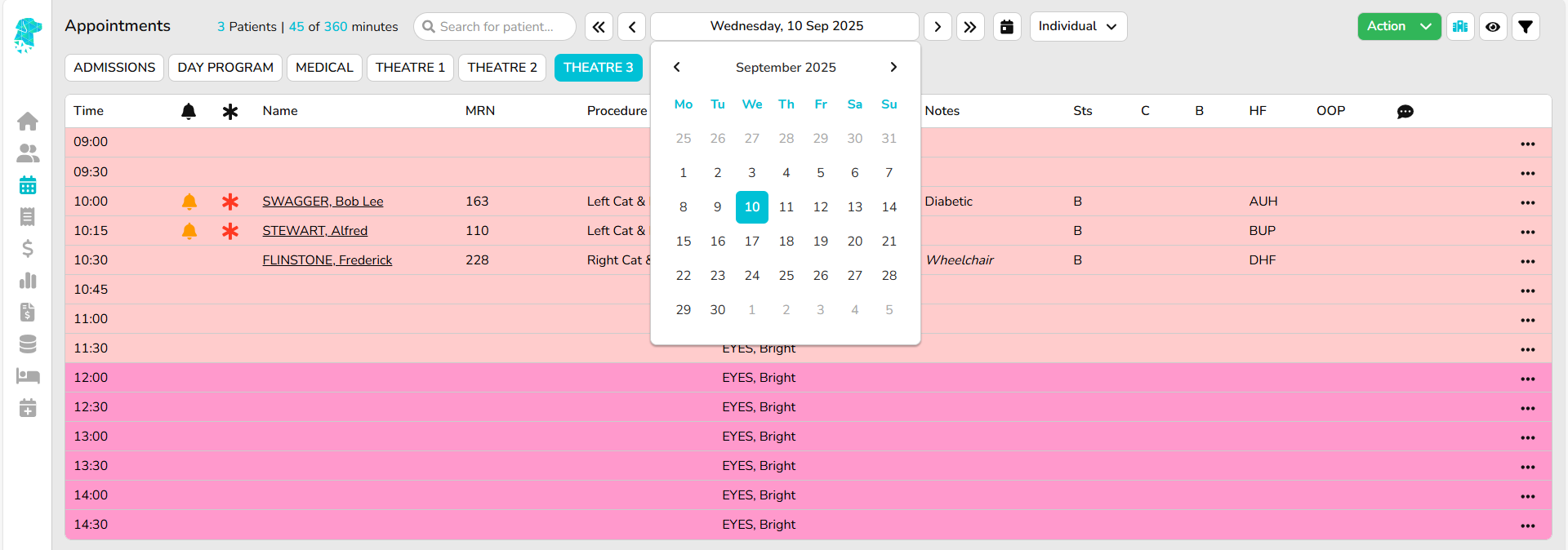
To view the calendar, click on the displayed date (e.g., Wednesday, 10 Sep 2025). The calendar will open, allowing you to easily select your desired date.
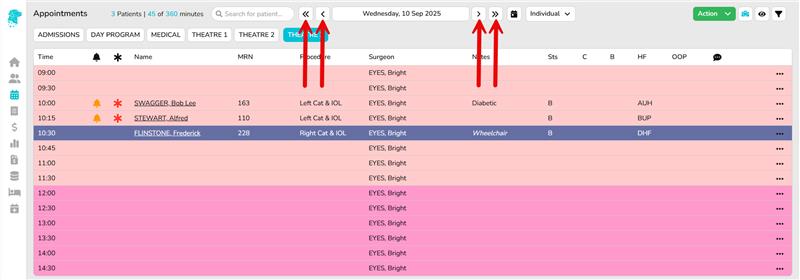
You can also use the arrows on either side of the displayed date to navigate forward or backward by one day or one week, making it easy to reach nearby dates.
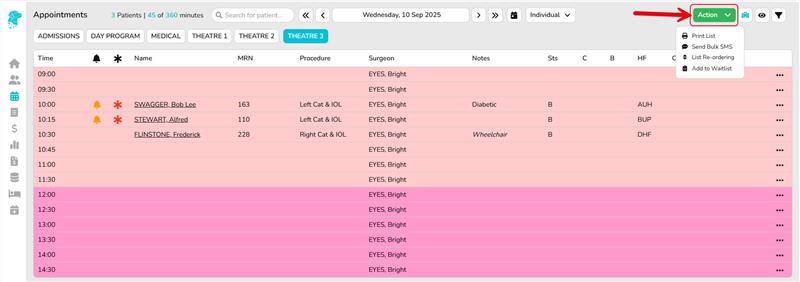
To manage your daily tasks – such as Printing Lists, Sending Bulk SMS Messages, List Re-ordering, or Adding Patients to the Waitlist, simply use the green dropdown menu labeled Action.
The next icon allows you to filter the view based on the specific hospital status.
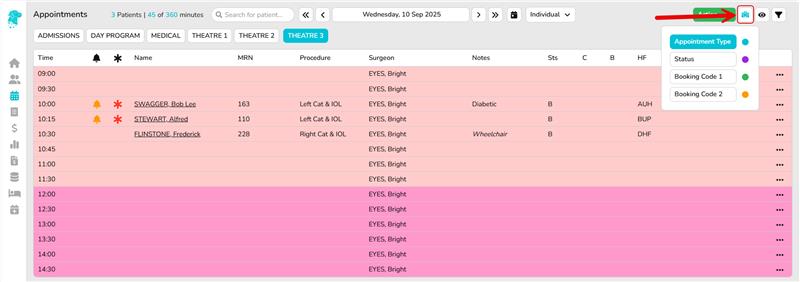
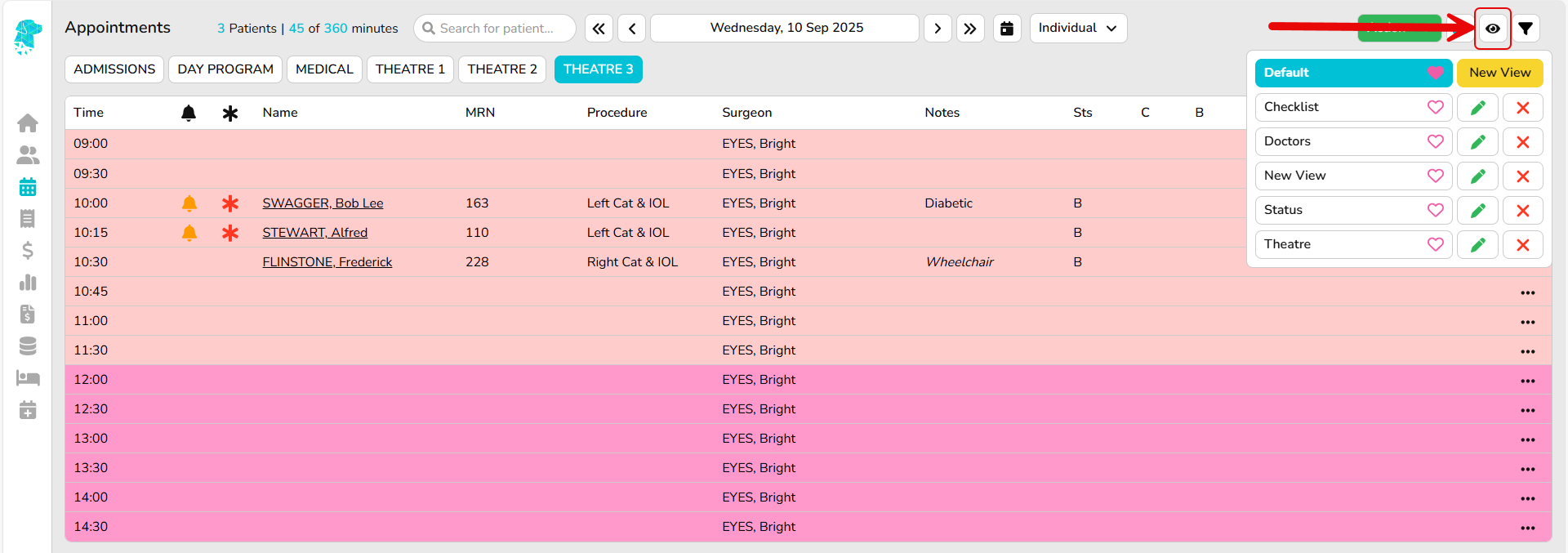
The eye icon allows you to customize the view to meet the specific requirements of each hospital’s department, displaying only the information relevant to you. For instructions on how to create these views, read our wiki page:
Creating Custom Hospital Views in the Appointments Screen – FYDO Wiki
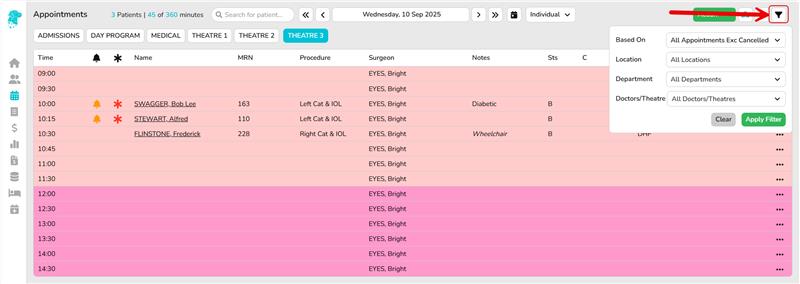
Finally, the filter option provides four categories – Based On, Location, Department, Doctors/Theatres, allowing you to customize the view accordingly.