Re-Exporting Reportable Data (PHDB/HCP/State specific) If you are ever required to resubmit a Data Extract, following error corrections etc, there are 2 main steps to take. Those are to reset the sent status of the episodes (instructions 1-7 below) and then to re-generate the file.
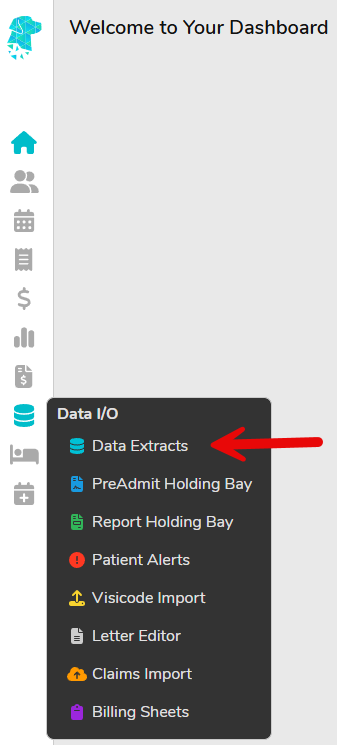
Select Data I/O from the left-hand menu
Select Data Extracts
Ensure correct location is selected (for facilities with multiple locations)
Select the month you need to re-extract
Select the type of data you need to re-extract
Select Resubmit Episodes
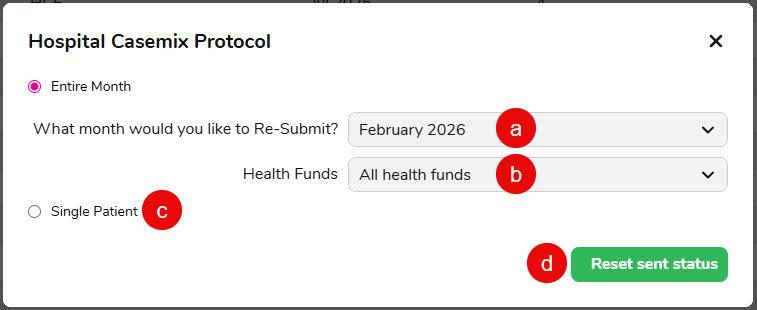
In the pop-up box select:
The Month you would like to re-submit.
The specific health fund that you would like to re-submit
Or select the Single Patient option if required (you will be prompted to search for the specific patient)
Click Reset sent status
In the original Data Extract screen, ensure the correct month is still selected (as per instruction number 4 above)
Click Prepare Extract and in the following screen click Submit, as you would when initially submitting the Data Extract
Your data files will be saved in FYDO & also in your Download folder, on your computer
If needed, you can re-download this file by using the down arrow ⬇ under the Action column with a normal mouse click (not a Right Click). Once uploaded or submitted via the relevant means there is no need to keep a copy of the file on your computer, as you can access & download again if required from FYDO
You can upload these files directly into the appropriate portal or send via the appropriate email address. (Ensuring the file names do not contain any symbols as this may cause an error)