

Billing DVA Community Nursing (Clinic)
You’re ready to bill DVA community nursing patients. Follow along to learn how
Click on the Patients icon to search a patient or select a patient from the hover
.
It is a good idea to first run the Online Patient Verification to ensure the correct patient details are entered, as they are known to DVA.
To learn more about the Online Patient Verification, Click here
Make sure you have a valid referral entered before commencing the billing.
When you’re ready to bill, click on the Bill Patient button or hit ‘B’ on your keyboard as a shortcut!

While you may notice a lot of fields, for Community Nursing, we will only be focusing on a few.

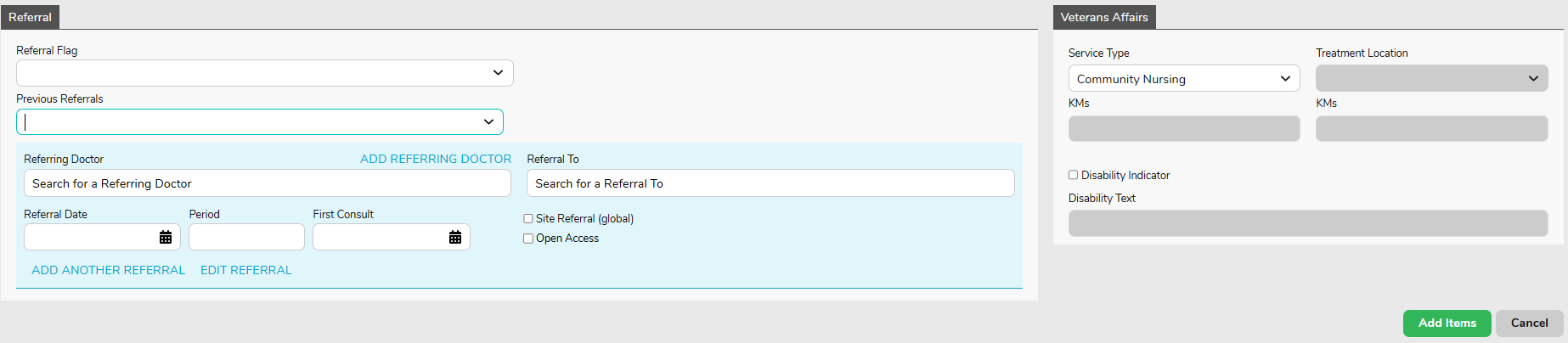
Please note that most of these fields are drop down menus.
- Location: the location where the service took place. If you only have one, it will be defaulted
- Practitioner: the practitioner who performed the service. If you only have one, it will be defaulted
- DOS: date of service
- Referral: This will populate the referral information entered on the patient details screen
Note: The Bill Type will automatically be selected as Veterans, given the patient has a veterans card number on their record.
All you need to enter is the Date of Service (DOS). The date in this field will always be prefilled as today’s date. Therefore, in almost all cases, you will need to change this date. The date of service should be the first day of the 28 day claiming cycle.
Community Nursing Quick Reference Guide
Conditional: if you have entered a referral on the patient’s record and do not see it in the billing screen, you may click on the ‘Previous Referrals’ drop down to view all previous entered referrals and select the desired one. This would likely occur when the DOS (Date Of Service) is outside of the referral validity.
Once you have filled in the DOS (first day of the 28 day claiming cycle) click on the Add Items button.
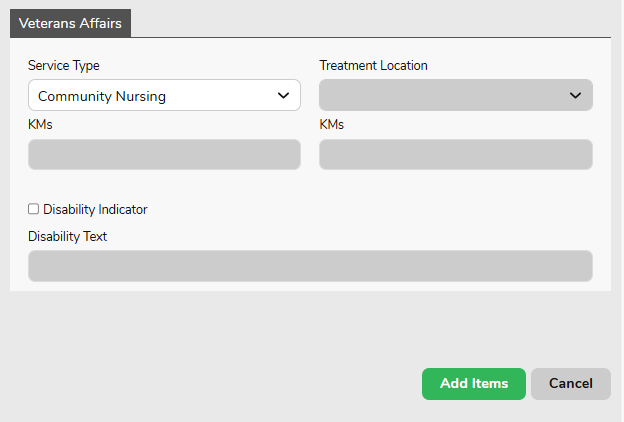
You will now be presented with a pop up asking you to enter the nursing hours/minutes and visits for this period of care (current 28 day cycle). Enter your nursing hours and visits and hit ‘Save’.
Note: hours are only required to be reported when core items are billed. They are not required if you are billing consumables only.
That said, if you are not billing your core items with the consumables, you will need to bill the core items first, before billing the consumables to avoid rejections.
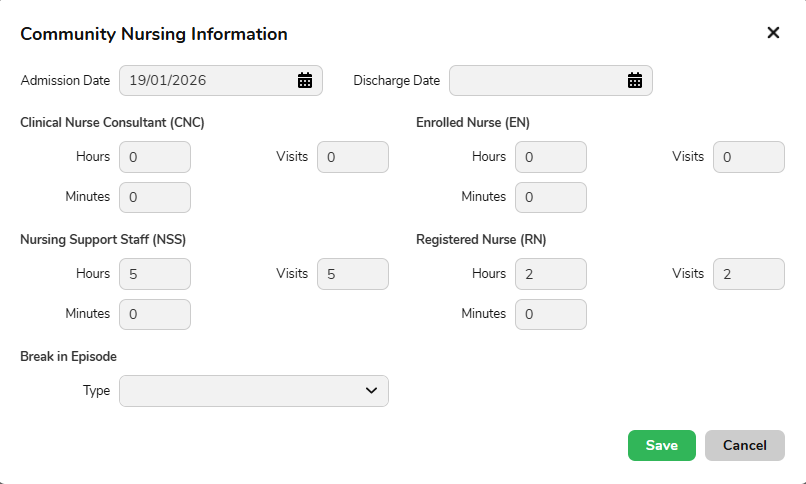
Forgotten to add some hours, or want to check what you’ve entered? You can invoke the nursing hours pop up again by hitting the ‘CN Info’ button.

Next, go ahead and enter your desired item(s) in the below field. If you are unsure which items are required, refer to the current DVA Community Nursing Schedule Of Fees.
Once you have entered all your desired items, click on:
- Review Charges
- Save
A batch has now been created within Claiming – Medical.
Go to Claiming Medical, there will be a batch with the status “Open”. Once ready to send it off for payment, click the blue action arrow on the far right of the batch and then click Close & Send.
The batch will update to “sent” status. You will now wait for DVA to process the claim.

