
Cancel a Hospital Booking
If a patient cancels their appointment
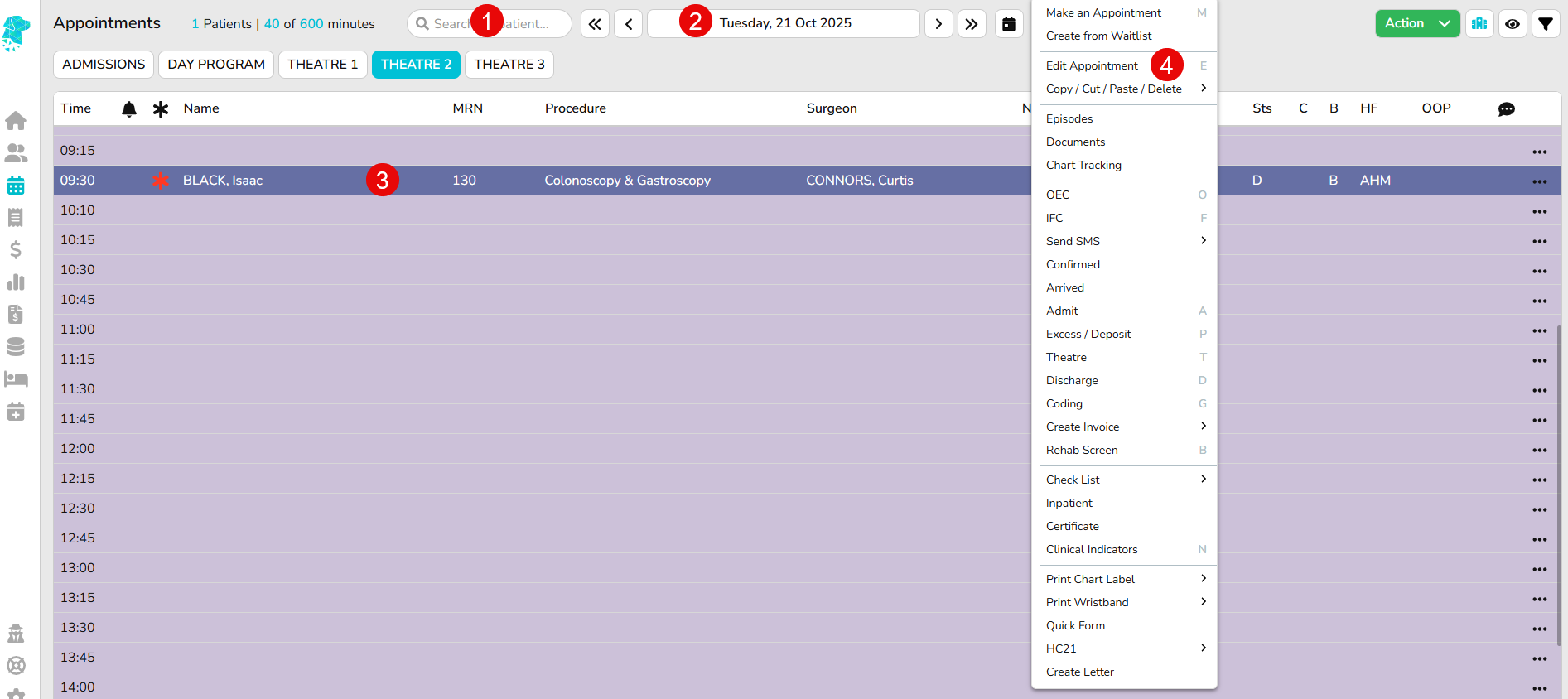
- Search for the patient OR
- Navigate to the date & theatre that the patient is booked for
- Select the patient & right click to open menu
- Select Edit Episode
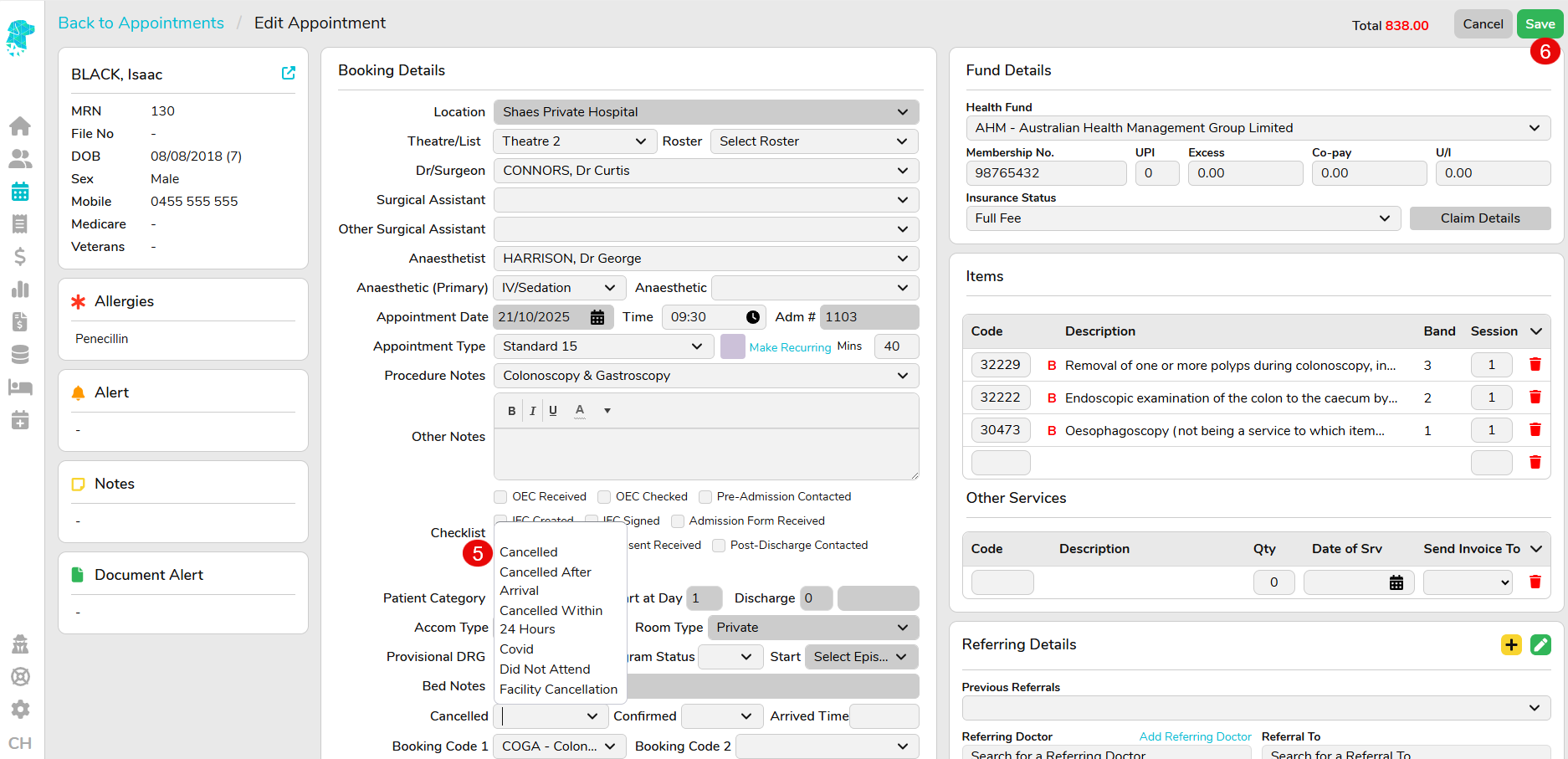
- Use the Cancelled drop down to select a reason for cancellation (N.B these cancelled reasons are fully customisable & can be added or edited in Setting under the Cancelled Reasons option to assist facilities obtain the cancellation data that they require)
- Click Save
- The patient will now be displayed with a strikethrough & the appointment time will be available to book another patient
- To view your screen without the cancelled patients, use the Filter Dropdown Based On and select All Appointments Exc Cancelled
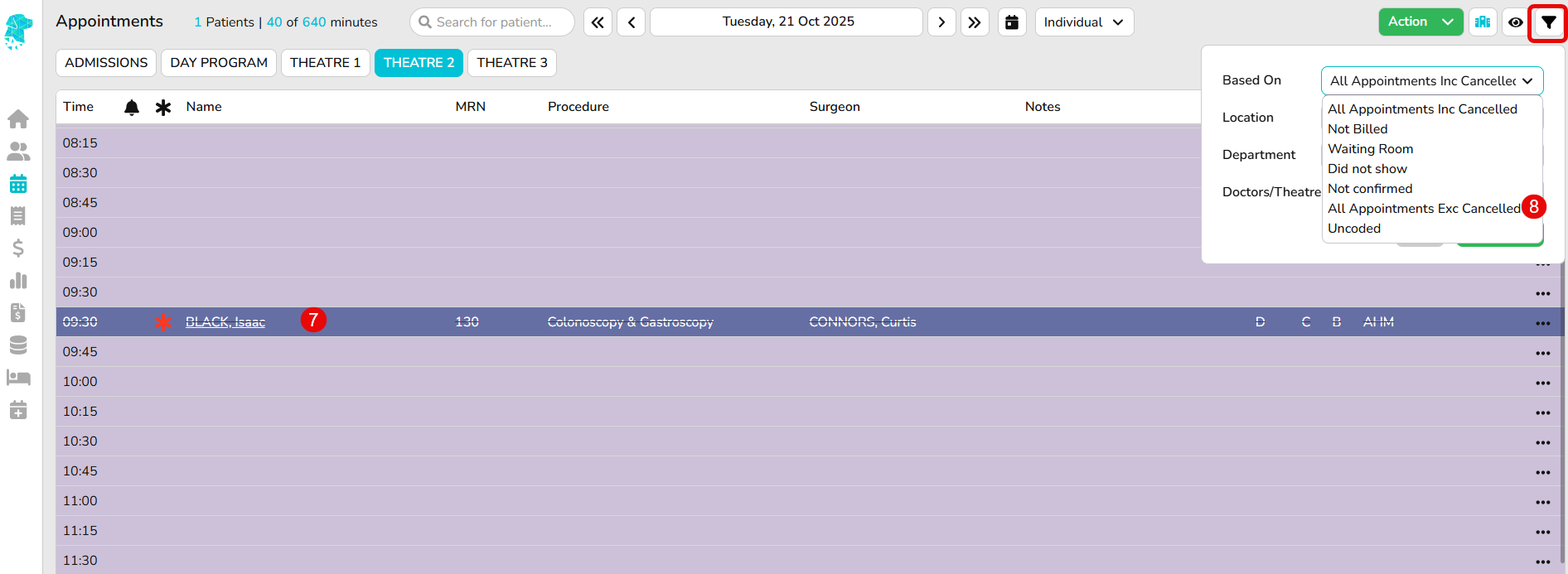
- To view the cancelled patients ensure you select All Appointments Inc Cancelled from the Filter Dropdown
- To reinstate an appointment, follow the above steps 1 > 4 and remove the cancellation reason from the episode before clicking Save
Options for dealing with cancelled patients
Depending on how far a patient is along their journey, there are different ways to handle a cancelled episode. For example, a patient who cancels before arriving at the facility will need to be handled differently than one who cancelled after admission.
The facility should determine the most appropriate option for each individual scenario. Below are a few options for processing these cases in FYDO:
Option 1
If the patient did not arrive at the facility and was not admitted, the standard cancellation instructions above will apply. The episode will not be admitted and will simply be cancelled.
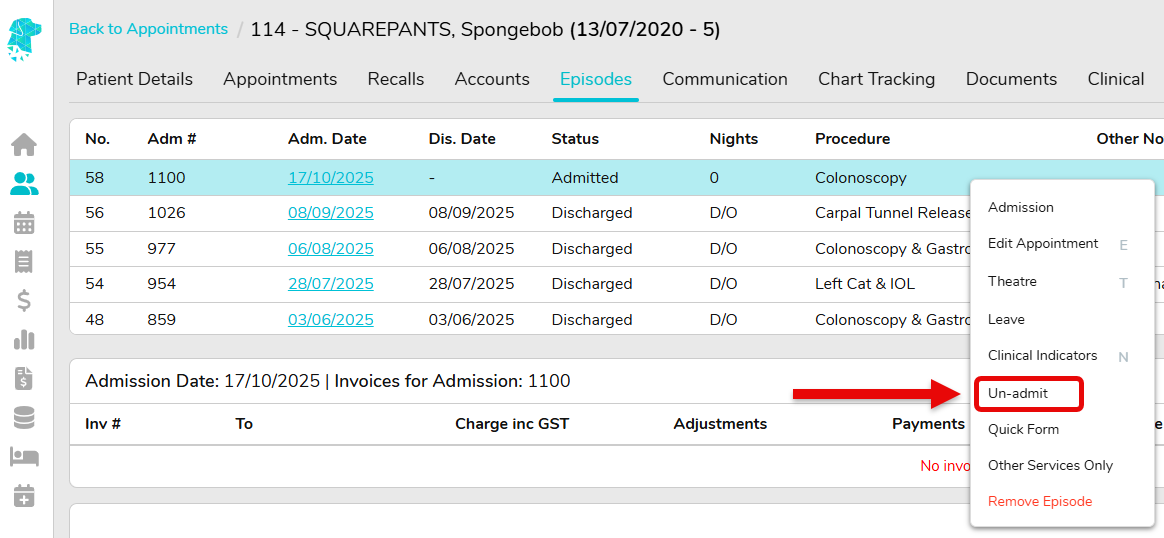
If the patient did arrive and was admitted but did not proceed, the facility can choose to revert the episode back to a booking by Un-discharging and Un-admitting the episode. Again, this will be up to the facility to decide if this is require depending on how far the patient journey progressed.
This can be done via the Episodes Screen by utilising the Right-Click Menu.
The patient may need to be refunded any moneys paid, or the facility may choose to keep it and apply to another admission down the track.
Option 2
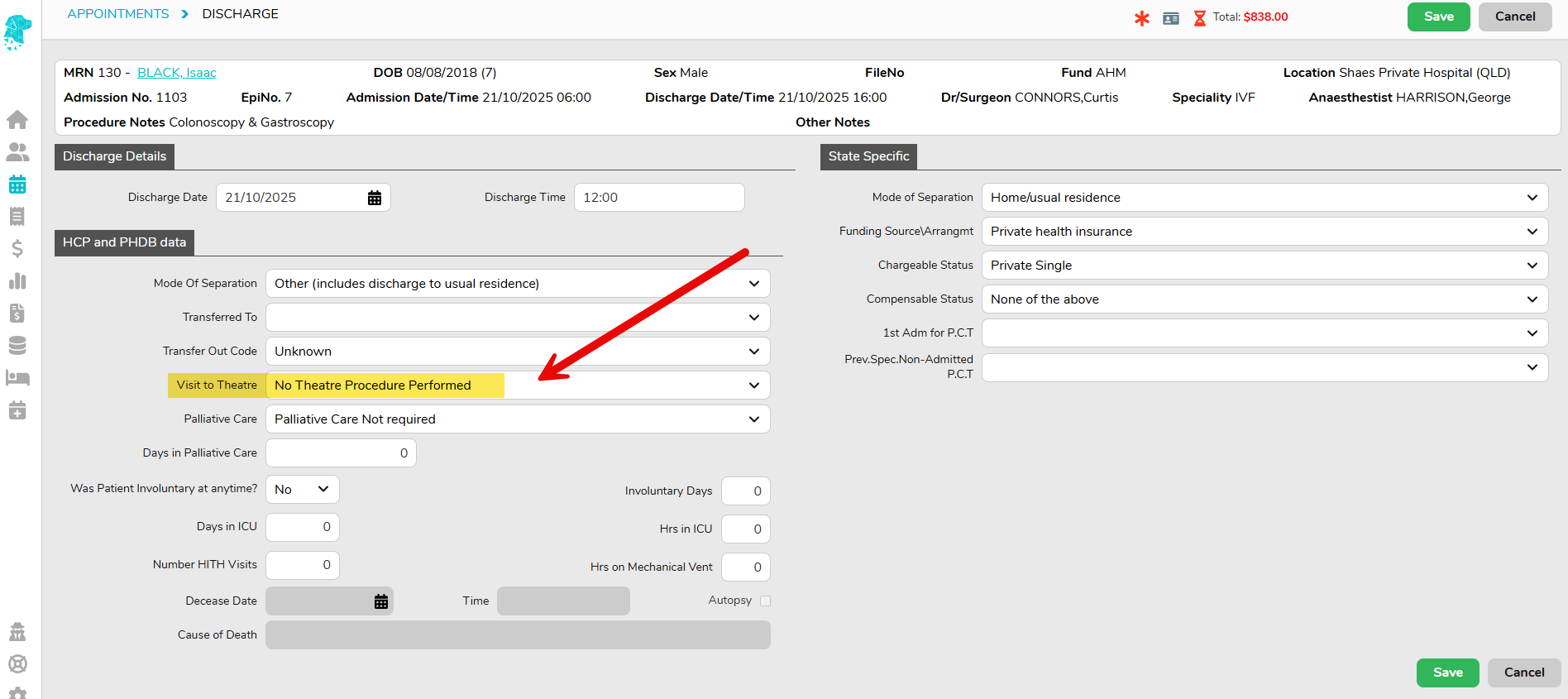
If the patient was admitted and progressed partway through their journey, the more appropriate option may be to complete the episode by admitting and discharging them.
Depending on how far they progressed, you may need to populate the Visit to Theatre field with No Theatre Procedure Performed when discharging the episode.
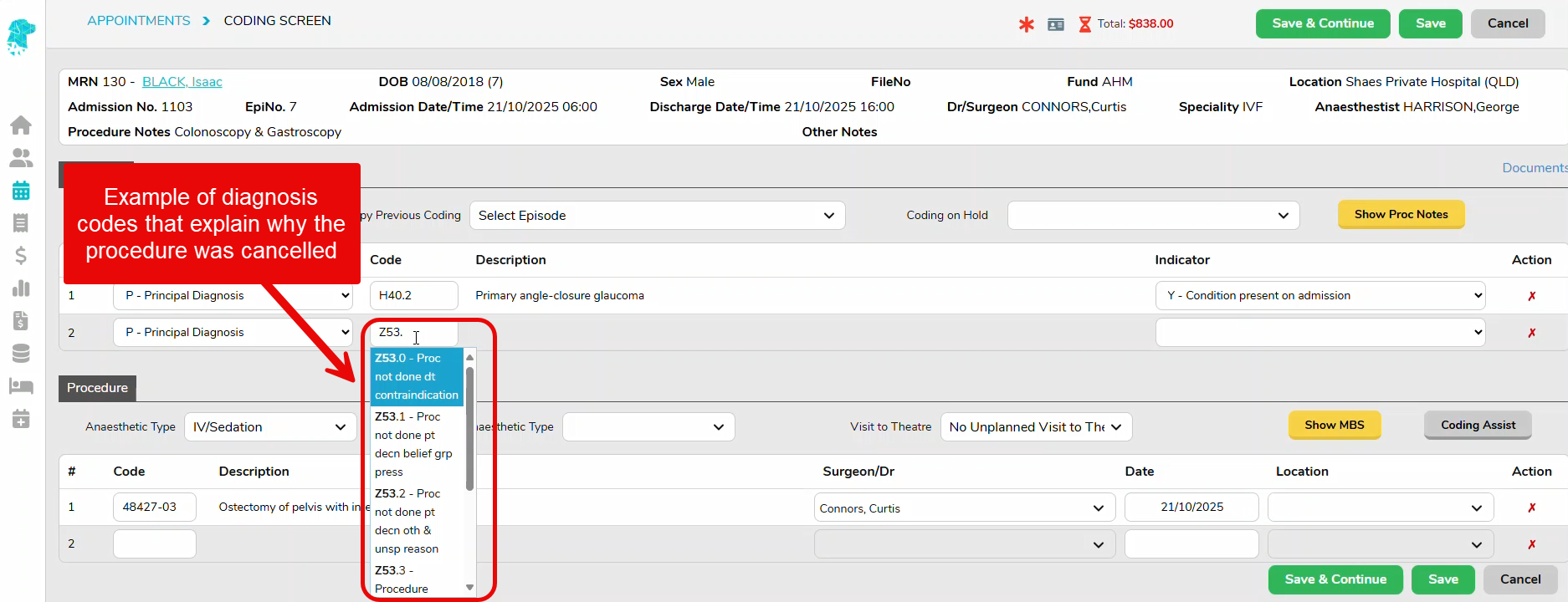
As every discharged patient is reported to the Department of Health, a principal diagnosis code is mandatory. If the facility opts to admit and discharge the episode, it will need to be coded.
Please confirm the correct process with your coder. However, as an example, there would typically be a primary diagnosis code, and an additional diagnosis code explaining why the procedure was cancelled.
Other Notes
When raising an invoice, please be aware that if an accommodation band is billed, it is implied to the health fund that the patient received an anaesthetic. In this instance, an anaesthetic procedure code must also be included in the coding screen.
Facilities will need to check their individual health fund contracts in order to decide if they can raise a charge for the particular admission.
Cancellation Reasons
Facilities may be required to collect different cancellation information for benchmarking, auditing, accreditation, and reporting purposes. FYDO makes this easy through customisable Appointment Cancellation Reasons.
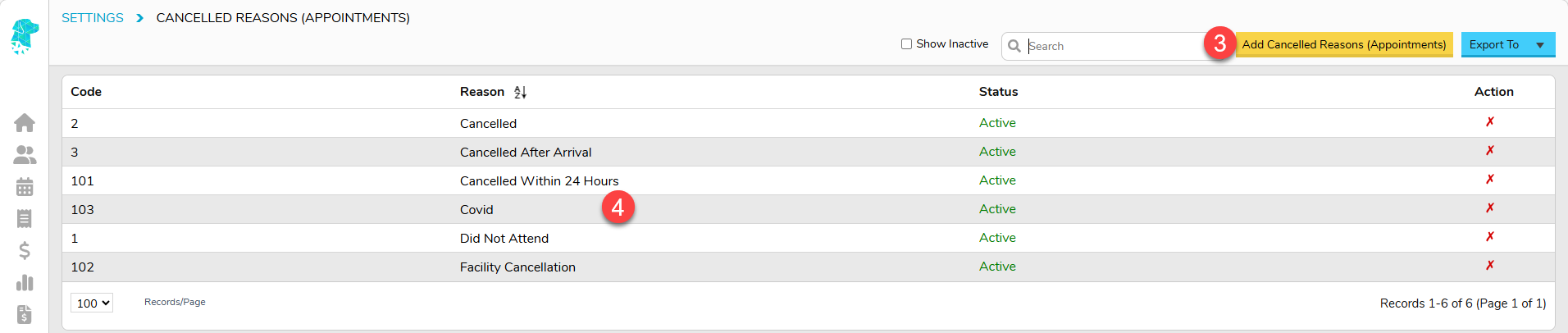
Statistics such as Cancelled After Arrival, Cancelled Within 24 Hours, Facility Cancellation and other site-specific categories can all be configured as Cancelled Reasons (Appointments). Once configured, these reasons can be utilised in reporting to provide visibility into why appointments are being cancelled and identify trends over time.
To ensure accurate reporting, your facility should configure the cancellation reasons required for your workflows and educate staff on when each cancellation reason should be used.
Follow the instructions below to set this up.
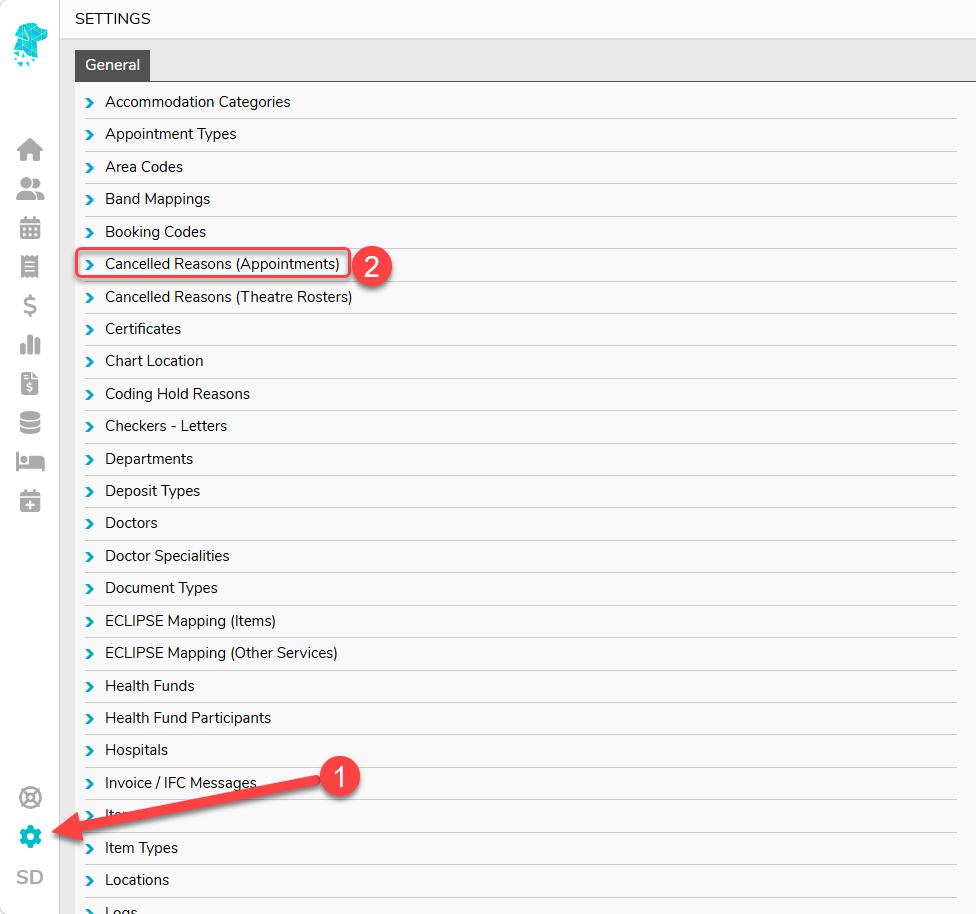
- Navigate to Settings
- Select Cancelled Reasons (Appointments)
- Click Add Cancelled Reasons (Appointments) to add new cancellation reasons
- Double click on an existing cancellation reason to amend it
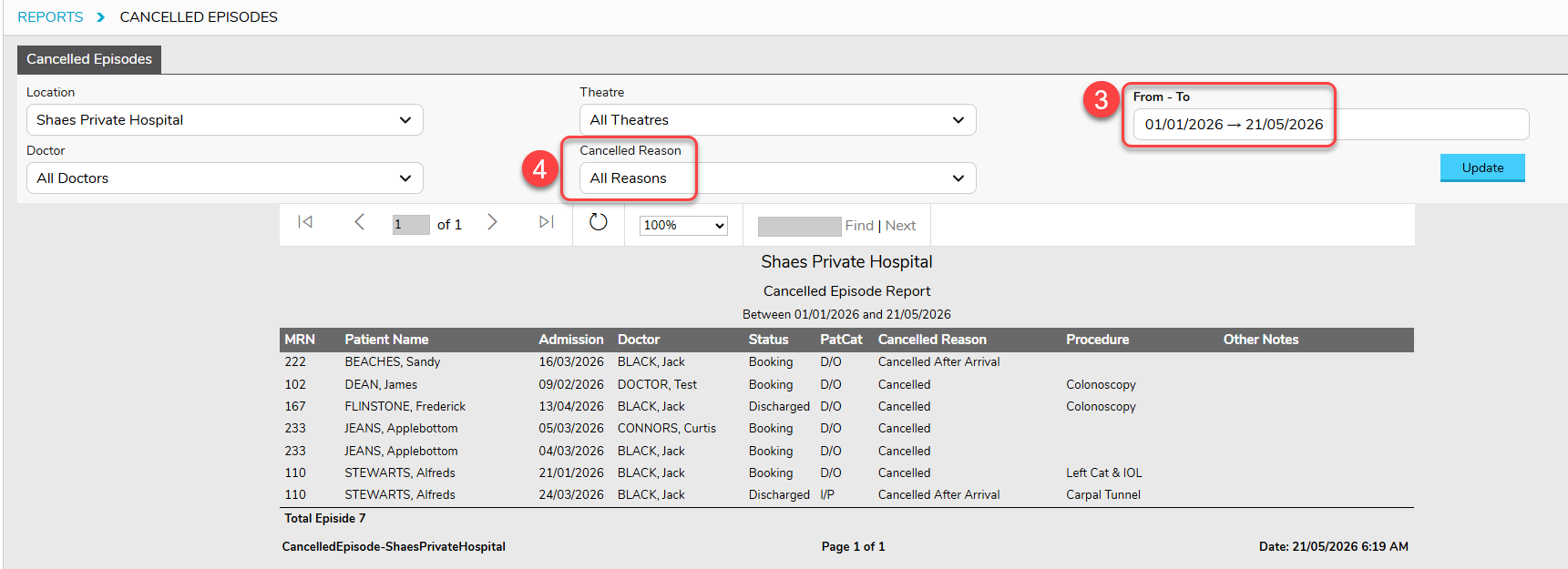
Utilise the correct Cancellation Reason when cancelling bookings, as per the instructions at the start of this page, and statistics than then be obtained from Reports.
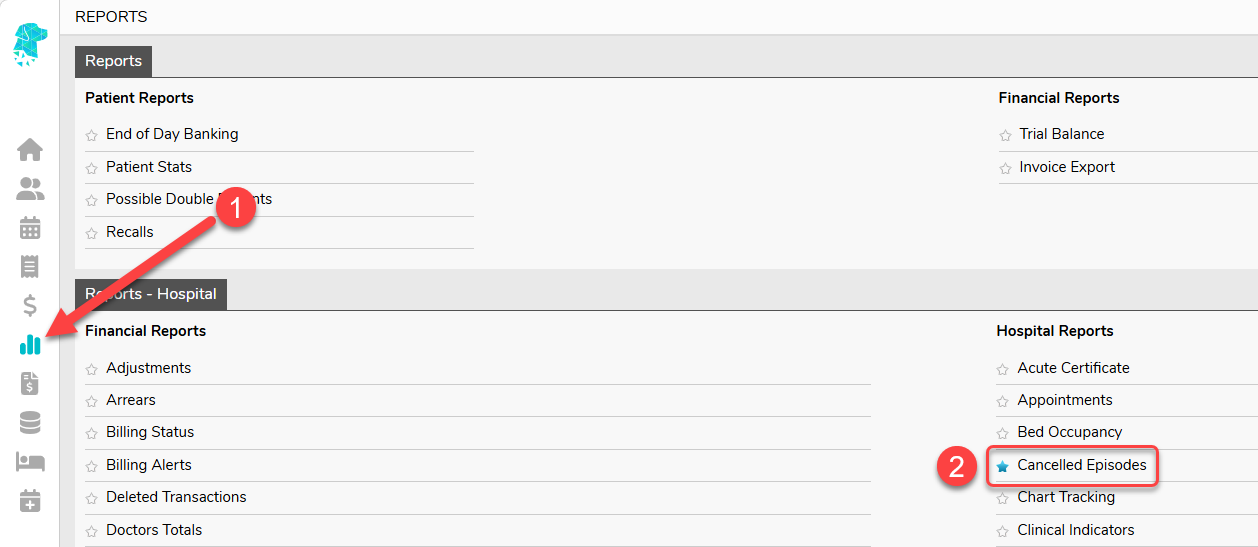
- Navigate to Reports
- Select Cancelled Episodes
- Simply run the report for the date range required for a comprehensive list of all cancelled procedures, or
- Utilise the Cancelled Reason filter to obtain statistics on specific cancellation types