

Emailing an Invoice from FYDO
You can now send invoices directly from FYDO using your Microsoft 365 email account. This feature uses a secure integration via a Microsoft Enterprise Application called FYDO_EmailSender.
For this functionality to work, your Microsoft 365 tenant must allow the required permissions, which may need assistance from your IT department. To find out how to set up your email, see our Setting up to Email from FYDO user guide.
Once successfully set up, you can email an Invoice Copy from the Episodes screen.
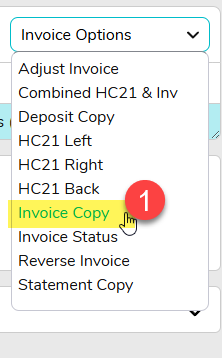
1. Under the Invoice Options Drop down in the Episodes screen, select ‘Invoice Copy’
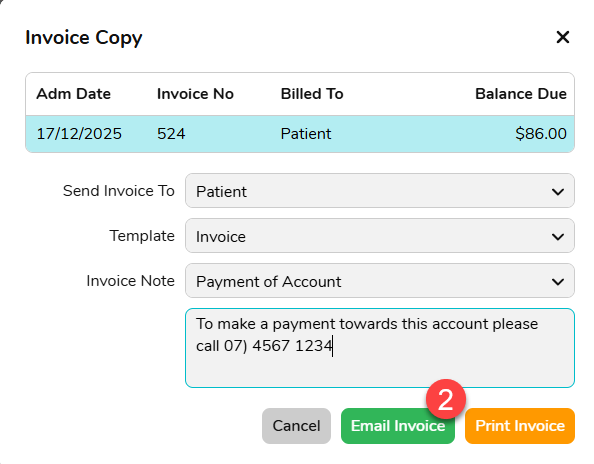
2. Select the Invoice options as usual and click on the ‘Email Invoice’ button
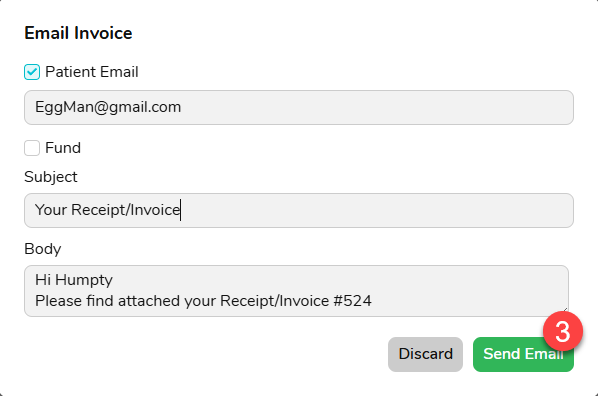
3. Select who you’d like to email, whether it be the Patient or Fund, modify the Email Subject and Body of the email if necessary and click on the ‘Send Email’ button
4. If the email is successful, you should see a message at the top of the FYDO screen like below

⚠️ Important: The email will appear to the recipient as being sent from the shared mailbox (e.g. reception@hospital.org.au), but will still be sent using your personal Microsoft 365 account. The message will be saved in your Sent Items, not the shared mailbox’s.

