

Hospital Appointments Screen – Right Click Menu
Most functions available in the Appointments Screen can be accessed by selecting the required episode & using your mouse to right click. This menu can also be accessed with a single click on the appointment time which allows users on tablets to access the menu as well.
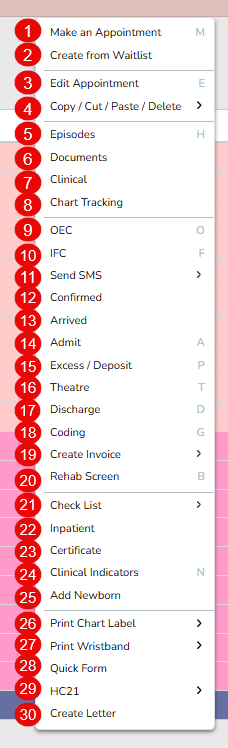
- Make an Appointment allows users to add a booking
- Create from Waitlist allows a booking to be made using a patient on the Waitlist
- Edit Appointment allows users to amend an existing booking
- Copy / Cut / Paste / Delete allows users to copy, cut or past an existing booking or delete
- Episodes gives a list of all episodes for the selected patient, along with financial information
- Documents displays all documents that have been generated in or scanned into FYDO
- Clinical is where the doctor can add any clinical notes or relevant information about the patient.
- Chart Tracking allows for chart movement to be tracked
- OEC is where users will go to perform an Online Eligibility Check for the patient for that admission
- IFC is where users will go to generate an Informed Financial Consent for the episode
- Send SMS gives the user the option to send an SMS to the patient or to their pickup person
- Confirmed gives users the option to make appointments as confirmed
- Arrived gives users the ability to mark patients as arrived as they present to the facility
- Admit is the page where the admission time & information is recorded
- Excess/Deposit is where a receipt for a patient payment can be generated
- Theatre is where all the theatre times, item numbers and other services etc. are recorded
- Discharge is the page where the discharge time & information is recorded
- Coding is the page that the relevant diagnosis & procedure codes are entered & where the episode can be grouped
- Create Invoice / Other Service Only Invoice is where users will go to invoice the episode
- Rehab Screen is used for recording rehabilitation information
- Check List allows users to mark off tasks easily & efficiently as they are complete e.g., OEC, IFC, Consent Form etc
- Inpatient is where information regarding scheduled inpatient procedures, bed allocation & leave can be recorded
- Certificate is where Type C, Type B, psychiatric etc certificates can be entered into FYDO to be transmitted electronically via ECLIPSE
- Clinical Indicators is where certain indicators relating to the episode can be recorded. This feature allows for efficient collation of statistical data
- Add Newborn is where you can enter the newborn’s details once the baby has been born.
- Print Chart Label is where labels can be printed for the patient chart
- Print Wristband is where a wristband label can be printed for the patient
- Quick Form allows users to print other forms that have been loaded into the database. For example, Discharge Summaries
- HC21 (Left, Right and Back) for the patient to sign (left), for the facility to complete and sign (right) and for the surgeon to complete if a certificate is required (back)
- Create Letter allows users to create letters in FYDO from preloaded templates
In addition, some of these screens can also be accessed using Hot Keys on your keyboard. Please see below for a list of the Hot Keys currently available:
A Admit
C Copy appointment
D Discharge
E Edit Episode
F IFC
G Coding
H Episodes
I Create Invoice
M Make an appointment
N Clinical Indicators
O OEC
P Excess/ Deposit
R Patient Details
S Send SMS
T Theatre
F9 EMR

