

Online Patient Verification – OPV (Hospital)
Performing an Online Patient Verification check with Medicare & the health fund helps to ensure the correct patient information is entered into the system & that the Online Eligibility Check (OEC) will be successfully transmitted
- OPV checks can be performed from the Patient Screen, on the right-hand side in the Medicare/ health fund section, by clicking OPV Check

- Before the OPV is successful, the Medicare Number field & the Health Fund Number field will appear in a red font with a cross.
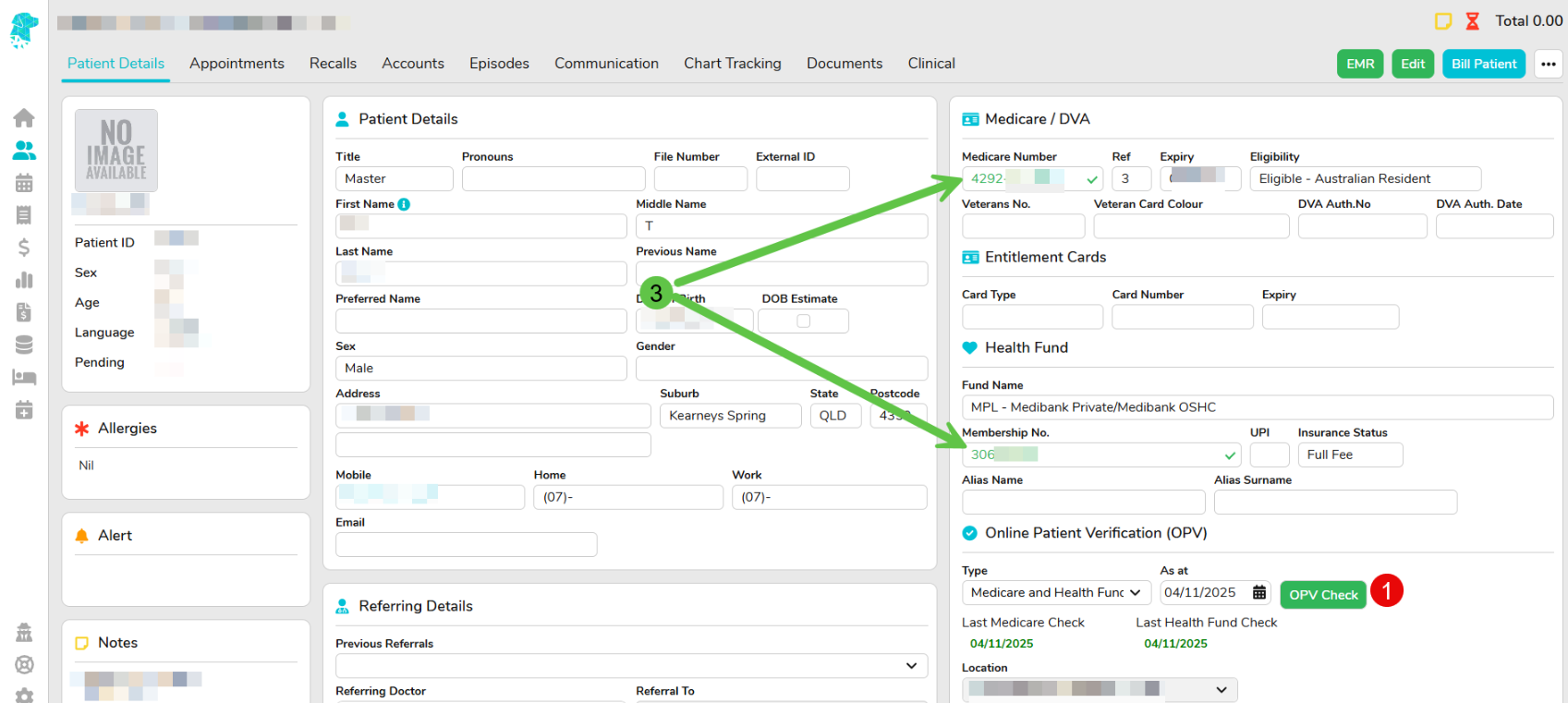
- Once the information has been successfully verified, it will appear with a Green Numbers and a tick, to indicate the information matches the records held by Medicare and/or the Health Fund
- If the information isn’t able to be verified, a visual alert will be displayed, in the top right corner, of a red hourglass.
- Hover over this icon to display a reason for the unsuccessful verification.

6. In some instances, the OPV will be able to identify the patient, even if the details are slightly incorrect. If this happens the Verification Issue icon will become visible & you will be able to hover over it for information regarding the check. Some examples of this would be:
– Updating the patients’ first name. E.g. From Sam to SAMUEL
– Updating the last digit of the Medicare Card. E.g. From 5 to 6
– Updating the Medicare Reference Number. E.g. From 1 to 4
This may result in needing to run the OPV Check a second time to verify the Health Fund details.
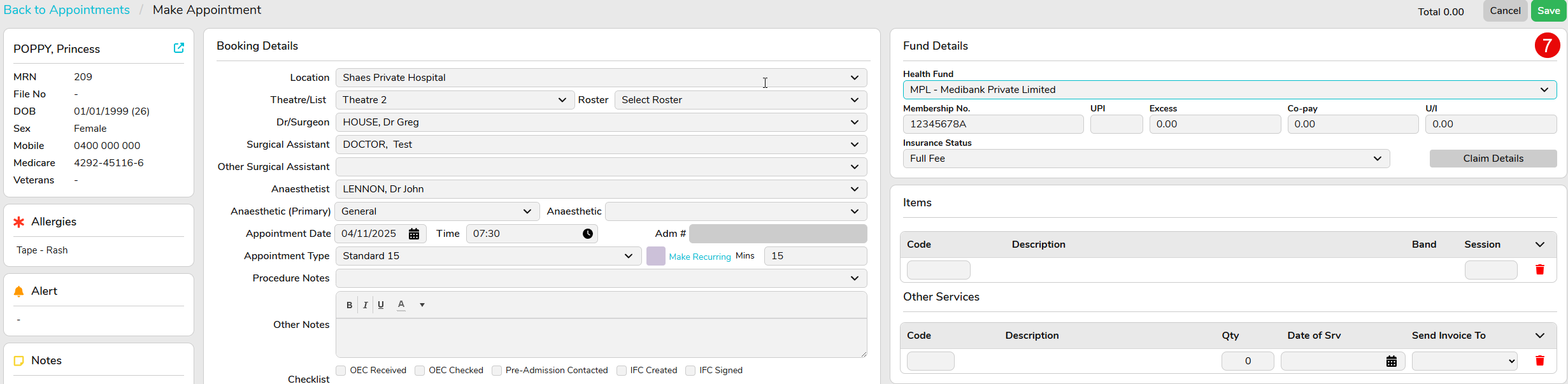
- The OPV will automatically be performed when making a patient booking. As long as the relevant patient information is available, the check will run once you click Save, after completing the Appointment Screen
- If the patients’ name varies from what Medicare has documented, to what the Health fund has, utilise the Alias Name field under the Health Fund section (as shown in image below). In order to successfully verify the details in this instance:
- Enter the patients name, as it is shown on the Medicare Card, in the Patient Details section. FYDO has to have what Medicare has in this section.
- Enter the patients name, as it is show on the Health Fund Card, in the Alias Name field
- Run Check again


