
Preadmit Patient Portal Redesign – COMING SOON!
Improved Functionality
We have made a number of enhancements to improve the functionality, usability and overall design of the Patient Portal.
These updates provide patients with a smoother and more intuitive experience when completing online admission forms, checklists, digital IFCs + HC21s, and eventually online payments.
New Dashboard for Forms
The Patient Portal now features an updated dashboard designed to make it easier for patients to view and manage their admissions.
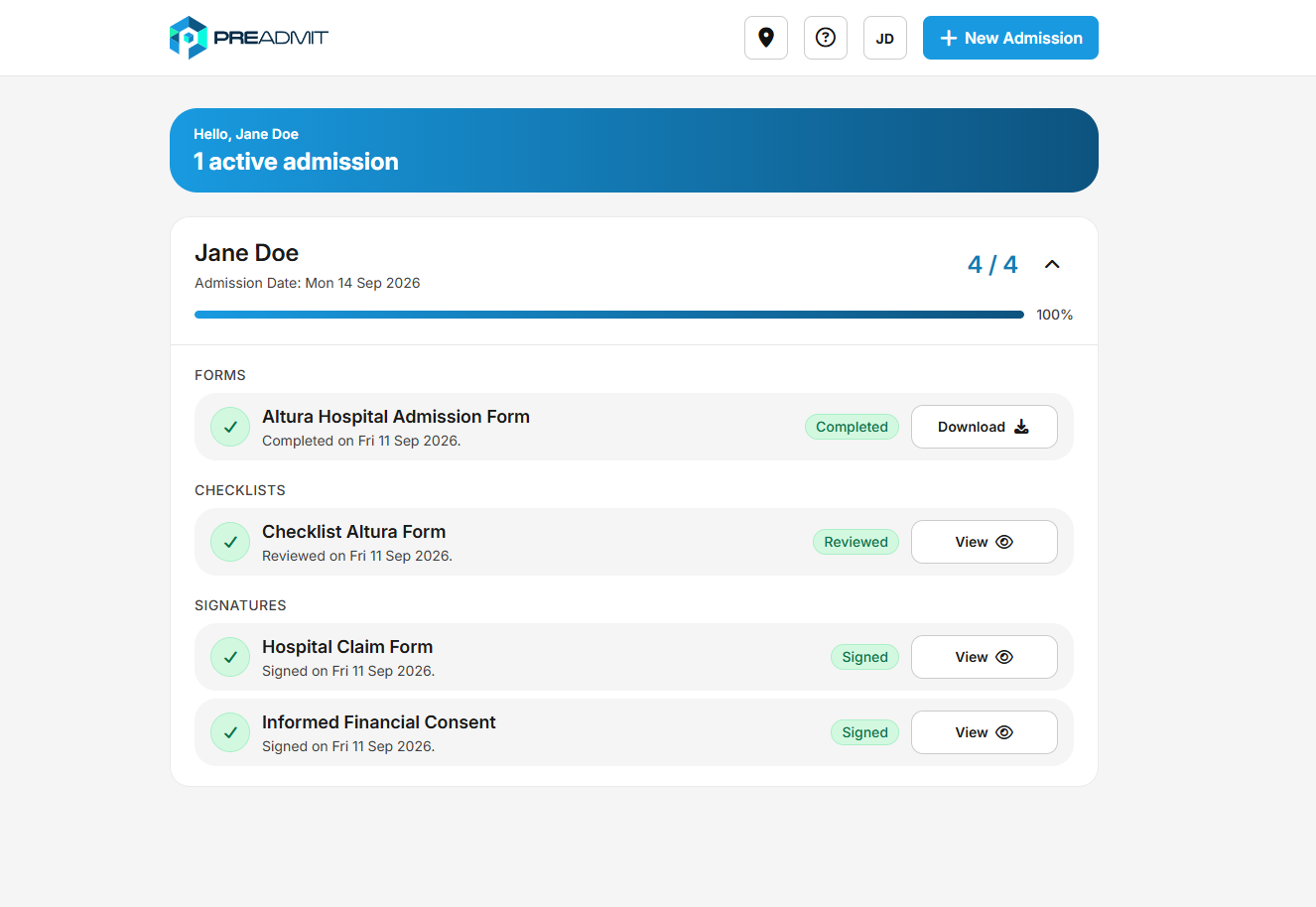
Active Admissions
Admissions are now grouped together based on the admission date.
This means that all components relating to an admission, including admission forms, checklists, signatures and payments, will now be grouped together under a single admission.
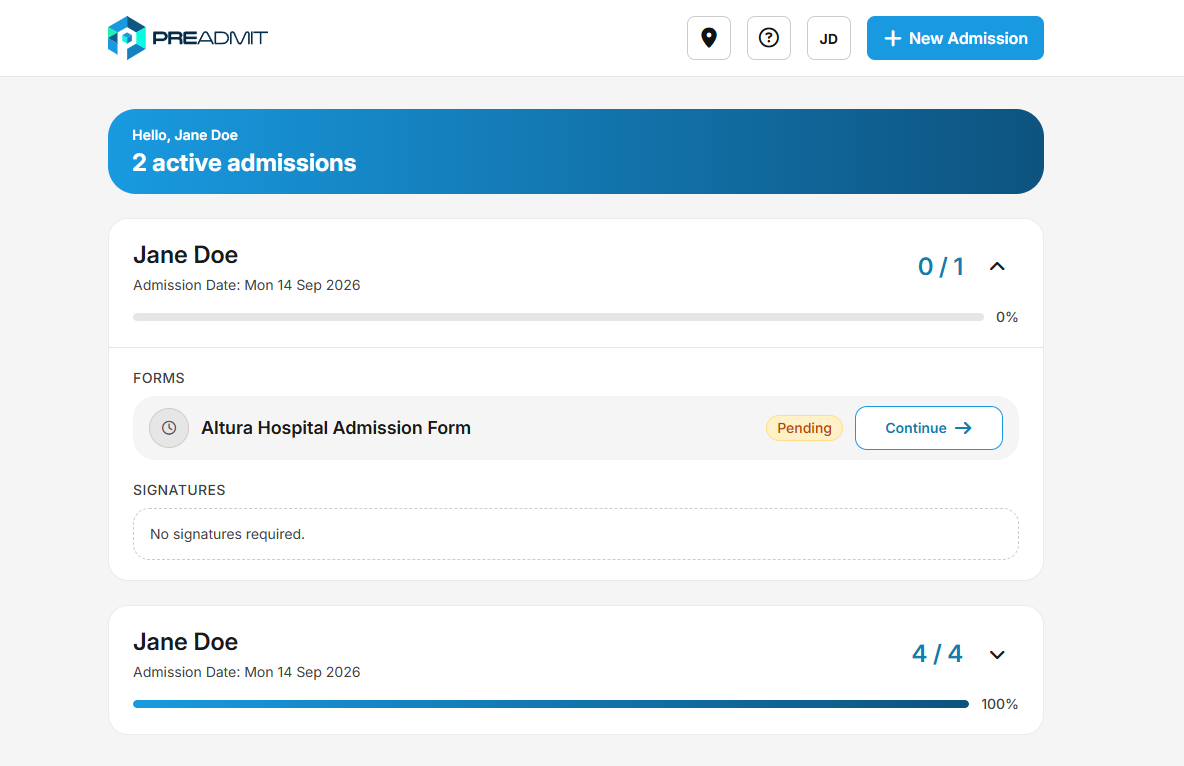
Incomplete Active Admissions
Admissions that have been started but still have incomplete components will remain in the Active Admissions section when the admission date is in the future.
Patients can use the dropdown option to hide these incomplete admissions if required.
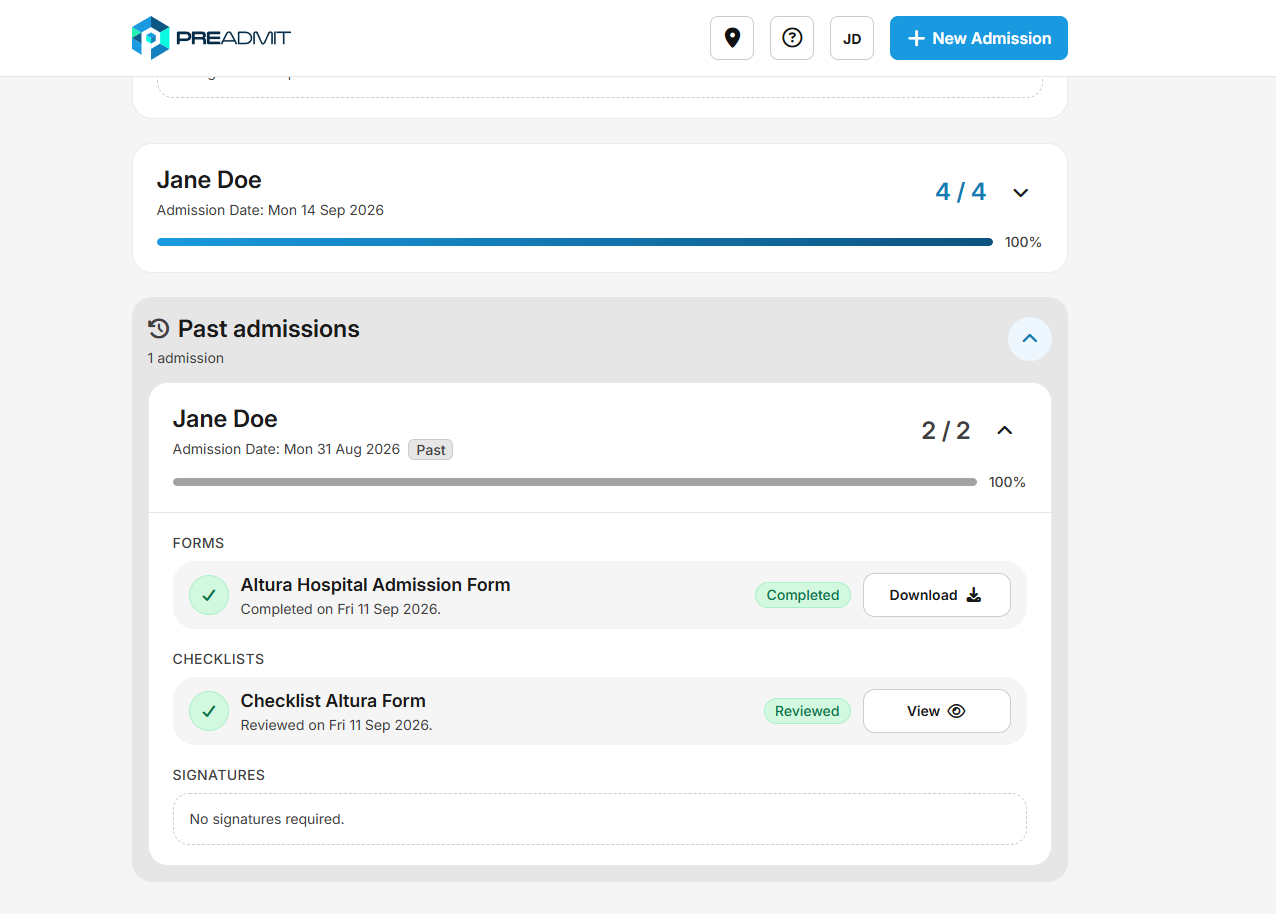
Past Admissions
A new Past Admissions section will be available.
This section will include:
- Admissions that have been completed.
- Admissions where the admission date has passed, regardless of whether all components have been completed.
Starting an Admission Form / Reusing a Previous Admission
When starting a new admission form, patients will now be asked whether they would like to:
- Start a form for an existing patient and reuse information from one of their previous admissions.
- Add a new patient to the system and start a new form.
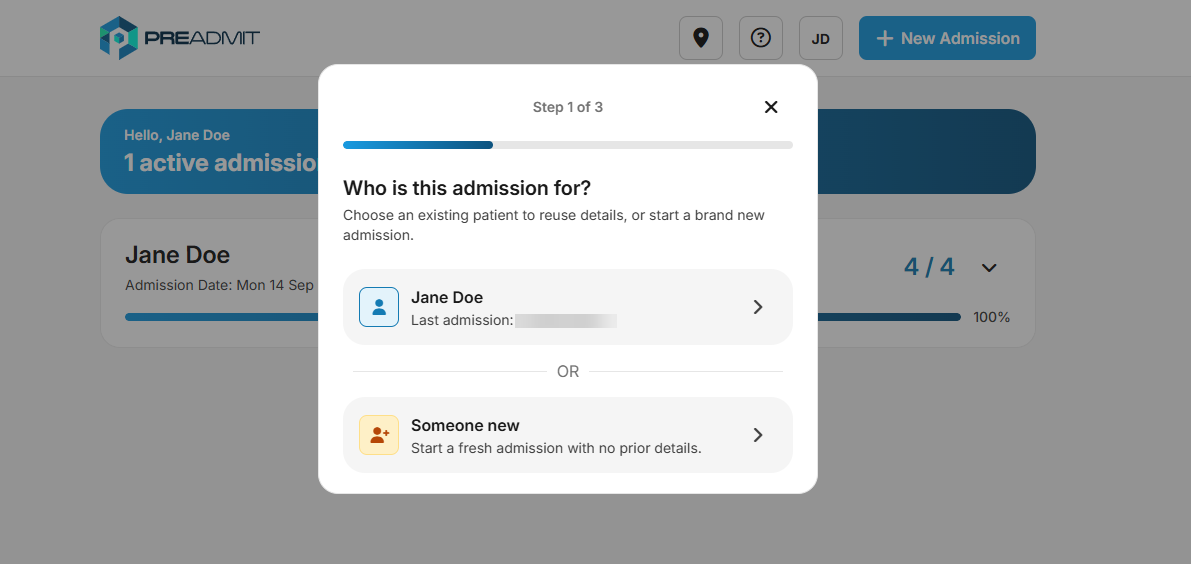
Adding a New Patient
If the patient chooses to add a new patient, they will be taken through a new, blank admission form.
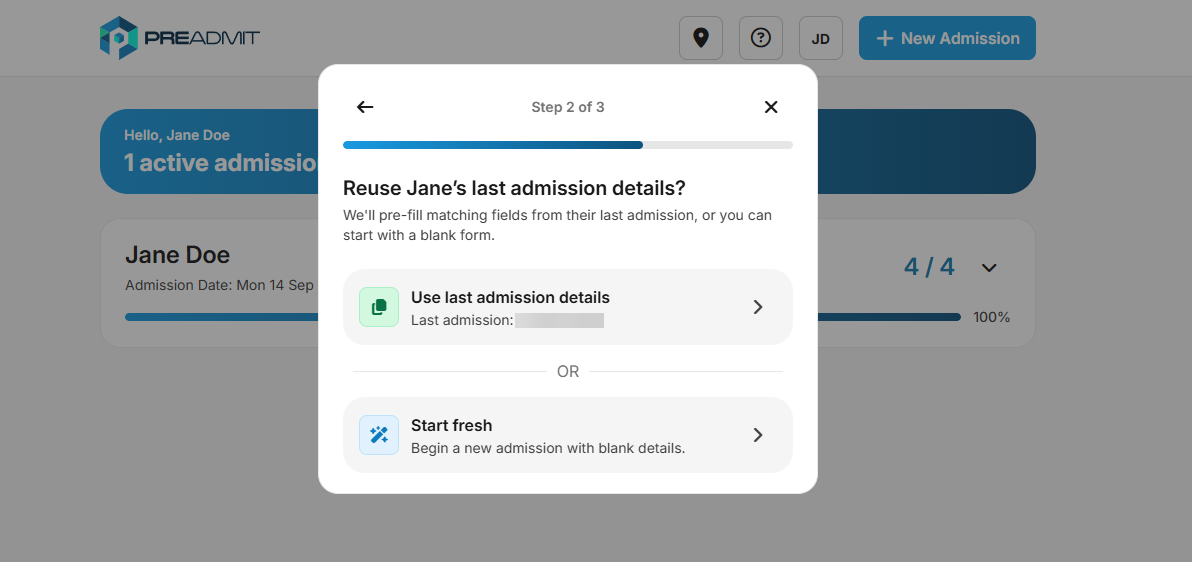
Existing Patient
If the patient chooses an existing patient, they will have the option to either:
- Start a new form.
- Reuse a previous form.
Additional Features
Patient Information
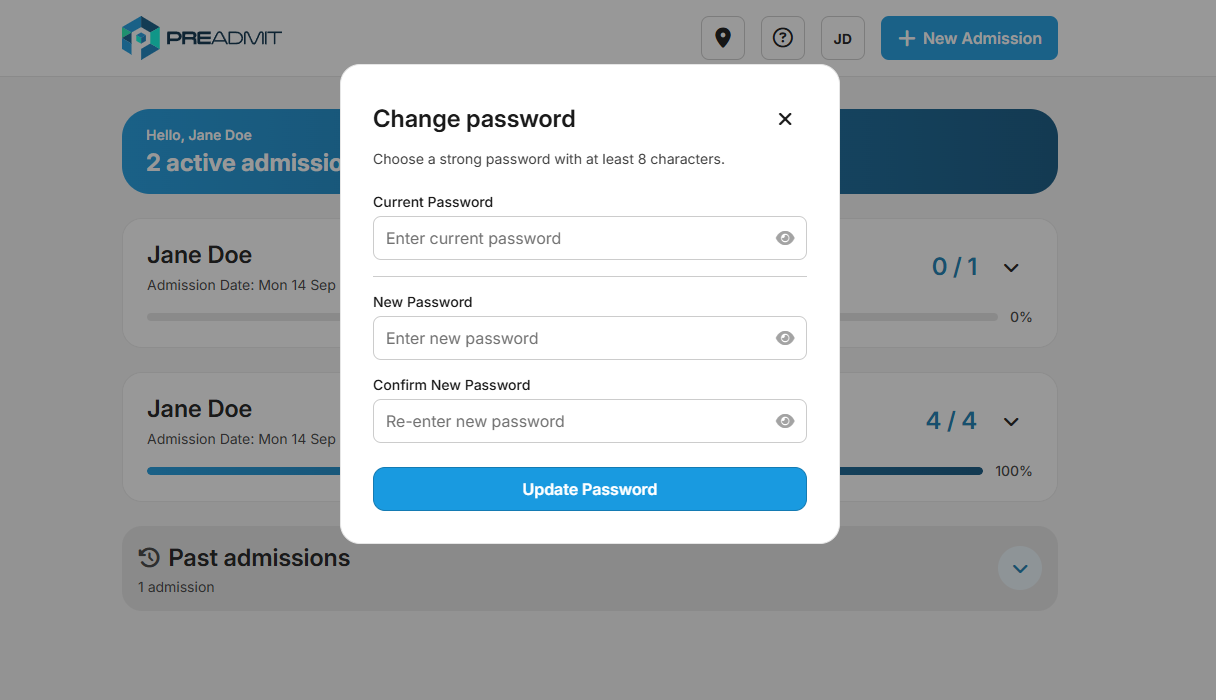
Patient Information and Account Settings are now accessible from the top-right corner of the Patient Portal.
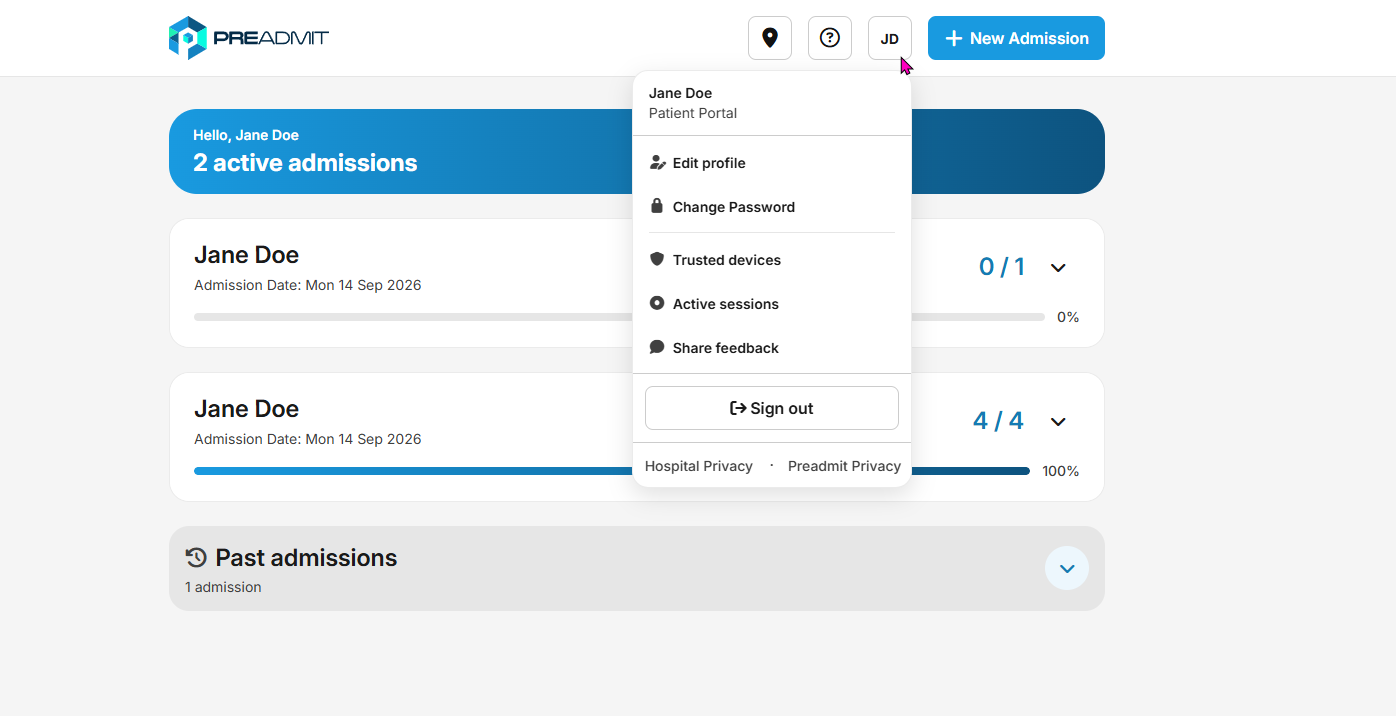
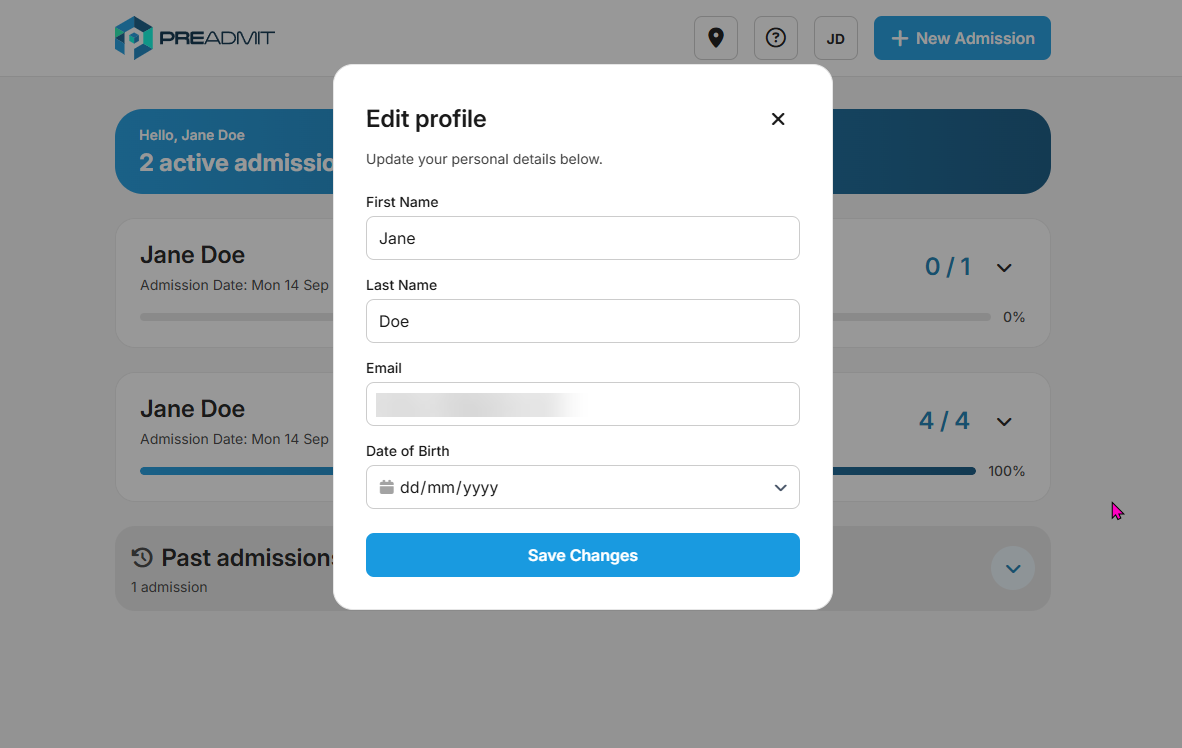
When selected, patients will be presented with the available options for managing and configuring their account.
These options will now open in a pop-up window on the dashboard, rather than redirecting the patient to a separate page.
Contact Support
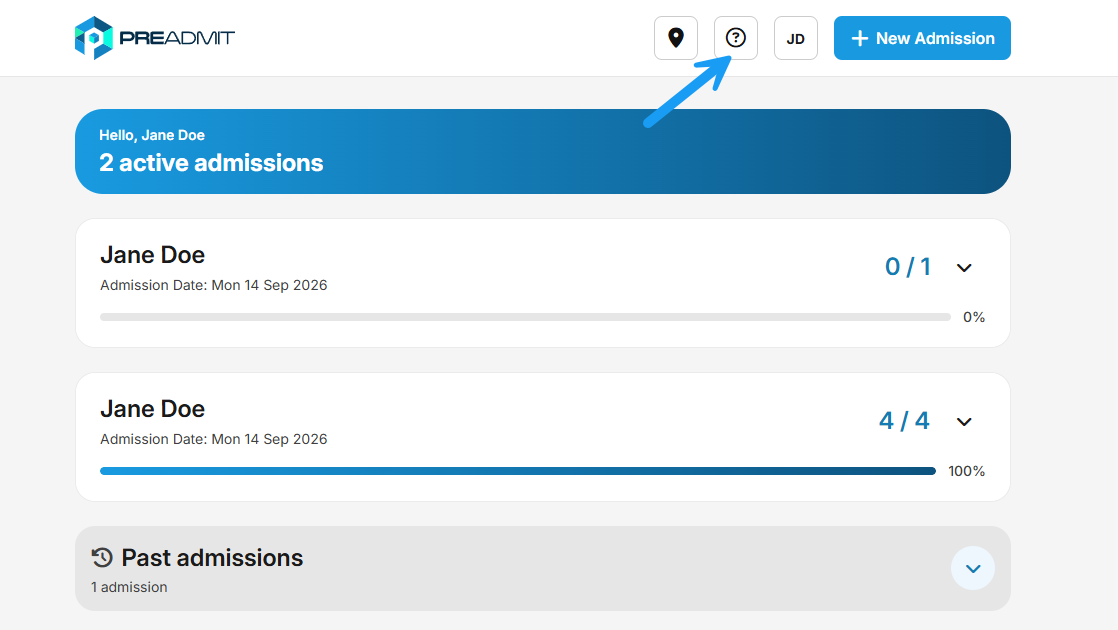
The Contact Support option is also located in the top-right corner of the Patient Portal.
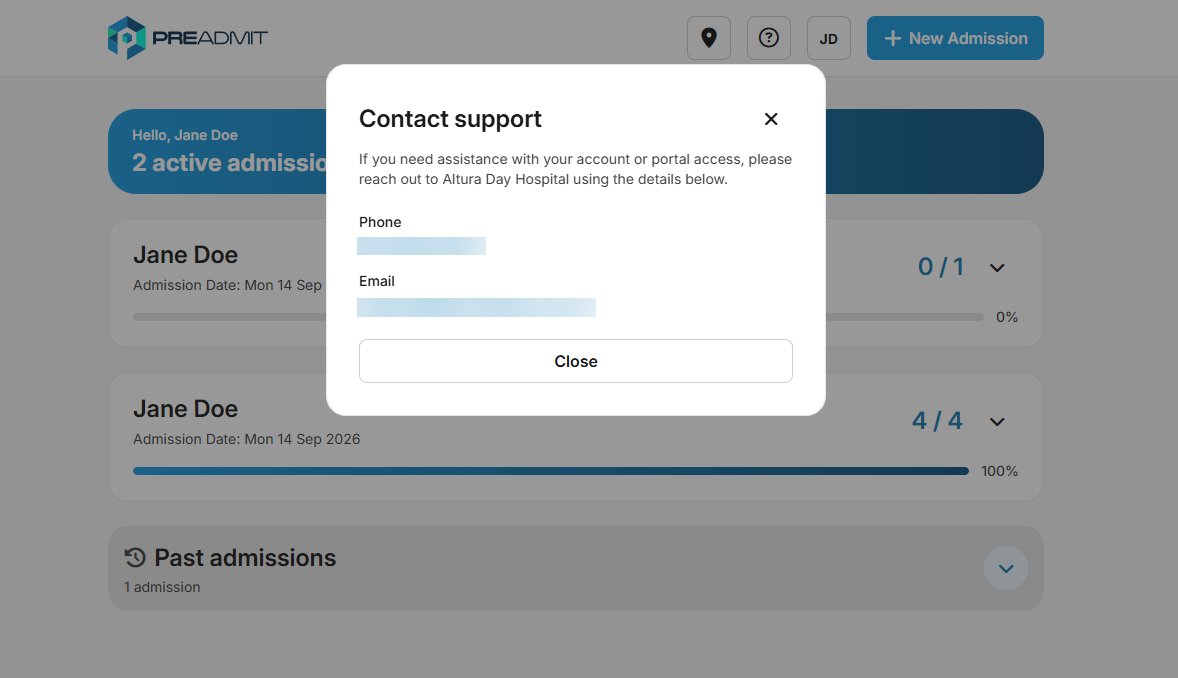
When selected, a pop-up will display the hospital’s support contact details, including:
- Hospital phone number
- Hospital email address
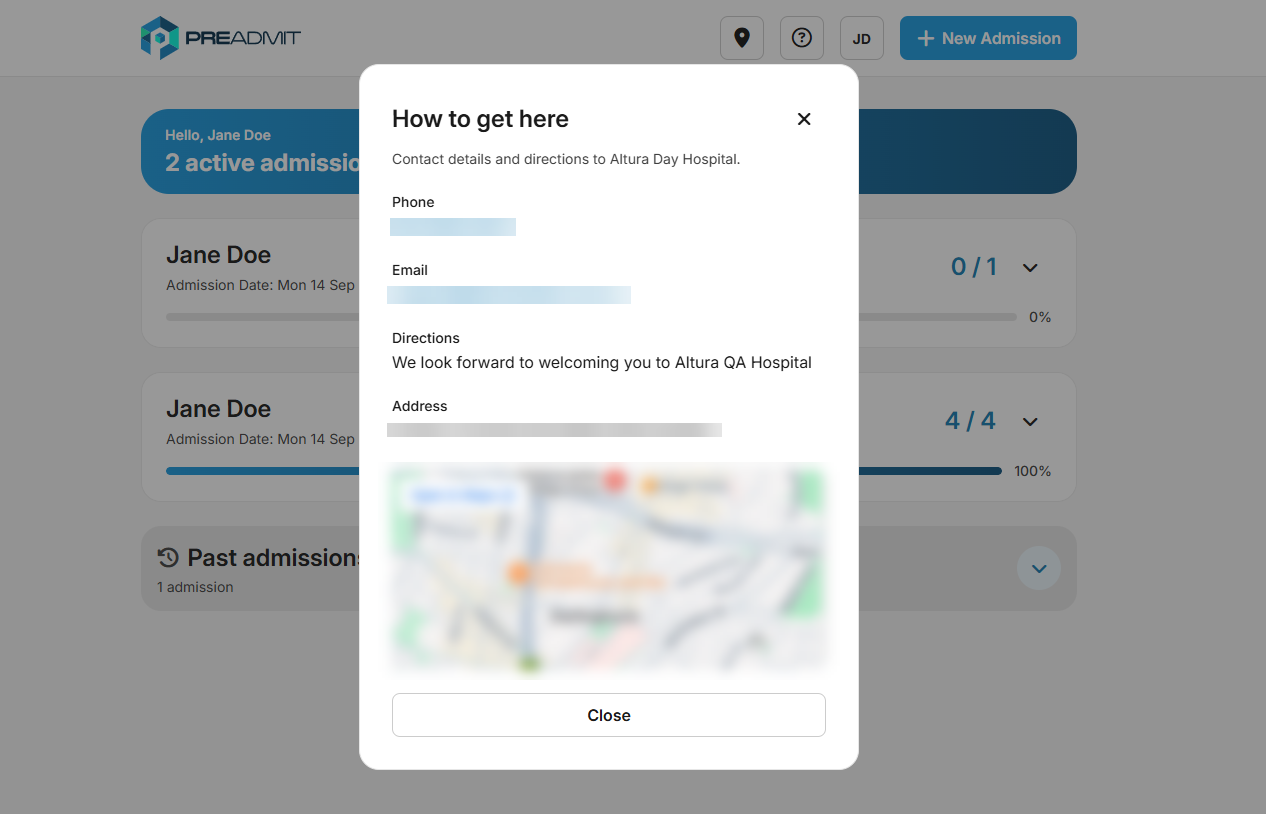
How to Get There
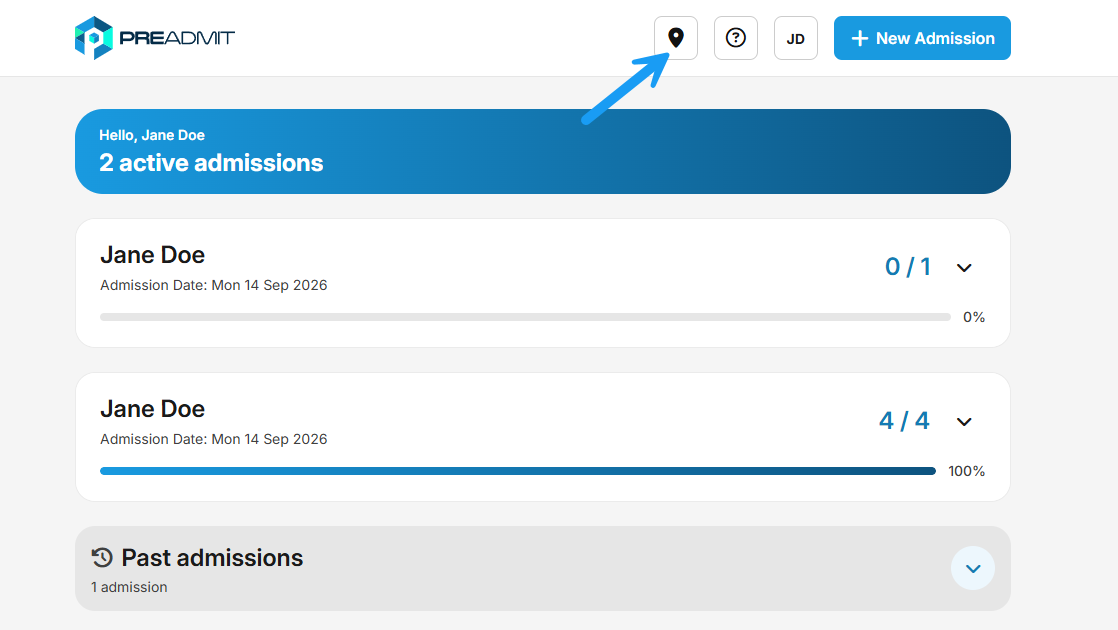
The How to Get There option is also located in the top-right corner of the Patient Portal.
When selected, patients will be presented with the hospital’s location and contact details.
This includes:
- A Google Map showing the hospital location.
- Hospital contact details.
- A configurable section where you can provide any additional information or directions for patients.