

Setting up to email from FYDO
You can now send invoices directly from FYDO using your Microsoft 365 email account. This feature uses a secure integration via a Microsoft Enterprise Application called FYDO_EmailSender.
For this functionality to work, your Microsoft 365 tenant must allow the required permissions, which may need assistance from your IT department.
Email Verification Step – Before being able to email an invoice from FYDO, you firstly need to verify your email account (either your user account or a shared email account, such as a department email address).
To verify your email, follow these steps:
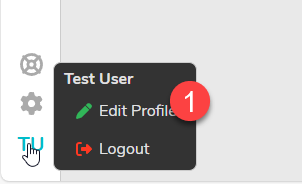
- Go to your user account initials in the bottom left corner and select ‘Edit Profile’
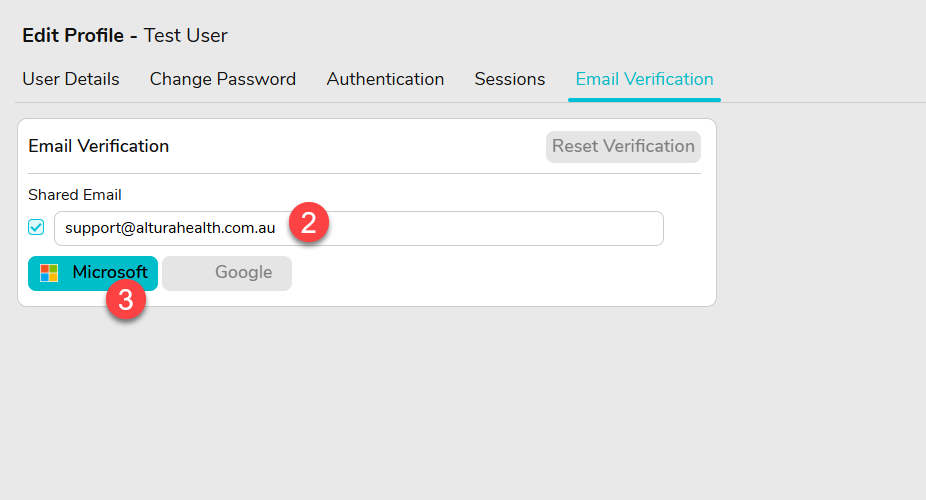
- Select the tab Email Verification and if you want to email from a Shared email account, enter the email address, otherwise leave blank to send from your account you used to log into FYDO.
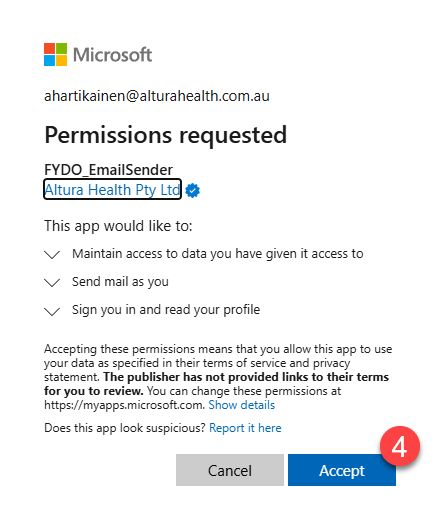
- Click on the Microsoft button, which will prompt you with the following screen.
- Click on the Accept button and if your Microsoft already has the appropriate permissions set, you should get a “Email has been successfully verified” message at the top of FYDO, as shown below.

Note: If you do not see the success message, your Microsoft 365 tenant may not have granted the required permissions. Please contact your IT department and advise them that the FYDO_EmailSender application needs to be granted the following permissions for your user account:
offline_accessMail.SendUser.Read
You may also not have the appropriate permissions to email from a Shared email account.
IT Support Teams can contact Altura Health Support for assistance if required.
To find out how to email an invoice from FYDO, please see our Emailing an Invoice from FYDO user guide.

