

Processing Hospital ECLIPSE Payment Files
Health Fund payments that are paid to the hospital via Eclipse are downloaded automatically into FYDO when a user logs in.
To check for payment files and apply a payment, navigate to the sidebar icons:
- Hover over the Claiming icon
- Select Processing and Payments Reports
- Click on the Payments (Hospital) tab
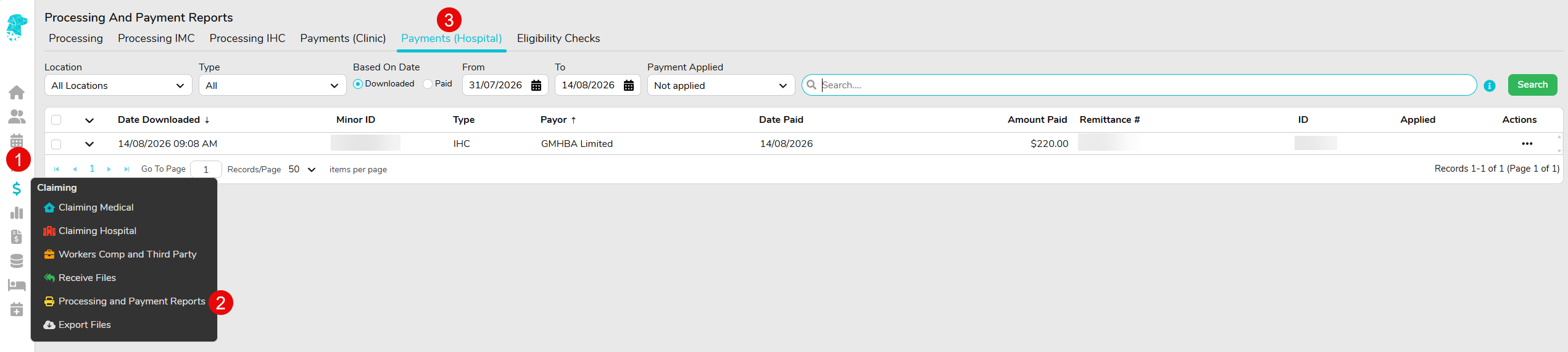
This will display a list of payments that have been downloaded into FYDO via Eclipse.
To apply a payment:
- Right click on the payment line of the payment you wish to apply (or use the three dots on the right to display the menu)
- Click Apply Payment

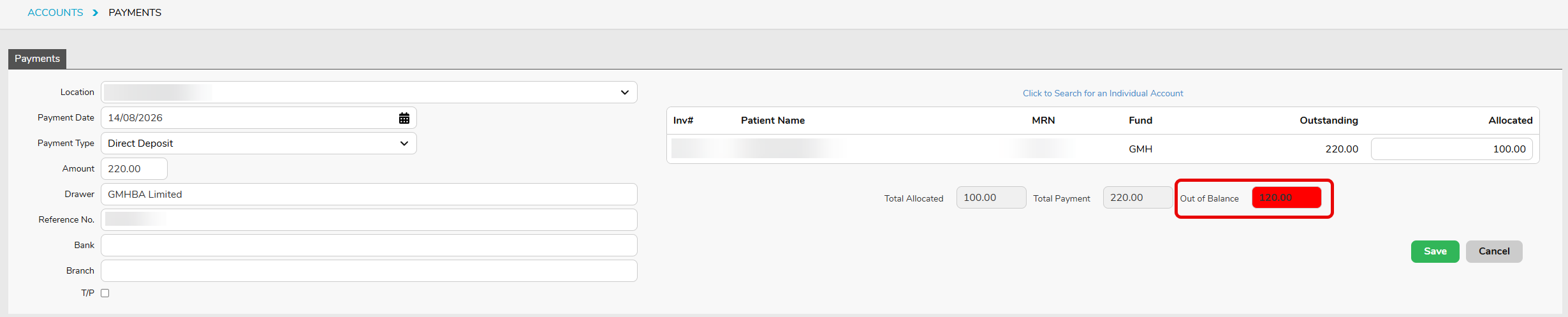
This will open another screen and will automatically populate all the payment information.
- Depending on the workflow of your facility, you are able to change the Payment Date to the date the payment was received into the facilities bank account. This helps ensure the accounting period date reflects the exact date the payment was received.
- The Payment Type will be Direct Deposit
- Amount will show the total amount of the payment made
- The Drawer will be the name of the health fund
- The Reference No. will be the remittance, payment or reference number the fund has applied to this payment
- The list of the patients/invoices that are included in the payment file and shown on the right
- If the allocated amounts add up to the Total Amount that the system is expecting, the Out of Balance amount will reflect $0.00
- Click Save to apply the payment to each invoice listed on this screen

If the Out of Balance field reflects an amount, it will be shown in red. This is when the user will need to investigate what has occurred and resolve the issue in order to balance the payment and save it. We recommend calling the health fund in the first instance as they will be able to provide information on which claims this relates to.
Once clicking Save, if there are any outstanding balances on the patients account after the payment has been applied, FYDO will give you the option to print a report.
If no report is required, click No.
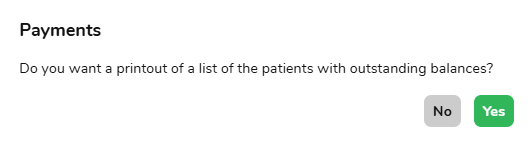
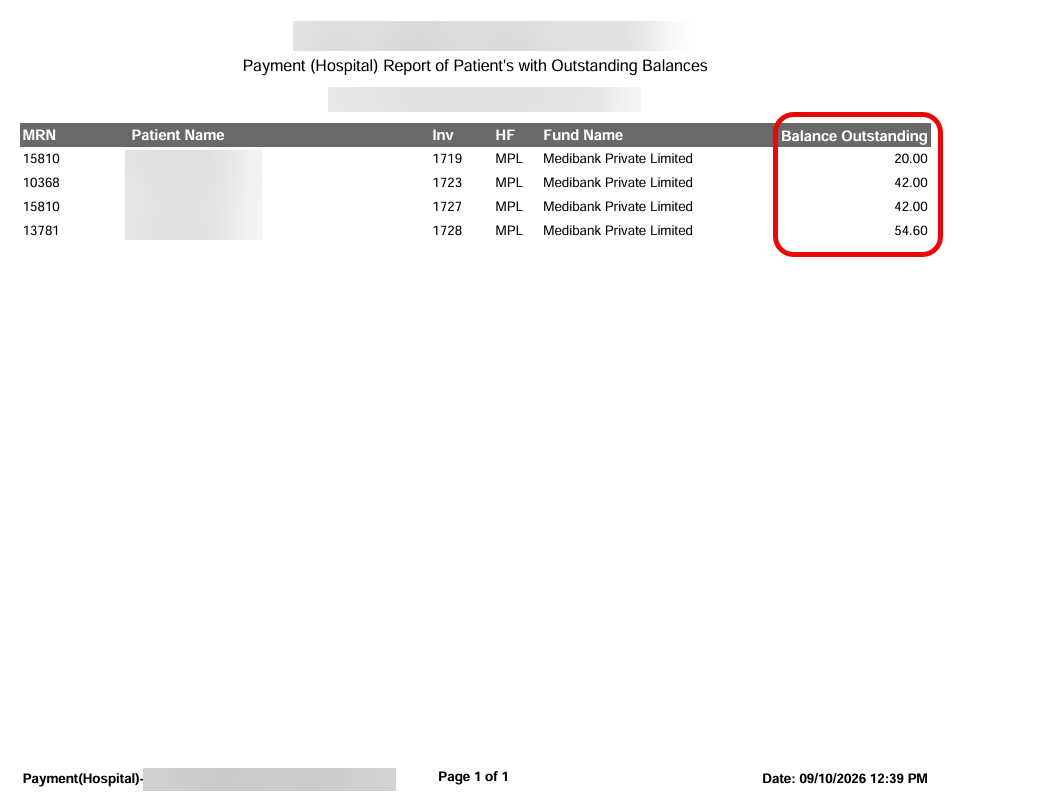
If a report is required, click Yes and the report will produce showing the MRN, invoice number and the outstanding balance.
There are also many other useful features on the Payments (Hospital) screen.

- When searching for remittances, use the calendar to view a larger time-length by changing the From date and use the Payment Applied dropdown by changing to Show All
- In the Search bar, you can search by payor, remittance ID, servicing, payee, Batch Number and Invoice Number. Hover over the information tooltip for information on searchable data
- Right click on the payment line to access further actions, such as printing the remittance by clicking Print PDF
- Print the remittance in Excel format by clicking Print EXCEL
- Marking the payment line as Clear Applied will put the payment back on the Not Applied screen, making the payment as not applied again. (Please note; if this payment has been applied in error, you will also need to go onto each patients Episodes Screen and remove the payments individually)
- In the instance the fund duplicates the electronic remittance, or you have already applied a payment manually, you can click Mark Applied to remove this payment off this screen
You can also select multiple remittances at once to Print PDF or Print Excel.

If you wish to view the remittance on the screen, simply click the arrow on the lefthand side.
This will open the Payment File and you can view the:
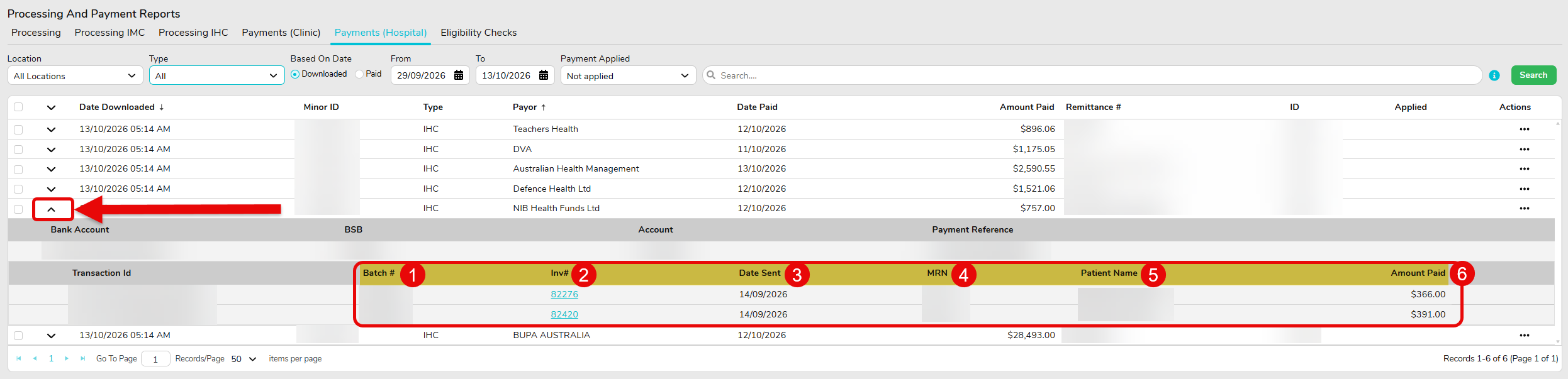
- Batch number
- Invoice number – this is also a hyperlink that will take you directly to the invoice
- Date the claim was sent
- Patients MRN
- Patients name
- The amount that has been paid in this remittance
These remittances are always saved in FYDO and can be found by using the filters mentioned above. This means there is no need to keep a physical copy of the remittance because if it is ever required for auditing purposes, it can be obtained and printed from FYDO.

