

Hospital Inpatient and Ward Bed Tracker for Overnight Patients
FYDO allows you to seamlessly book Inpatient admissions and procedures whilst also tracking your overnight patients and their bed movements.
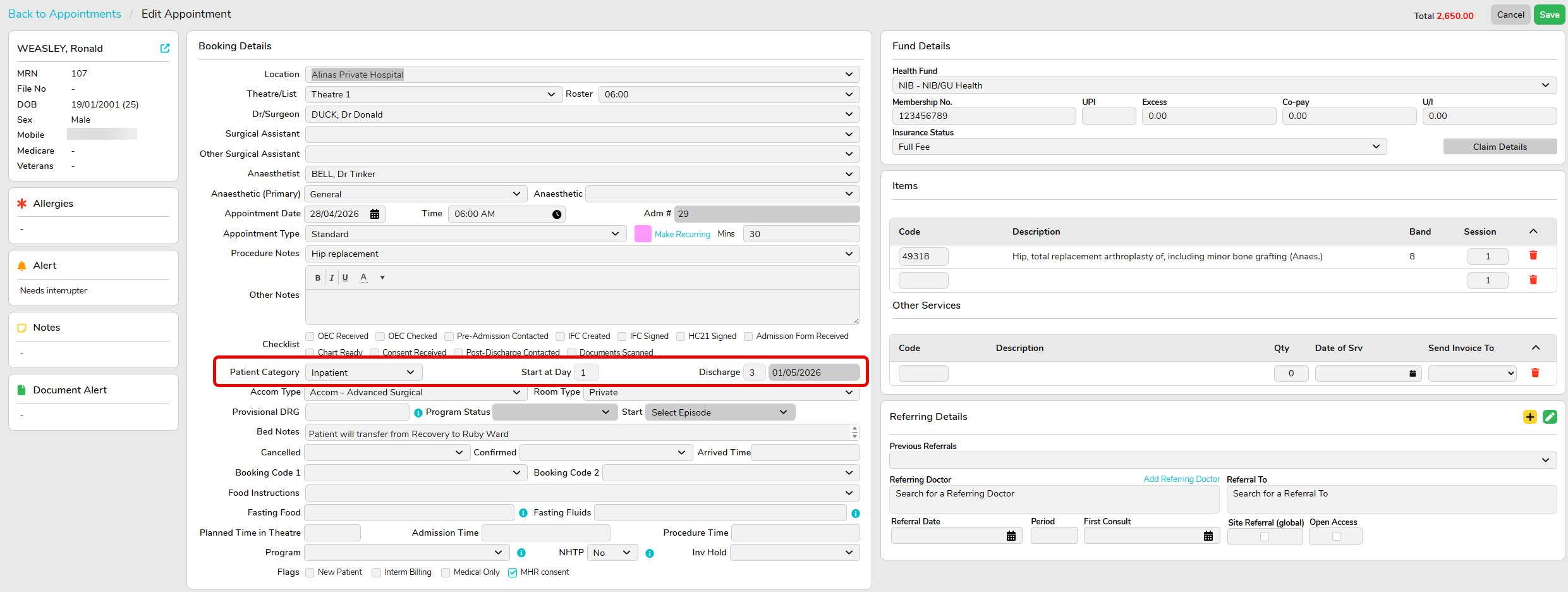
When booking a patient to stay overnight at the hospital, ensure the correct Patient Category is selected at the time of booking. This will be Inpatient. You will also need to select the estimated number of nights the patient will stay and enter this information in the Discharge field.
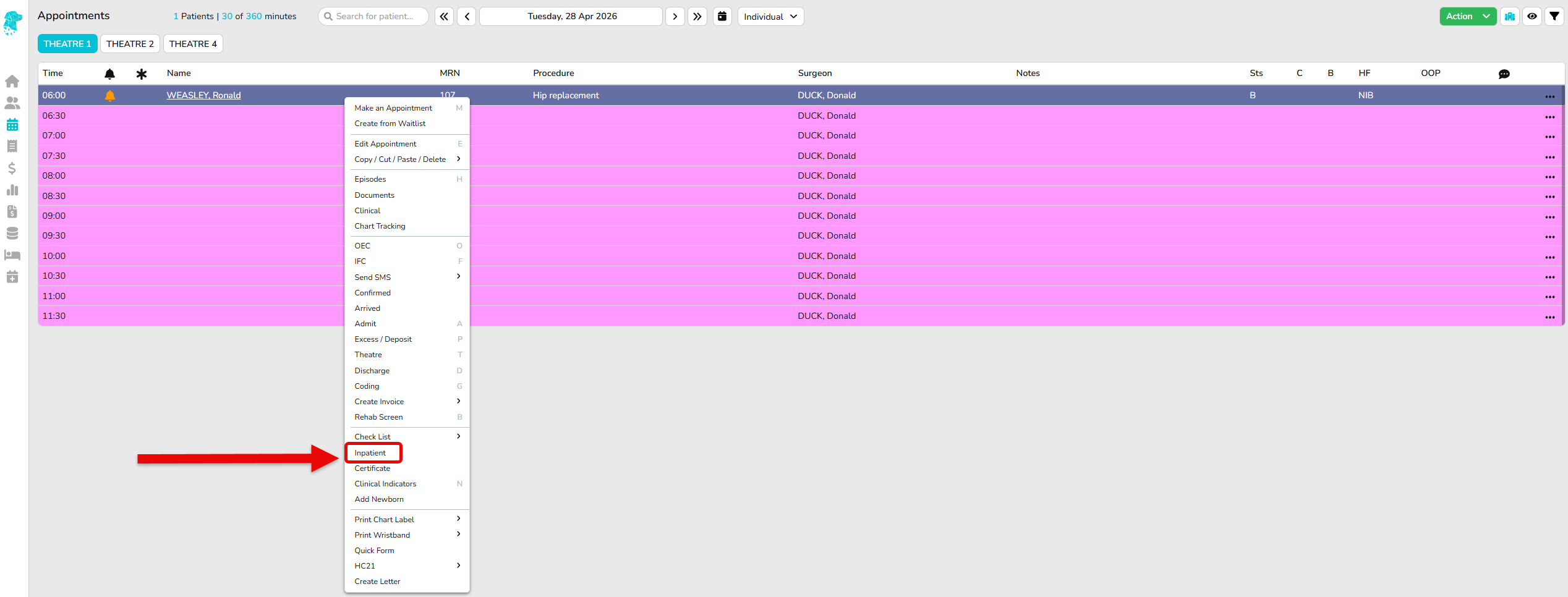
Once the patient has been booked in, you can access their Inpatient screen by right clicking on the appointment and selecting Inpatient.
On the Inpatient screen, you can book a theatre procedure and assign the patient a bed.
To book a theatre procedure in:
- Click the Inpatient tab
- This is the procedure schedule where you can see the procedures that are booked in
- Select the date the procedure will be performed
- Enter the time the patient is expected in theatre
- Select the appropriate theatre/ list
- Select the surgeon/ doctor
- Select the correct theatre roster
- Enter the procedure notes if different to the notes added when the admission was booked
- If required, select the booking code
- Click Save

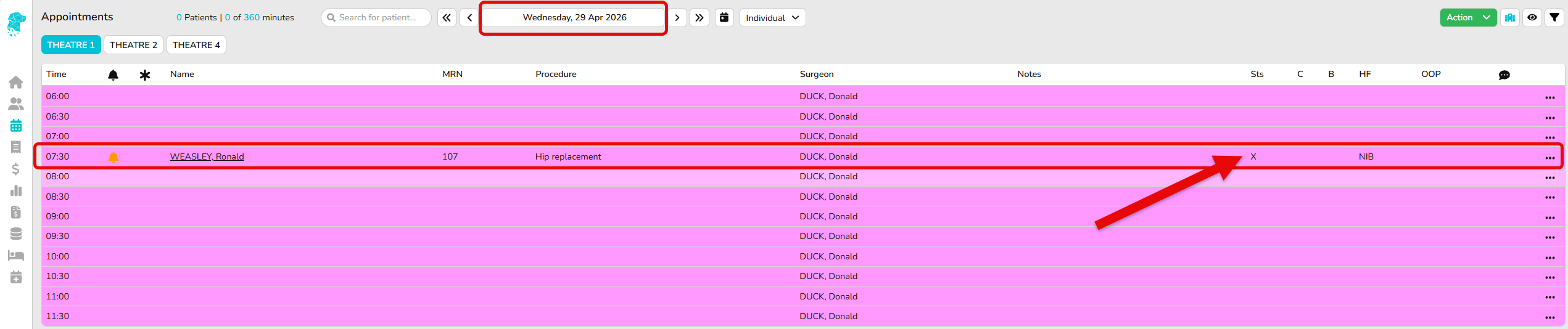
Once the procedure has been booked into theatre, the patient will appear on the Appointment screen with an X as the status, which means the patient is an inpatient and this isn’t their primary admission booking.
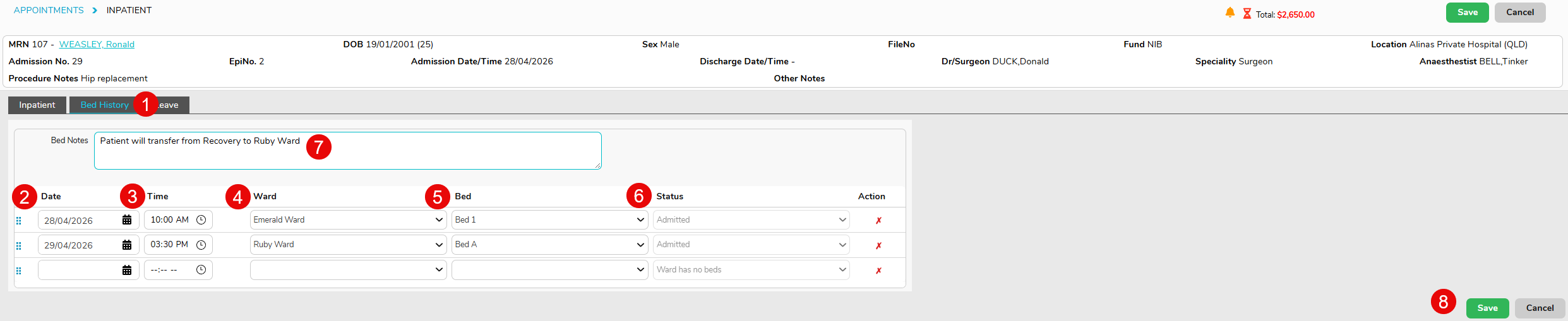
To allocate the patient a bed, navigate to the Inpatient screen.
- Click the Bed History tab
- Enter the date the patient is expected to arrive in the ward
- Enter the time the patient is arriving to their bed
- Enter the ward the patient will be admitting to
- Enter the bed the patient will be staying in
- The status will show the patient as Booked, prior to admission, and Admitted once they have been admitted
- You can add Bed Notes here if required as this is a free text field
- Click Save
Bed Tracker
Now we will look at navigating the Bed Tracker screen.
On this screen, the wards will be listed individually. There is also a colour-coded Key at the top of the screen to easily determine a patients bed status.
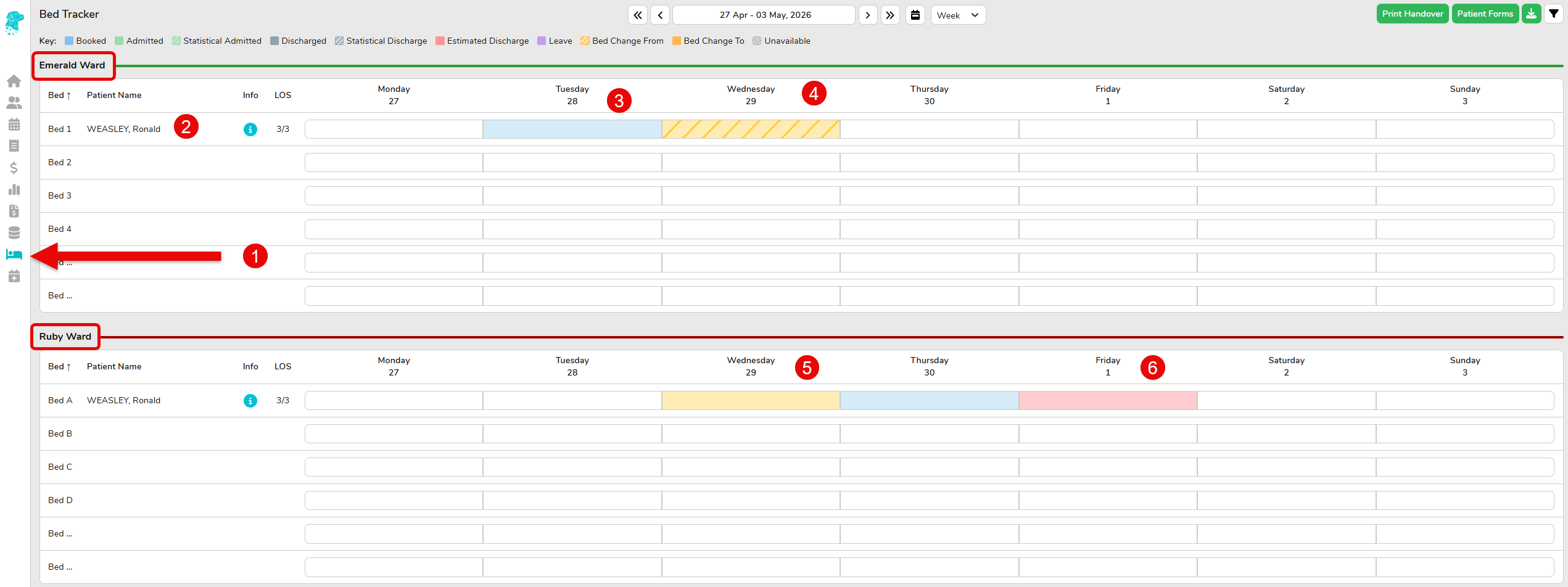
- To access the Bed Tracker, click the icon on the left-hand side of the screen
- The patients name will display in the bed allocated
- The bed is light blue, which as per the Key, the patient has been Booked in this bed for the day
- The patients bed status is Bed Change From on this date as they have been booked in the Bed History tab to change to another ward today
- The patients bed status is on the new ward, and shows as Bed Change To as per the Key
- The patient is showing as Estimated Discharge on this day from the number of days entered into the Booking screen when the appointment was made
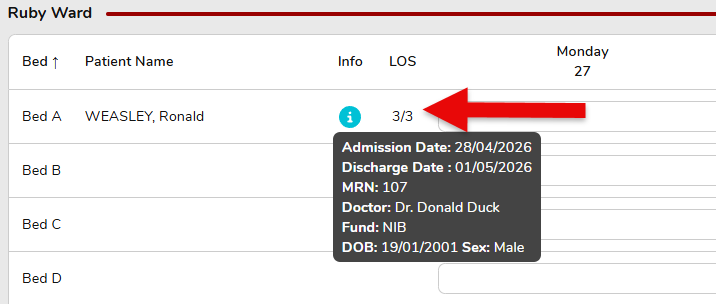
If you hover over the information symbol on the patient’s bed, this will show the admission information for this patient also, and the Length of Stay.
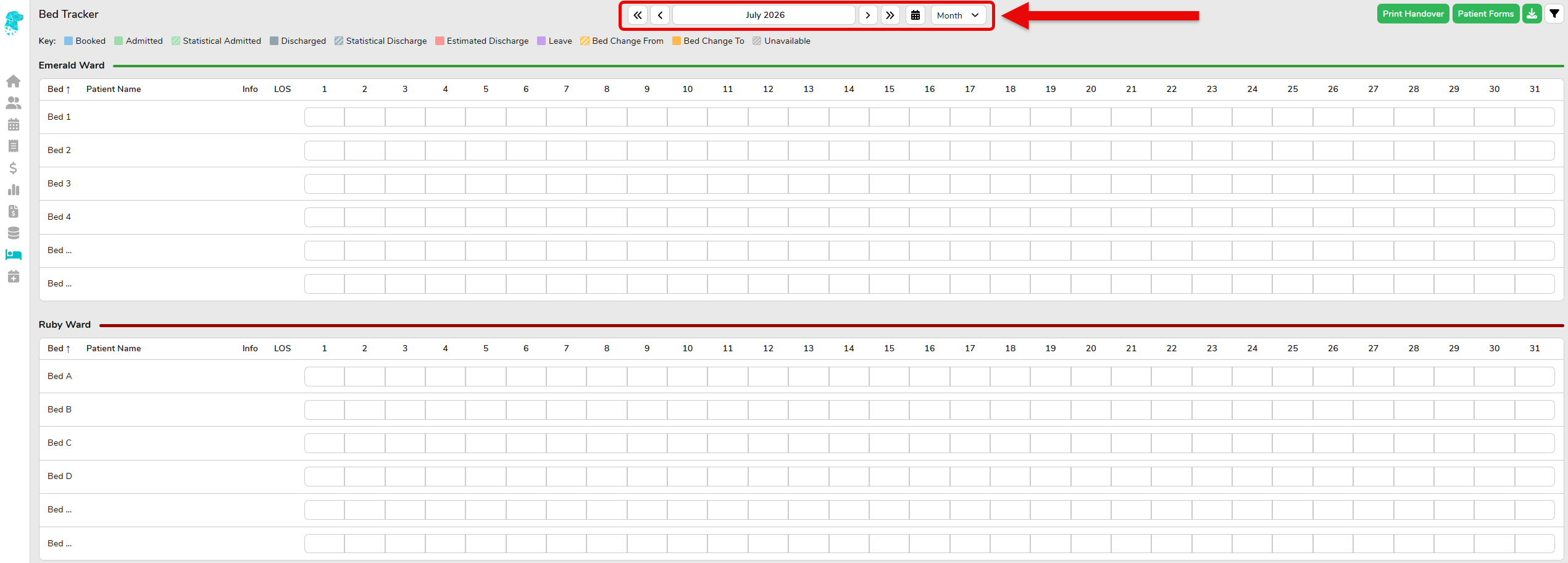
The Bed Tracker is able to be viewed in Day, Week or Month mode by changing the dropdown menu on the calendar.
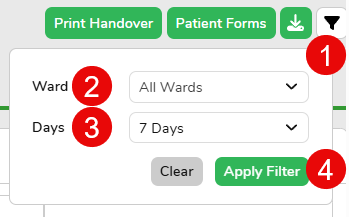
The Bed Tracker also has a filter function. You can filter the screen to All Wards or choose a specific ward to view, as well as the number of days you wish to view.
You can also print a Clinical Handover report from this screen.

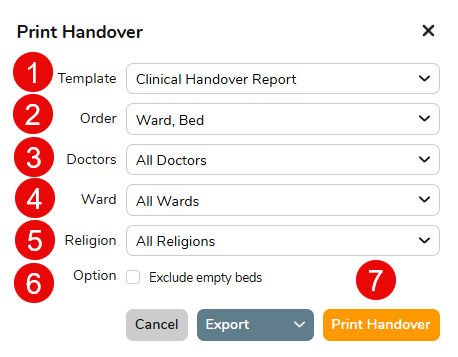
When selecting Print Handover, you can:
- Choose the Template you wish to print
- Choose the Order you wish to print the report
- Select the Doctors you wish the print, you can choose one or all which is useful for doctors who wish to only see their patients on the ward
- You can choose all or a specific Ward to print
- You can choose a Religion if required which is useful for religious visits to patients on the ward
- Select Exclude Empty Beds if you only wish to view occupied beds
- Print Handover
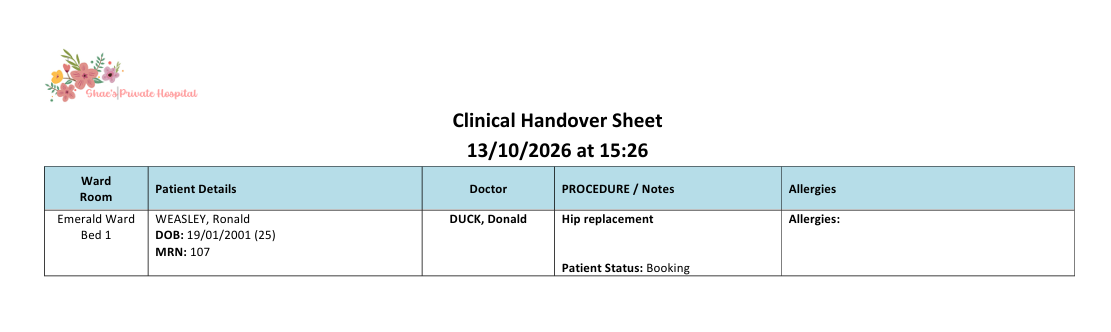
Your handover report template can be customised to suit your facility and the information you wish to see. If you need assistance with this, please reach out to our FYDO Hospital Support Team.

