
 Shae Darr is currently editing
- Edit
- Add Article
- Add Article
Theatre Roster – Monthly View
The Monthly View has been updated to provide greater control over how theatre sessions are displayed. You can adjust the view, apply filters, and set default preferences based on the information you need to see.
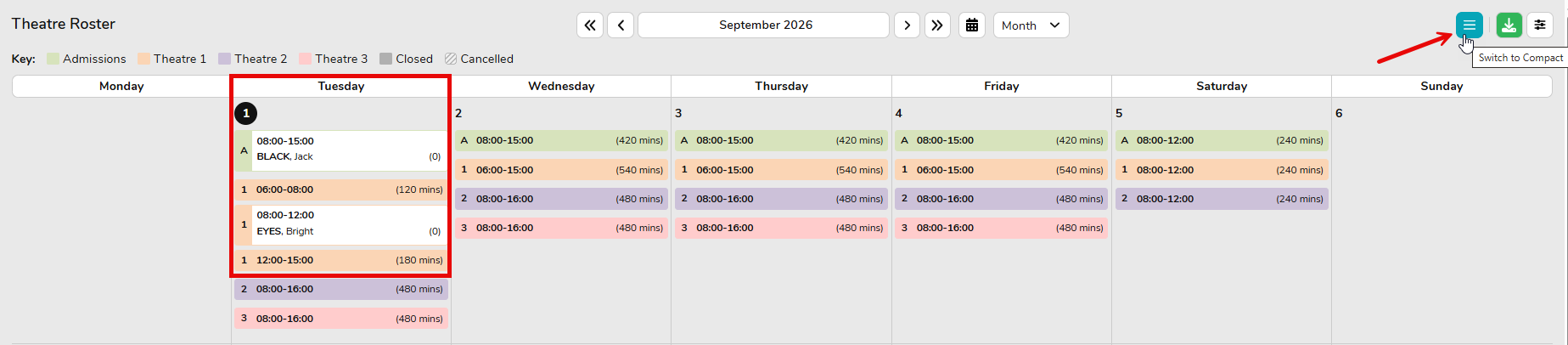
The theatre number is displayed directly on each session card. This allows you to identify which theatre a session relates to without needing to remember the colour assigned to each theatre.

The Monthly View provides two viewing options: Compact and Comfortable.
The Compact View condenses the information into a single line and hides additional details, allowing you to see more sessions on the screen at once.

The Comfortable View is the main viewing option and displays all available information, making it easier to see the full details of each session.
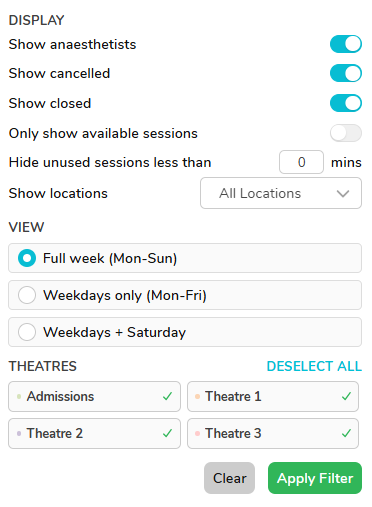
The Filter section provides options to control which sessions and information are displayed in the Monthly View.
The Only Show Available Sessions option is particularly useful when booking a doctor in, as it allows you to view only the sessions that are currently available. You can also hide unused sessions by selecting Hide unused sessions less than (mins). For example, if a theatre is open from 6:00am to 6:00pm but the theatre list only runs from 8:00am to 5:00pm, you can use this filter to hide the unused sessions outside of your required hours.
You can also use the filters to show or hide specific sessions, including:
- Anesthetists
- Cancelled Lists
- Closed Lists
- Certain Views
- Specific Theatres Only
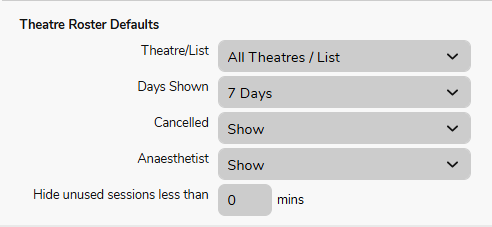
FYDO has also introduced a setting that allows you to set default preferences for these Monthly View options. You can find this under System Configuration > Heading: Theatre Roster Default. This allows you to choose which filters and viewing options are automatically applied when opening the Monthly View.
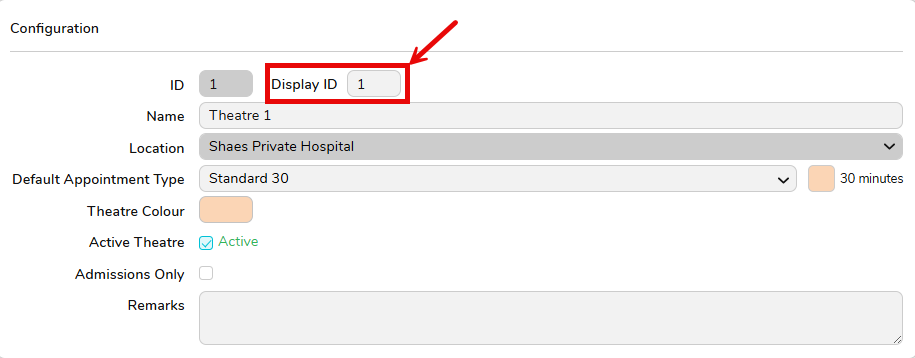
There is also the ability to modify the theatre session number to make it easier to identify each theatre. You can do this by going to Settings > Theatre Data > Select a Theatre > Display ID.
The Display ID allows you to enter up to 3 characters, which can be letters and/or numbers. For example, you could use T1, T2, or OR1 to represent each theatre.